
Create a LiteConnect data stream to upload a single data source as is without any manipulations. You can upload any flat file.
Required Editions
| User Permissions Needed | |
|---|---|
| To create a LiteConnect data stream: | Admin |
- From the Connect & Mix tab, select Data Streams, and then Data Streams List.
- Click Add New.
- Click LiteConnect.
-
To upload a file, drag it to the center of the page. Here’s an example of an
uploaded file.
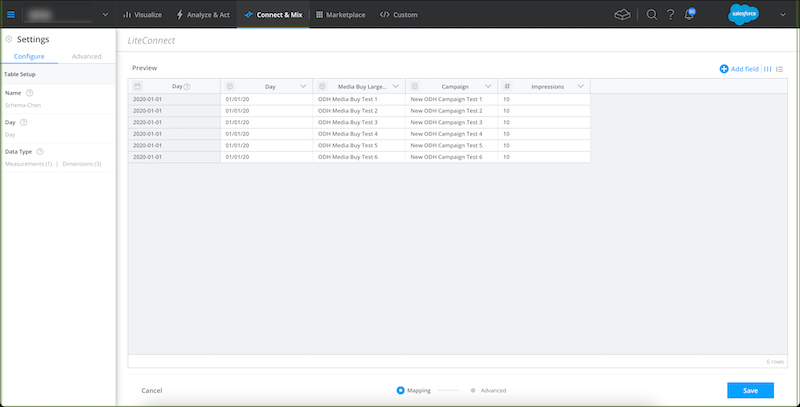
- If you need to transform the uploaded file, go to the Advanced tab and apply a file transformer. See Apply File Transformers.
-
It’s recommended you verify that the data loaded correctly before creating the
data stream.
- To edit the table name, double-click it. Keep the table name short and descriptive. The table name appears when viewing measurements and dimensions, and when creating widgets.
- Verify that the date is correct. There are two date columns.
- Verify that the dimensions and measurements are identified correctly. If a column isn’t identified correctly, click the cube icon to the right of the field and change the selection.
- To change a column name, click it and edit.
- To change a formula, click the dropdown next to the column name and select Edit Formula.
- To apply advanced settings to the LiteConnect data stream, at the bottom of the Data Stream page, click Advanced. For more information, see Advanced Settings in Data Streams.
- If you’re satisfied with the results, click Save and create the data stream. A new collection is created.
- To view the new collection, click Show Me or go to the Visualize tab. All LiteConnect collections appear under LiteConnect Previews.
- Add Fields to a LiteConnect Data Stream in Marketing Cloud Intelligence
You can add fields that don’t exist in the source data. Define the new fields by either applying code that is based on the existing columns or creating a new value. - Date Values in LiteConnect Data Streams
A LiteConnect data stream has two date columns. The date changes according to the source data.