
Use the Interaction Studio API connector to explore and pull personalization data from your Marketing Cloud Personalization (formerly Interaction Studio) Data Warehouse.
Required Editions
| User Permissions Needed | |
|---|---|
| To create an API connector: | Admin |

Note The Personalization Data Warehouse is available only for customers who have already
purchased the Marketing Cloud Personalization - Data Warehouse add-on product.
-
Get your Marketing Cloud Personalization credentials for Marketing Cloud
Intelligence.
- Log into Personalization.
- On the left, click Security and then select Manage Data Warehouse.
-
Copy the
connectionStringfrom the top of the screen. - Create a user for Marketing Cloud Intelligence. You need the User name and Password to set up the connector in Intelligence.
- In the Data Warehouse IP allow-list, add these IP addresses:
PLATFORM.DATORAMA.COM (AWS US) PLATFORM-US2.DATORAMA.COM (AZURE US) PLATFORM-EU.DATORAMA.COM (AWS EU) PLATFORM-EU2.DATORAMA.COM (AZURE EU) 54.163.226.11 20.41.43.59 35.157.8.65 40.67.249.123 54.83.10.143 20.44.73.165 54.93.174.35 52.155.226.154 54.227.219.146 40.65.212.209 52.155.230.152 - In Marketing Cloud Intelligence, on the Connect & Mix tab, expand Data Streams.
- Click Add New and select the Interaction Studio connector.
-
Enter this information:
- Host: client-TestClientName.abn45544mmvmvmg.eu-central-1.redshift.amazonaws.com
- Port: 5439
- Database: TestDatabaseName
- Click the edit button and paste the connection string from Personalization.
- In the User and Password fields, add the details for the user you created in Personalization.
-
Find your datasets in Personalization.
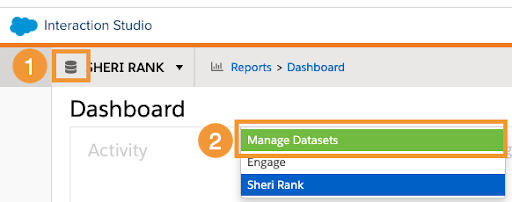
- Click the database icon near your profile name (1).
-
Click Manage Datasets (2).
-
Create the query for the datasets you found in step 7 using this pattern:
select * from dataSetName. For example,select * from dataSetName.users. - Click Evaluate to test the query, and then click Next.