
Retrieve Adobe Analytics Data Warehouse reports with the 2.0 API. Use this connector to pull Data Warehouse data into Marketing Cloud Intelligence. Data Warehouse reports don’t include calculated metrics, and only supported segments are available.

- Channel: Web Analytics
- Data Stream Type:
- Web Analytics
- Web Analytics Pages
- Data Lag: 1 Day
Prerequisites
To connect to Adobe Analytics, you need valid OAuth credentials (Client Id + Client Secret).
In Adobe Analytics, complete a one-time Data Warehouse request to initialize your organization. A test request with one metric and a short date range is enough. After you submit the request in Adobe Analytics, the organization is initialized even if the report hasn’t finished. See: Create a Data Warehouse request
Create a Data Stream
After you initialize your organization, create a new data stream using the new Adobe Data Warehouse 2.0 connector.
General Setup
Select your Account. Account correlates to the ‘Report Suite’ value in Adobe Analytics. Only after segment can be selected at a time. To add more than one segment see the Extended Properties.
In the Fields dropdown list, all Dimension fields are identified with the prefix (ELEMENT) and metrics are prefixed with (METRIC). Calculated fields can’t be selected.
Extended Properties
To get the best results from the Adobe Analytics Data Warehouse connector, select a specific segment in Extended Properties.
Override Segments – Enter the segment IDs of the segments you want to pull. Use this setting only if you want to query more than one segment per data stream. Separate each segment ID with a comma.

The values entered here override the segment selected in General Setup.
Date Granularity – Select the date granularity you want to retrieve your data for:
- Daily
- Aggregated
Data Stream Type – Select the data stream type to map the retrieved fields to. You can select only one data stream type in a Data Warehouse 2.0 data stream. You can map to Web Analytics or Web Analytics Pages.
Additional Information
- The Segment List in Marketing Cloud Intelligence populates ALL the available segments from Adobe, some Segments might not be compatible with Data Warehouse Report Type (as per Adobe’s internal limitation). Thus, if you select a Segment that isn’t supported in Data Warehouse, the Data Stream processing fails with an error message to that effect. If you’re unsure which Segments are supported in Data Warehouse, then as best practice we suggest you verify this from within the Adobe platform prior to creating the Data Stream. To do so, simply check which Segments were populated in the list of Segments in the DW Report Builder itself.
- As for your selection of Dimensions (identified with the prefix ELEMENT) note that you can only combine Dimensions from within the same ‘Group’ (or ‘Type Breakdown’). The two available groups are ‘Traffic’ and ‘Commerce’.
- Not all Dimensions are supported in the Data Warehouse Report Type. To find out which Dimensions are supported, drag & drop a Dimension (Element) into the Segment Builder’s Definitions field to find out about its Report Type compatibility.
- In the Fields dropdown list, due to security reasons, all HTML tags are removed from the field names. As a result, field names that have HTML tags (such as < >) won’t match perfectly to their names in Adobe.
Pulling Unique Measurements in Adobe Analytics
The Unique Measurement values will only match those on the Adobe platform for the exact same combination of Dimensions (including Date), but not at any other level and not as a total of these rows of data.
QA Your Data: Regular Measurements
- Generate a report in the Adobe Data Warehouse Report Builder with the exact same set of Dimensions and Measurements that exist in the Data Stream query, for a certain date range.
- Create a Report/Table Widget/Pivot table within Marketing Cloud Intelligence containing the exact same Dimensions and measurements for the same date range.
- Compare the measurement totals and make sure they’re aligned.
- Make sure that you’ve mapped correctly in terms of entity relationships. Filter the Adobe report for a certain dimension value and make sure that the list of associated Dimensions seen in the Adobe report corresponds to that seen in Marketing Cloud Intelligence when the same filtering is applied.
- Make sure that the metric values are aligned.
QA Your Data
- Create the desired report in Adobe Analytics for the required date range. Then process the relevant data stream in Marketing Cloud Intelligence for the same date range.
- Create a report, table widget, or pivot table that contains the same dimensions and measurements for the same report and date range.
- Compare the measurement totals and make sure they’re aligned.
QA Unique Measurements
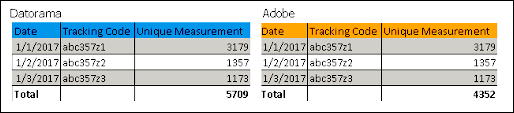
When Day is selected as the Date Granularity in the Extended Properties, Instead of comparing the Measurement Totals, compare each line measurement.
Using the example below, you can see that each line matches even though the Total doesn’t.
When Aggregated is selected as the Date Granularity in the Extended Properties, look in the Data Stream log within Marketing Cloud Intelligence to identify the processing batches’ date ranges.
- After the date range is identified, create the desired report in the Adobe Analytics platform, with the same Dimensions and date ranges like one of the batches that were found.
- Create a Report, Table Widget, or Pivot Table containing the same Dimensions and Measurements for the same report and date range.
- Instead of comparing the Measurement Totals, compare each line measurement.