
You can change the joins created between dimensions and tables by modifying the ERD. Connect relevant fields in just a few clicks, while defining the join type, and the cardinality type.
Required Editions
| User Permissions Needed | |
|---|---|
| To change Granular Data Center connections: | Admin |
- From the Connect & Mix tab, select Granular Data Center, and then Granular Data ERD.
-
Use your mouse to zoom in or out and to move the diagram to the left or right.
You can also use the map at the bottom left-hand side of the page to move to the desired location.
-
A line connecting tables indicates a relationship between specific dimensions, this
connection is called a fusion.
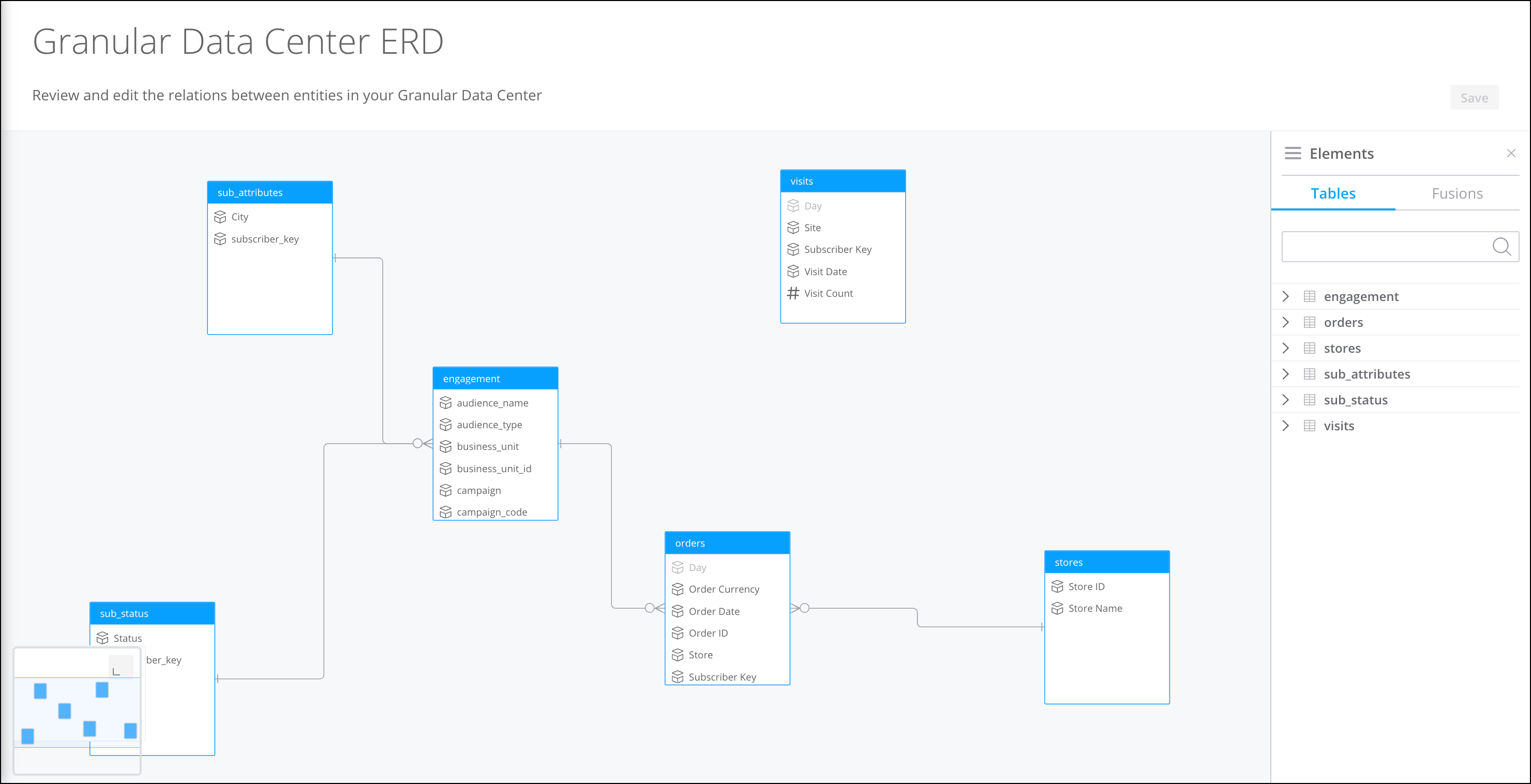
- To create a connection between tables, click an entity and drag until you reach the entity you’re connecting to. As you’re dragging, a line appears.
-
After a connection is made, click Join Type to determine when and
how records are returned for the joined entities.
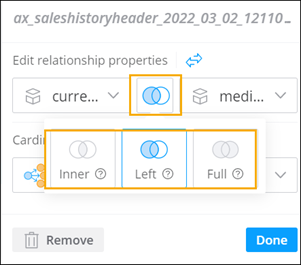
Inner Returns common records from both tables. Left Returns all records from the left table and any matches from the right table. Full Returns all records even if no matches are found from the left or right table. - To define the type of relationship, from the Select Cardinality dropdown select one of the following: One to many, Many to one, or Many to many.
- Save your changes.