
You can use SQL to create joins between tables sourced from different data streams, perform calculations, and apply filters.
Required Editions
| User Permissions Needed | |
|---|---|
| To create a Granular Data Center query: | Admin |
Marketing Cloud Intelligence supports Presto SQL. For more information, see Presto documentation.
- From the Connect & Mix tab, select Granular Data Center, and then Query Granular Data.
-
Click Create New Query. SQL is selected by default.
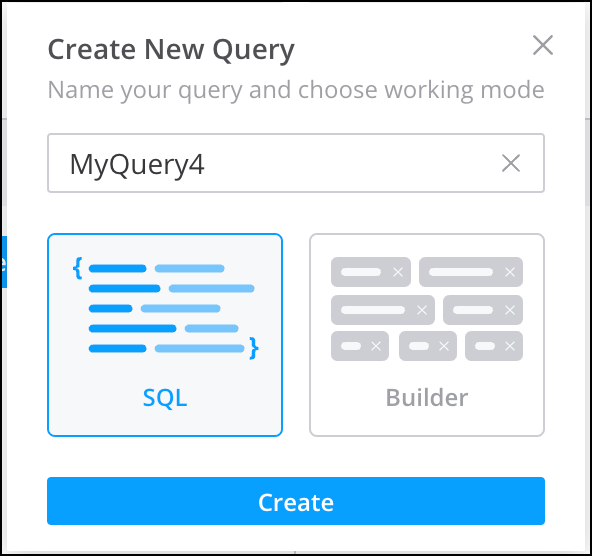
- Click Create.
-
Create a query.
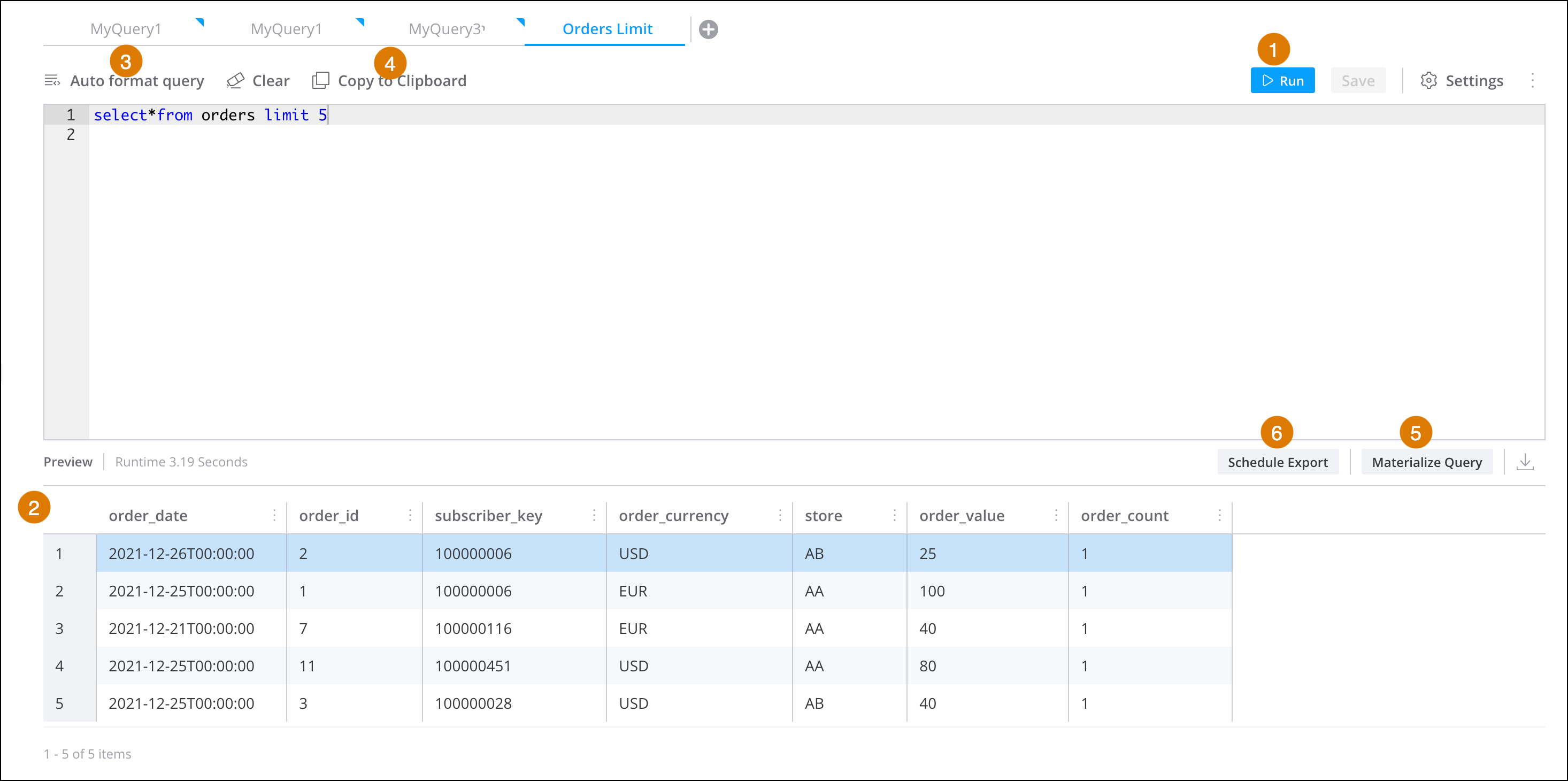
- To see the results, click Run (1). The results appear in the Preview area at the bottom of the page (2).
- To automatically format the query so that all commands are aligned, click Auto format query (3).
- To reuse a query, click Copy to Clipboard and then paste in the relevant location (4).
- To add the query to the Query Library for future use, click Save.
-
To upload the query to Marketing Cloud Intelligence as another data source, click
Materialize Query (5).
During the initial query process of creating the data stream or data lake, only the first 1000 rows are processed. After that the entire dataset is retrieved.To learn more, see Save Query Results as a Data Source.
- To export the query results, click Schedule Export (6). To learn more, see Export Query Results.