Use the Query Builder to create the query without having to manually create the query in
SQL. All you have to do is select the dimensions and measurements and then a query is created
automatically. You can convert a query from the query builder into SQL and use it as a regular
SQL query. For example, you can save or export the converted query.
Required Editions
| User Permissions Needed |
| To create a Granular Data Center query: |
Admin |
-
From the Connect & Mix tab, select Granular Data
Center, and then Query Granular Data.
-
Click Create New Query.
-
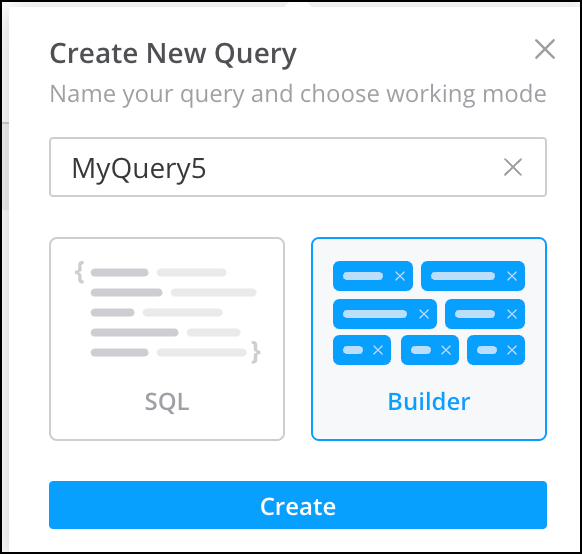
Select Query Builder and then click Create.
-
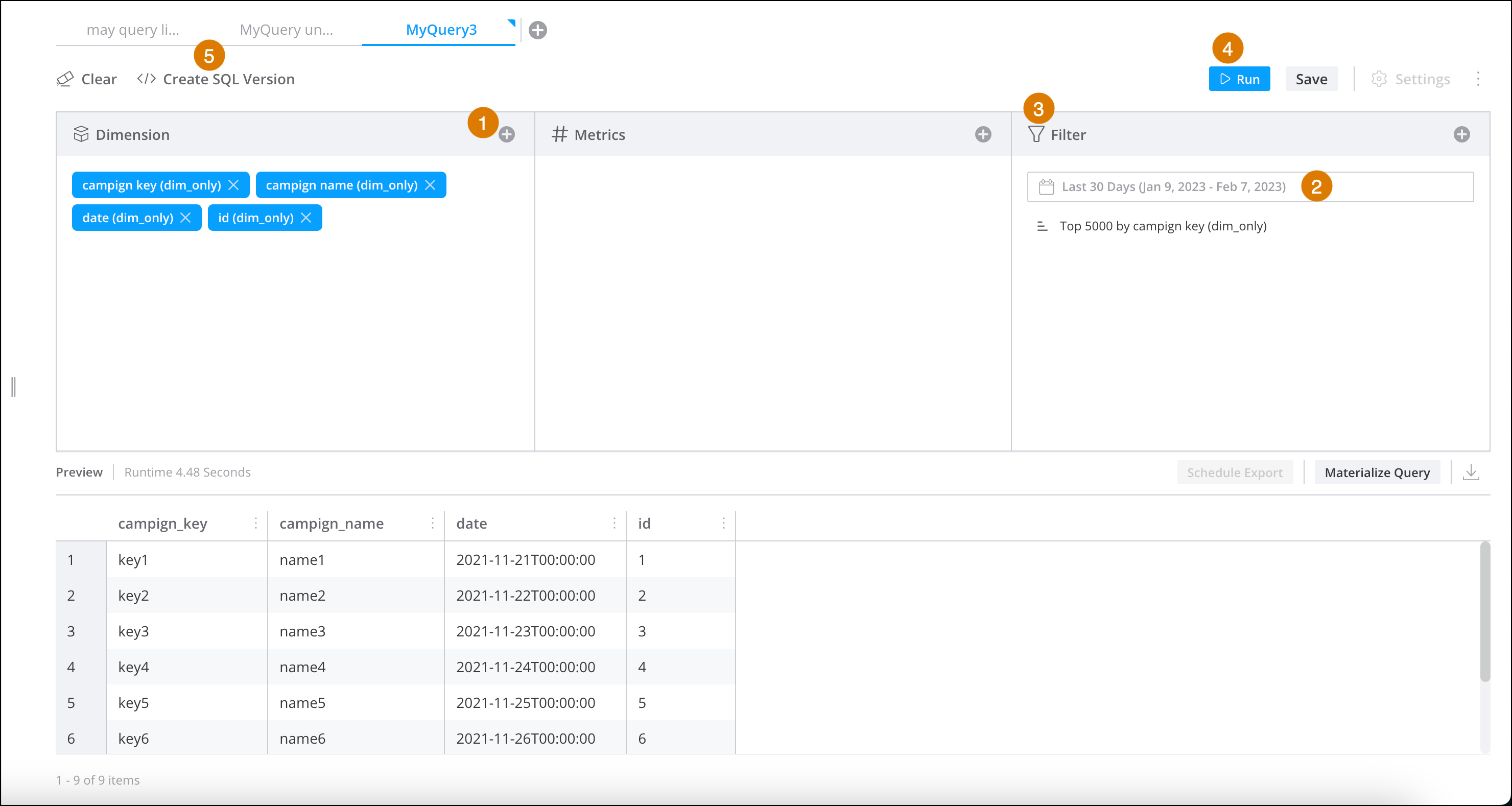
Click the plus sign next to the entity that you want to add (1). For example, add a
dimension. A list of all the dimensions that exist in the Granular Data Center appears.
-
Select the dimensions for the query.
-
Repeat the same steps to add measurements. After you add measurements, you can change the
dates for which you’re applying the query (2). The date is the past 30 days.
-
To add a filter, click the plus sign in the Filter column (3). For
example, if you want to only query a specific campaign.
-
Click Run (4). The query results appear at the bottom of the page.
-
To convert the query builder to SQL, click Create SQL Version at the
top of the dialog.
A new tab opens with the SQL, allowing you to edit the code if necessary.