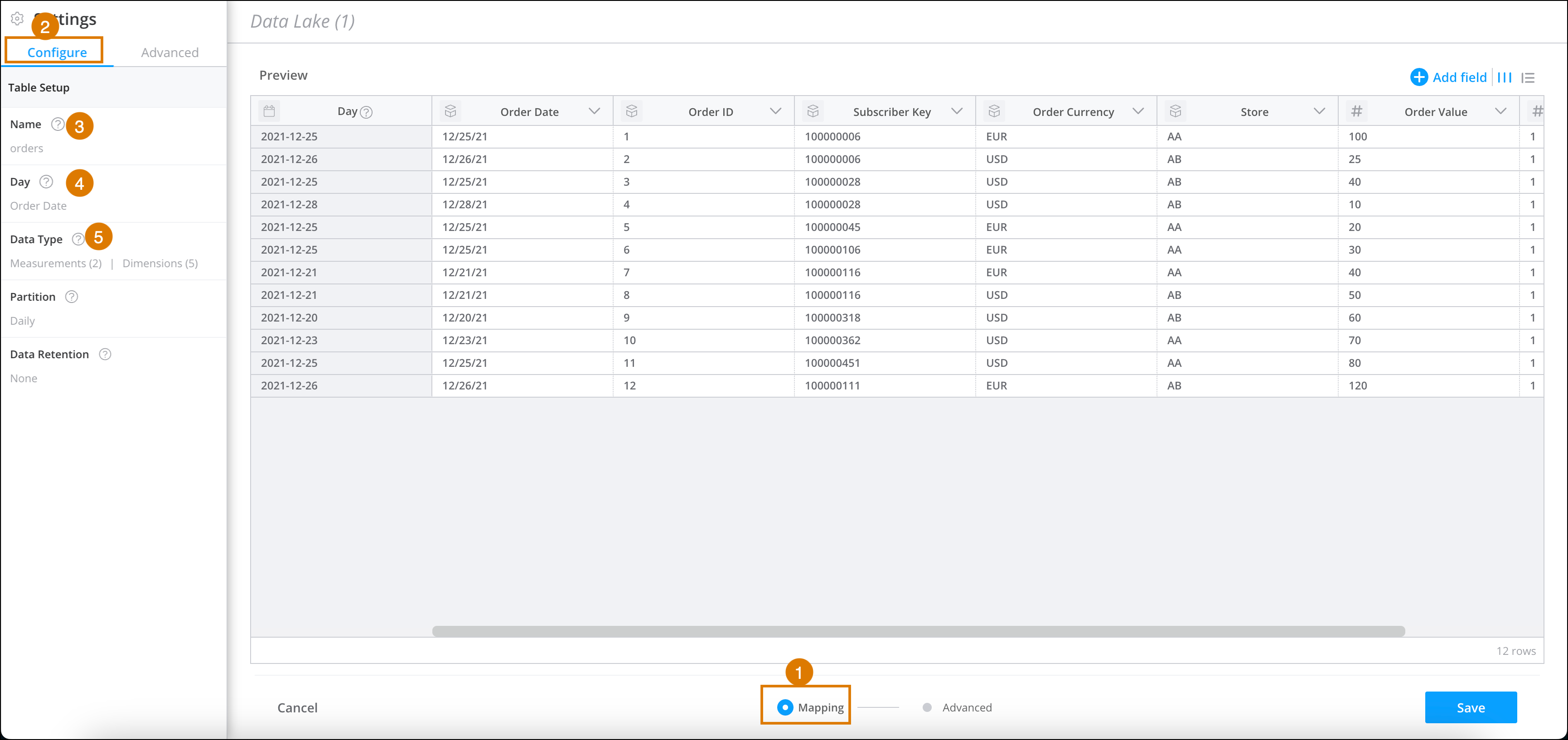
A Granular Data Center data stream creates a table automatically. The Granular Data
Center table is created within the database and holds the data uploaded by the respective data
stream. When querying the Granular Data Center using SQL, the tables are queried and visualized by
the names defined in the table. In the mapping screen, you can configure the table’s settings via
the Configure tab.
Required Editions
| User Permissions Needed |
| To configure the Granular Data Center table: |
Admin |
By default the table name is the source file’s name. If you must change the table name, we
recommend that you do so before creating the data stream. Changing the name after creating the
data stream forces a reprocessing of the data stream’s log files.
-
From the Connect & Mix tab, select Granular Data
Center, and then Granular Data Center Data Streams.
-
Create a Granular Data Center data stream, or edit an existing one.
-
At the bottom of the Granular Data Center page, click Mapping (1).
-
On the left-hand side of the page, go to Settings, and then select
the Configure tab (2).
-
To change the name of the table, click Name, and then enter a new
name (3).
-
Verify that the day is correct (4).
If the data only contains dimensions, this field is empty.
-
Verify the partitioning is defined correctly and change if necessary (4). It’s recommended
you use the default settings.
By default, tables with measurements use daily partitioning, while tables with dimensions
use no partition. If you use the default, daily partitioning, one file is created for one day.
However, the querying may be slower since it needs to query different files depending on the
date range.
-
In the Data Type section, make sure that all the retrieved
dimensions and measurements are correct (5).
-
To validate, hover over the categories or the individual column names to highlight the
respective fields in the table.
-
To change the type, select a dimension or measurement, and then click
Set Type.
-
All column names are automatically set as keys, which means the header is used in
the concatenation key generation. To set a dimension as key, select Set as
Key. Note that the option to set as key is available only for
dimension-only data streams.