
To create a Granular Data Center data stream, use a technical vendor. A technical vendor is a data storage service, such as DropBox or Amazon S3. The process for defining the Granular Data Center data stream is dynamic according to the vendor, so it’s possible that not every step listed is relevant.
Required Editions
| User Permissions Needed | |
|---|---|
| To create a Granular Data Center data stream: | Admin |
- From the Connect & Mix tab, select the Granular Data Center tab, and then Granular Data Center Data Streams.
- Click Add New.
-
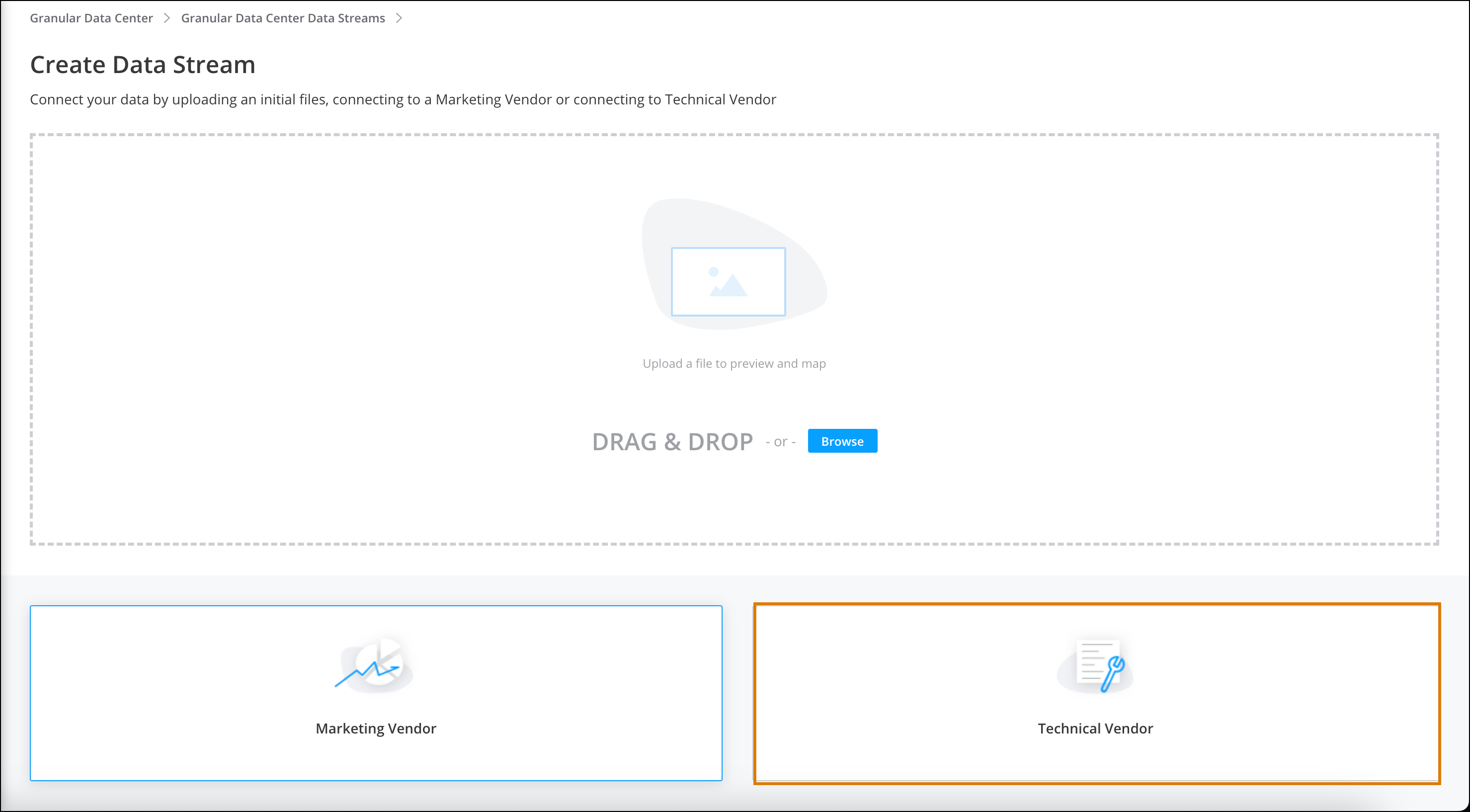
Click Technical Vendors.
- Select a vendor. For example, Google Cloud Storage.
-
The delivery method is already selected, but you can select a different vendor here.
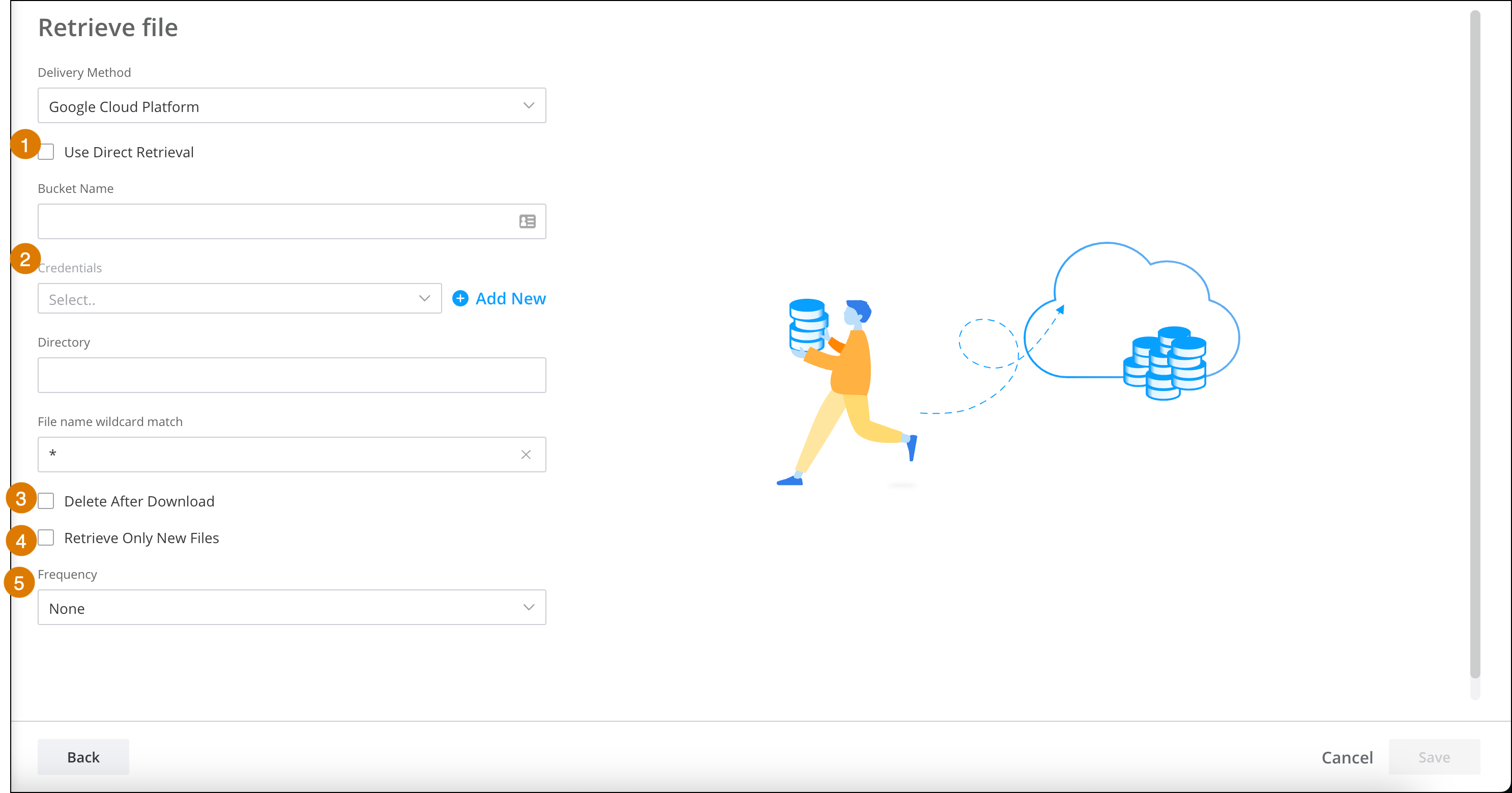
- To merge all the files that accumulate between retrievals into one large file, select Use Direct Retrieval (1).
-
If you choose Google Cloud Storage as your technical vendor, you also must provide a
Private Key. For more information, see Creating and managing service account keys.
 Note When using Google Cloud Storage connector with Direct Retrieval the directory should NOT include leading and trailing slashes, for example: /folder1/folder2/file.csv/ should be folder1/folder2/file.csv
 -
If you’re using S3 as your technical vendor you can turn on the Assume an IAM
Role toggle. You can use the IAM role when you don’t want to use the usual
authentication method of providing an access key and secret key. Instead, you can grant
Marketing Cloud Intelligence access to assume a role defined in your AWS account.
But first you must set up the role and make sure that the Marketing Cloud Intelligence account gets the relevant permissions to assume this role. See Providing Access to AWS Accounts. Marketing Cloud Intelligence’s AWS account ID is: 234641932592.After you have access, define these details:
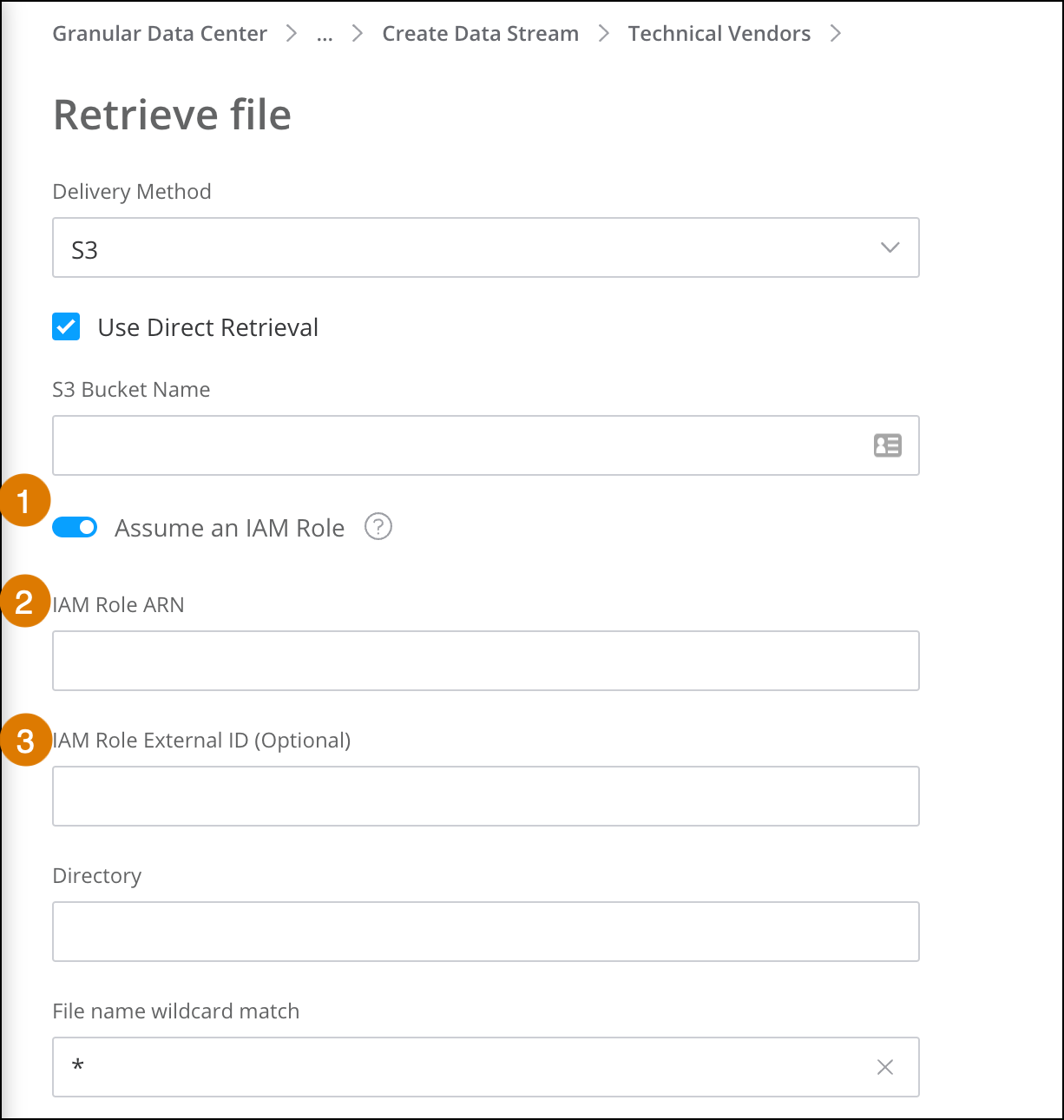
Assume an IAM Role Turn on to enable the assume role options (1). IAM Role ARN Enter the IAM role that you’re assuming (2). IAM Role External ID: (Optional) If you set up access with an external ID, add it here (3). - Enter your credentials (2).
- To delete the data after it downloads, select Delete After Download (3).
- To retrieve only new files and not all files, select Retrieve Only New Files (4).
- Define the frequency for when to retrieve data (5).
- To change the mapping and customize the data, click Mapping. (See Mapping Data Lake Data for more information.)
-
To define advanced settings, click Advanced Settings. (See Advanced Settings in Marketing Cloud Intelligence Streams for more information.)
Not all settings are relevant to Granular Data Center data streams, so some options don’t appear or are disabled.A new Granular Data Center data stream is created with all the correlating tables.
- Direct Retrieval
Direct retrieval solves the bottlenecks that can occur when processing a large number of files in between retrieval cycles. It also helps in managing the data stream’s execution log, which can be a challenge when the number of files that accumulate between processing cycles is in the thousands.