
To analyze your datasets and uncover aspects that affect performance in a positive or negative way, use an Einstein Marketing Insights bot.
| REQUIRED USER ROLE | |
|---|---|
| To create Insights bots | Admin or Power User |
- On the Analyze & Act tab left navigation panel, click Einstein Marketing Insights.
- Click the plus icon.
- Select the KPI that you want to optimize such as Visitor Bounce or Click Through Rate. Not all measurements are available as KPIs. A measurement is eligible to be used as a KPI in an Insights Bot if it’s in the form of A/B, such as CPM, CPC, CTR, and other calculated metrics whose formulas are aligned with this format (A divided by B).
- To add a filter, click Add Filter. Use a filter to narrow your bot results. For example, you can filter by data stream, creative, or conversion tag.
- To optimize your KPI by increasing the value, click Increase. To optimize your KPI by decreasing the value, click Decrease.
- To run your bot with default settings, click Save & Run.
-
To further customize your bot, in the left navigation window, click Analysis
Settings.
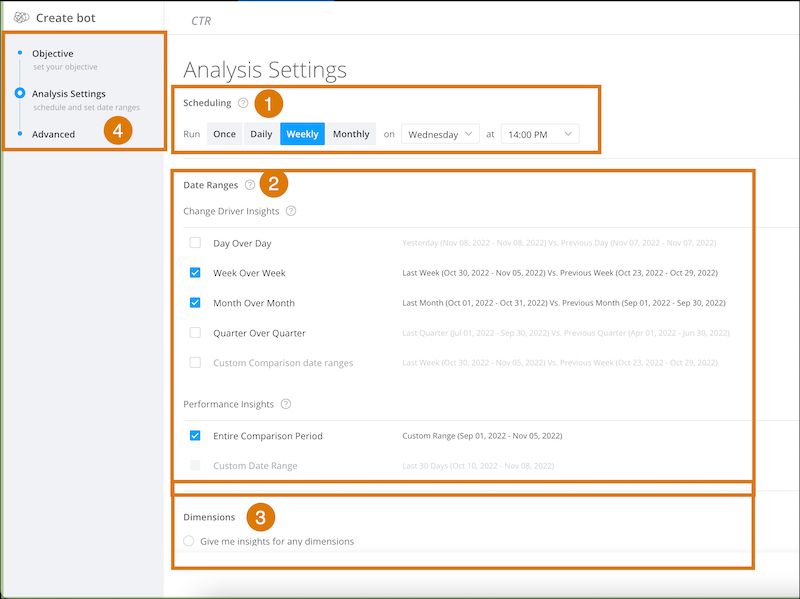
- From scheduling, set the frequency: how often you want the bot to run.
- Select the time period: the date range when you want the bot to run (2).
- Select the dimensions that the bot examines (3).
- To further customize your bot, click Advanced in the left sidebar (4). To better reflect the commercial logic behind the selected measurements, change volume measurement. To send emails when new insights are available, set email notifications.
- Click Save and Run.