
Business units create divisions within your org to focus on specific marketing goals, while also providing global visibility and control across the entire enterprise. Business units act as a junction between data and content, aligning your marketing efforts with specific organizational divisions.
Define a business unit based on the structures and marketing needs of your business. For example, separate brands, localize by geographic region, organize different product lines, or focus on specific audience segments.
Business Unit Architecture
See how business units relate to data spaces, CMS workspaces, users, and settings in a marketing org. Some objects in this model are part of the marketing org and some are part of Data 360.
This diagram illustrates how these business units relate to data spaces, CMS workspaces, campaigns, and segments within a marketing organization. For example, Welo, a global cybersecurity provider, manages its marketing by creating distinct business units for regions such as AMER and EMEA, and initiatives such as Welo Gives Back. To maintain separation, a Welo AMER campaign exclusively uses audience segments from the AMER data space and brand assets from the AMER content workspace.
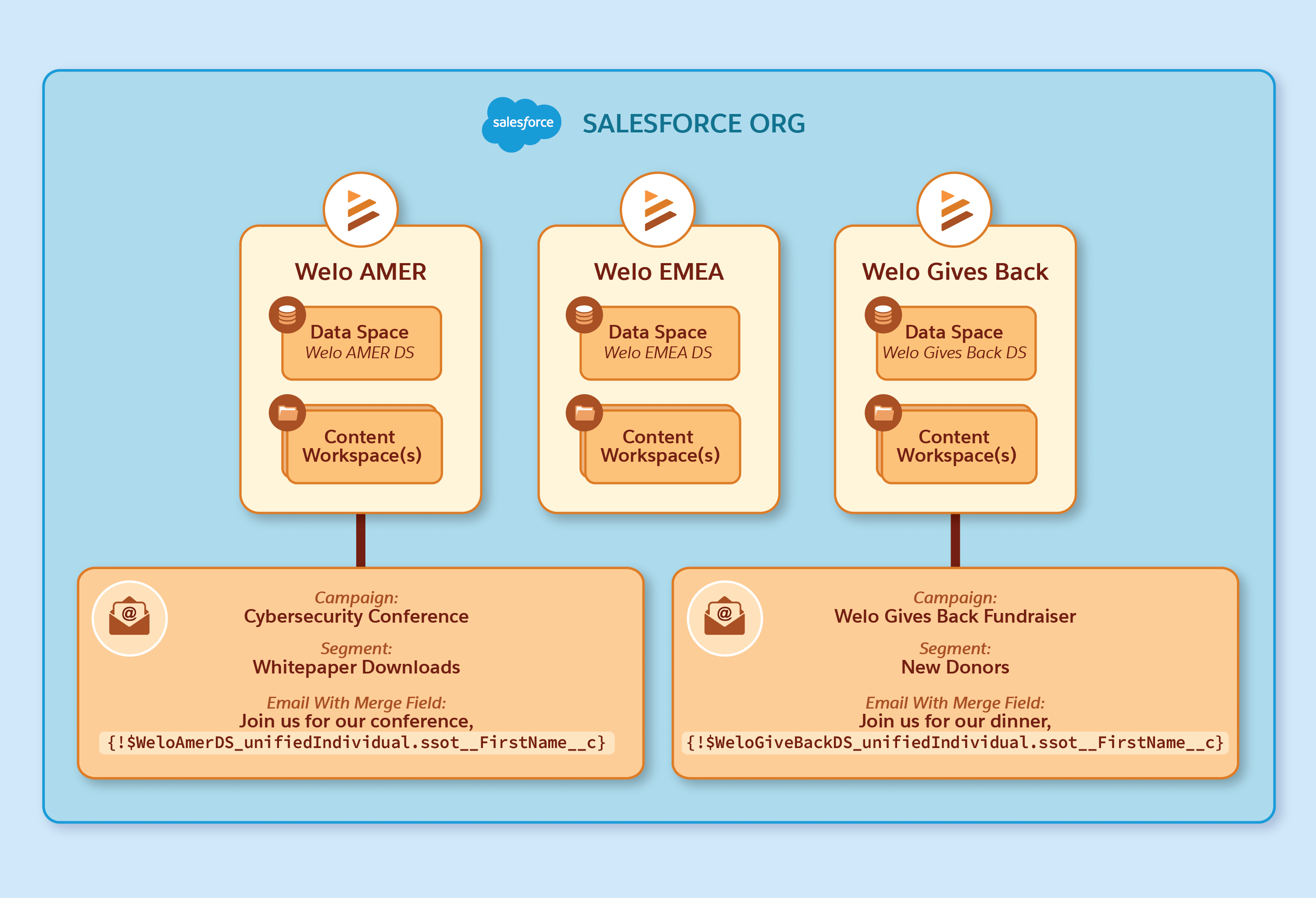
| Feature | Relationship to a business unit |
|---|---|
| Data space | One-to-one. Each business unit maps to a unique data space. See Data Spaces and Business Units. |
| CMS workspaces | One-to-many. A business unit can relate to multiple workspaces. At least one workspace is required for each business unit and is the default workspace. See Working with CMS Workspaces in Business Units. |
| Users | Users can be members of one or more business units. See Business Unit Members. |
| Analytics | Dashboards show data for a specific business unit. |
| Settings | Configure business unit specific settings directly within each business unit in Setup. See Set Up Business Units. |
Data Spaces and Business Units
Business units are designed to keep data separate, making sure that data from one business unit isn't shared with other business units. Business units use the existing capability of data spaces to enforce data separation.
Turn on business units in an org with two or more data spaces. You can map a business unit to only one data space. This one-to-one relationship keeps data isolated and simplifies how you manage marketing content for each business unit.
When users engage with campaigns, Data 360 writes the engagement data to data lake objects. Use data space filters to route that data to the related data space, making it available to the business unit. See Configure Business Unit Filters for DLOs.
The Initial Business Unit
To turn on business units, you need two or more data spaces with Marketing Cloud Next set up in one of them. Your current marketing configuration, including the data space and default content workspace, is used to create your initial or first business unit.
- All existing users with the selected marketing permission sets are added as members to the first business unit. Business unit members require the Marketing Cloud Admin or Marketing Cloud Manager permission set.
- The default marketing workspace in the org is assigned to the first business unit as the default workspace. In this workspace, all users with the selected permission sets get the Content Manager role.
- Any existing marketing workspaces are also assigned to this first business unit, and you can create more workspaces for the business unit.
Business Unit Members
Add users to a business unit in one of these two roles: Marketer-Standard or Marketer-ReadOnly. Users can belong to multiple business units and can access to the business unit's data space. For more information, see Add Users to a Business Unit.
Common Assets
The common assets library makes content available to all business units. After an admin turns on the library, business unit members can post copies of their workspace content to common assets, and members from any business unit can copy that content to their own workspace.
For more information, see Enable Common Assets for Business Units and Distribute Content With Common Assets in Business Units.
Considerations for Business Units
- After you assign a data space, marketing workspace, campaign, or brief to a business unit, you can't change the business unit.
- A business unit can have multiple marketing workspaces, with one workspace designated as the default. See Working with CMS Workspaces.
- To make sure that campaigns only target audiences within that specific business unit while maintaining data integrity and compliance, all elements of a campaign operate within the selected business unit. See Working with Campaigns.
- You can create up to 150 business units.
- You can deactivate a business unit, but you can't reactivate it after deactivation. See Deactivate a Business Unit.
Business Units in Data Cloud One
Data Cloud One connects a Data 360 home org to one or more companion Salesforce orgs and can link its data spaces to the companion orgs. Use a companion connection to create a business unit in a companion org so that the org can manage that business unit's campaigns, workspaces, members, and settings.
For example, a home org has four data spaces, two of which are linked to a companion org. Create business units in the home org for the two data spaces that aren't linked to the companion orgs. For the two connected data spaces, create their business units in the companion org instead, giving the companion org two business units of its own.
Example: Business Units Use Case
To illustrate how business units work, consider Welo, a US-based ecommerce company specializing in sustainable home goods. Welo has successfully established its brand and customer base in the American market and now aims to expand into Latin America. The existing single-account setup isn't optimal for this expansion and can lead to customer confusion, irrelevant messaging, and compliance issues.
To localize its marketing efforts, manage separate campaigns, and adhere to different data privacy regulations in Latin America, Welo's marketing admin creates a Welo Latam business unit. The Welo Latam business unit now serves as a dedicated, partitioned space for the company's expansion.
This framework also provides a scalable model for future market expansions, along with these benefits:
- Separate data and content: Keep Latin American customer data, campaigns, flows, and content separate from its North American marketing operations.
- Maintain local control: Provide the regional team with tools and data for a successful local marketing strategy.
- Maintain global visibility: Track and analyze performance in both markets from a single platform, maintaining consistency and alignment with global goals.
- Enable Marketing Cloud Next
Before you create your first business units, review the prerequisites, and enable Marketing Cloud Next for your org. - Create Business Units in Marketing Cloud Next
To get started with business units in Marketing Cloud Next, create the first two business units. The first two business units are created consecutively. Next, select the marketing permission sets for the users to add to the first business unit. - Set Up Business Units
When you have multiple business units, you configure some Marketing Cloud Next settings for each business unit separately, and other settings for the overall org. This means that you complete some tasks on the Business Units Setup page, some tasks in the Marketing Cloud Next Setup Assistant, and other tasks on specialized setup for messaging channels or other features. - Work with Business Units
After your admin sets up business units, marketers can create campaigns, manage content, and run marketing activities within your assigned business unit.