An Omniscript gives your users a guided path for completing a business process and serves as a configurable way of creating a seamless experience for your users. To build your Omniscripts, go to Omnistudio. Then in an ARC graph, to give your users quick access to processes they complete often, add the Omniscript to a node.
Required Editions
| View supported product editions. |
| User Permissions Needed | |
|---|---|
| To add an Omniscript to an ARC node: |
AND Omnistudio Admin permission set OR Omnistudio User permission set |

Note To use this feature, you must have an Omnistudio license, build Flexcards in Omnistudio,
and enable Omnistudio Metadata in Omnistudio Settings in Setup.
- From Setup, in the Quick Find box, enter Actionable Relationship Center, and then select Actionable Relationship Center.
- Click New Relationship Graph or edit an existing graph.
- Create a node or select an existing node.
- Click the Actions tab.
- Click Select an Option and select Omniscript.
-
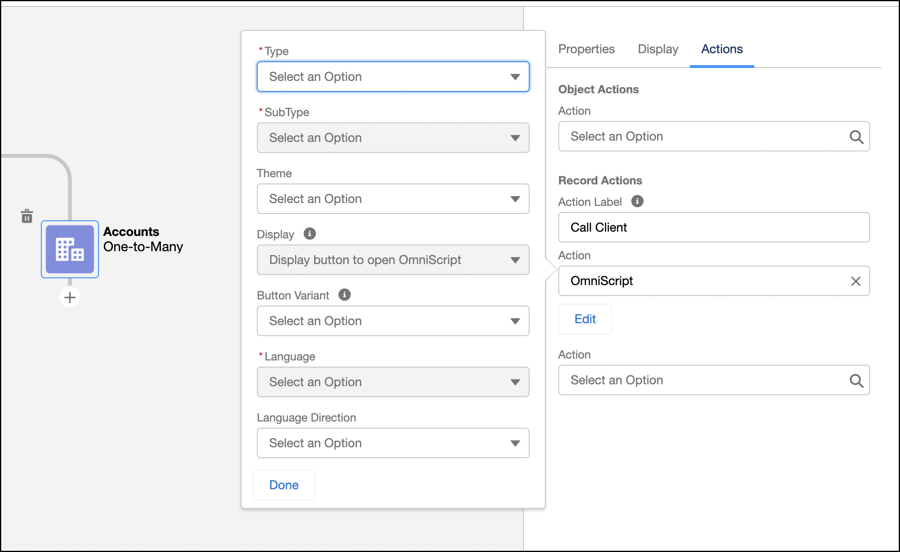
Configure the Omniscript.
- Select Type.
- Select Sub Type.
- Select Language.
- Select Theme.
-
Select Display.
Display button to open Omniscript is the only support display option in ARC.
- Select Button Variant.
- Select Language Direction.
- Click Done.
-
Save the graph.
Note When a user clicks an Omniscript on an ARC graph, the Omniscript shows in a new window. The appearance of the Omniscript on an ARC graph is based on how it was configured in Omnistudio.