---
schema_version: "1"
id: 9cfedd7cbfcb2866925001aa89a5ad0864ae51049d5bc5670848ffb1801f888f
title: Add an Omniscript to an ARC Node
collection: admin
version: current
locale: en-us
portal_url: https://docs.salesforce.com/admin/current/en-us/ind/264-0-0/fsc_admin_arc_add_omniscript.md
canonical_url: https://help.salesforce.com/s/articleView?id=ind.fsc_admin_arc_add_omniscript.htm&release=264.0.0&type=5
source_site: help.salesforce.com
content_type: documentation
content_hash: 108fb257645c234bd789cf1d25923e450bdf527a9d430db1db3bdebb00e63295
description: An Omniscript gives your users a guided path for completing a business process and serves as a configurable way of creating a seamless experience for your users. To build your Omniscripts, go to Omnistudio. Then in an ARC graph, to give your users quick access to processes they complete often, add the Omniscript to a node.
products:
  - Industry Solutions
  - Cross Cloud
release: "264"
---
# Add an Omniscript to an ARC Node

An Omniscript gives your users a guided path for completing a business process and serves as a configurable way of creating a seamless experience for your users. To build your Omniscripts, go to Omnistudio. Then in an ARC graph, to give your users quick access to processes they complete often, add the Omniscript to a node. 

### Required Editions

<table class="slds-table slds-table_bordered slds-max-medium-table_stacked slds-m-bottom_small edition"><colgroup><col></colgroup><tbody><tr class=""><td class="slds-cell-wrap" style="vertical-align:top;"><a href="https://help.salesforce.com/s/articleView?id=ind.arc_editions_security_permissions.htm&amp;release=264.0.0&amp;type=5" title="Review the supported products and editions for Actionable Relationship Center (ARC). Then learn about how your product handles permissions and how to assign them.">View supported product editions.</a></td></tr></tbody></table>

<table class="slds-table slds-table_bordered slds-max-medium-table_stacked slds-m-bottom_small permission">
        <colgroup>
          <col style="width:50%">
          <col style="width:50%">
        </colgroup>
        <thead class="slds-text-title_caps ">
          <tr class="">
            <th scope="colgroup" class="slds-cell-wrap" colspan="2" style="text-align:center;vertical-align:top;" id="d2538e63">User Permissions Needed</th>
          </tr>
        </thead>
        <tbody>
          <tr class="">
            <td data-label="User Permissions Needed" class="slds-cell-wrap" style="vertical-align:top;" headers="d2538e63 ">To add an Omniscript to an ARC node:</td>

            <td class="slds-cell-wrap" style="vertical-align:top;" headers="d2538e63 ">
              <p>
                <span>
                  <a href="https://help.salesforce.com/s/articleView?id=ind.arc_editions_security_permissions.htm&amp;release=264.0.0&amp;type=5" title="Review the supported products and editions for Actionable Relationship Center (ARC). Then learn about how your product handles permissions and how to assign them.">View
                    permissions information.</a>
                </span>
              </p>
              <p>AND</p>
              <p>Omnistudio Admin permission set</p>
              <p>OR</p>
              <p style="margin-bottom:0;">Omnistudio User
                permission set</p>
            </td>

          </tr>
        </tbody>
      </table>

![Note](https://sf-zdocs-cdn-prod.zoominsoftware.com/tdta-ind-actionable_relationship_center-264-0-0-production-enus/5ec6d51b-691d-4c36-ae40-37976553d701/images/icon_note.png)

Note To use this feature, you must have an Omnistudio license, build Flexcards in Omnistudio, and enable Omnistudio Metadata in Omnistudio Settings in Setup.

1. From Setup, in the Quick Find box, enter Actionable Relationship Center, and then select **Actionable Relationship Center**.
2. Click **New Relationship Graph** or edit an existing graph.
3. Create a node or select an existing node.
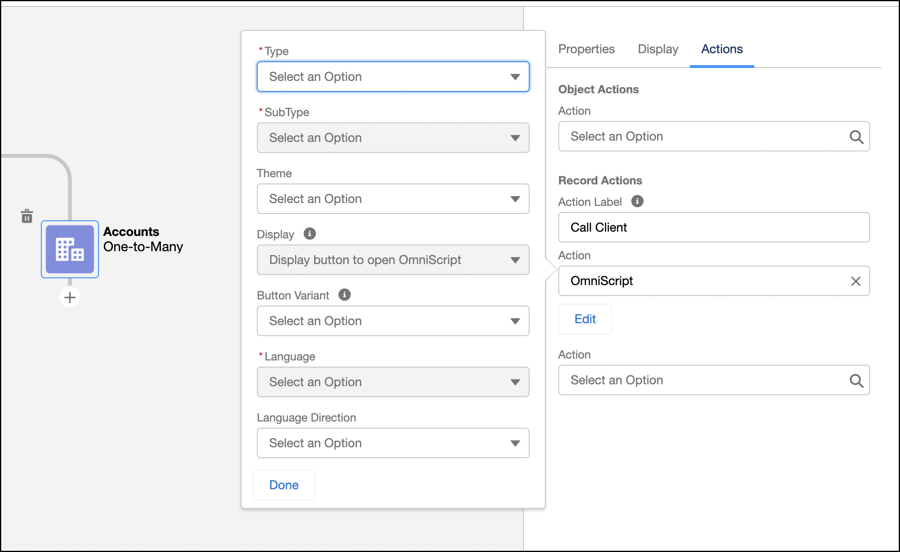
4. Click the **Actions** tab.
5. Click **Select an Option** and select Omniscript.
6. Configure the Omniscript.
    1. Select Type.
    2. Select Sub Type.
    3. Select Language.
    4. Select Theme.
    5. Select Display.
        
        **Display button to open Omniscript** is the only support display option in ARC.
    6. Select Button Variant.
    7. Select Language Direction.
    8. Click Done.
7. Save the graph.
    
    ![Note](https://sf-zdocs-cdn-prod.zoominsoftware.com/tdta-ind-actionable_relationship_center-264-0-0-production-enus/5ec6d51b-691d-4c36-ae40-37976553d701/images/icon_note.png)
    
    Note When a user clicks an Omniscript on an ARC graph, the Omniscript shows in a new window. The appearance of the Omniscript on an ARC graph is based on how it was configured in Omnistudio.
    
    ![ARC omniscripts](https://sf-zdocs-cdn-prod.zoominsoftware.com/tdta-ind-actionable_relationship_center-264-0-0-production-enus/5ec6d51b-691d-4c36-ae40-37976553d701/resources-product/images/feature_arc/arc_omniscript.png)

#### See Also

- [_Salesforce Help_: OmniScripts](https://help.salesforce.com/s/articleView?id=xcloud.os_omniscripts_8355.htm&type=5&language=en_US)
- [Create a Relationship Graph in Actionable Relationship Center](https://help.salesforce.com/s/articleView?id=ind.fsc_admin_arc_create_relationship_graph.htm&release=264.0.0&type=5 "Show how records relate to each other.")