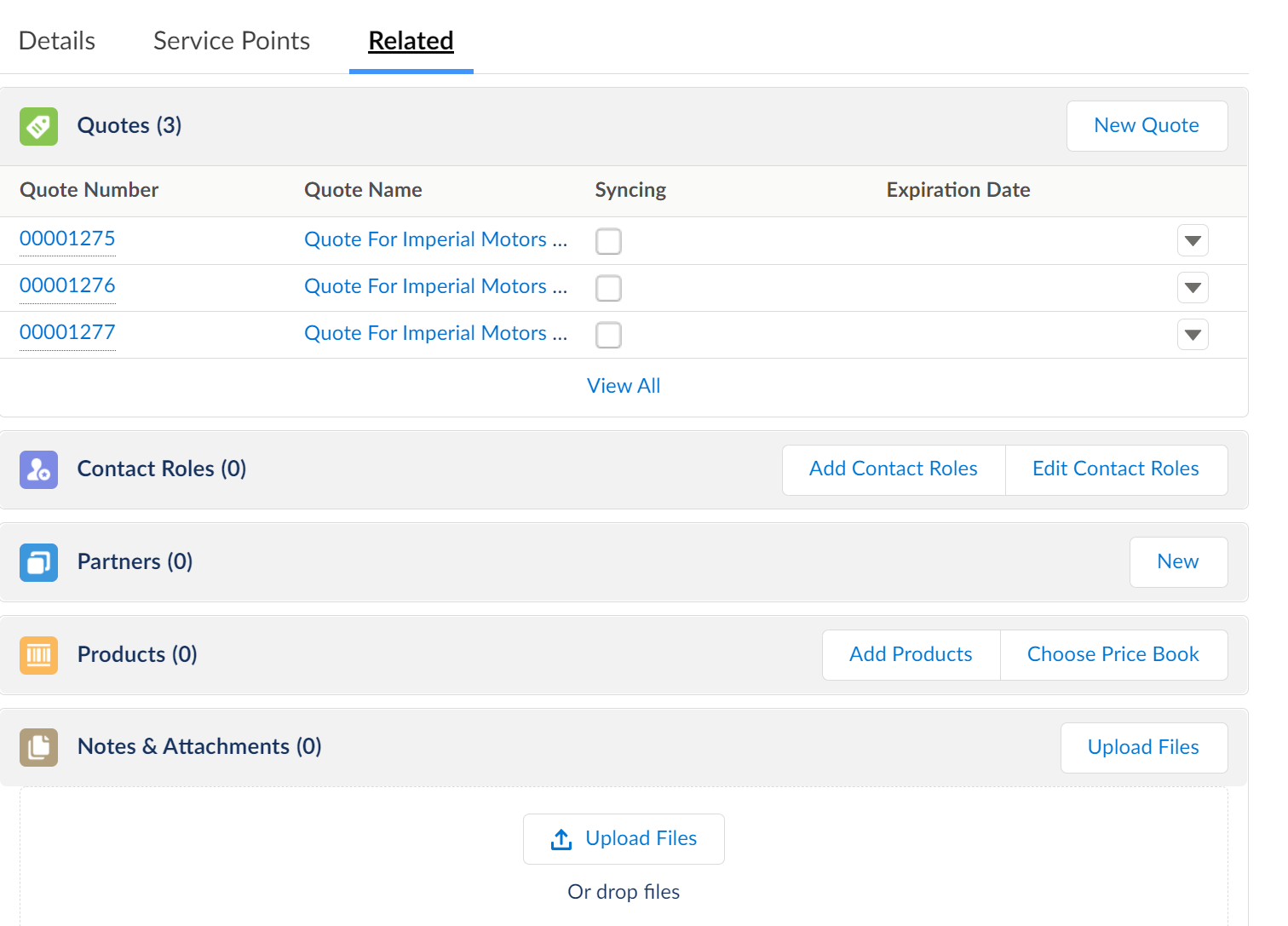
The Large Account Sales Management combines the standard Salesforce opportunities functionality with the customized Energy & Utilities industry-specific business processes. This combination provides you with a full 360-degree view of the open and upcoming opportunities on a single dashboard.
The structure of the opportunity record page consists of multiple panels, tabs, and action buttons that provide a wide range of information about the opportunity and enable you to perform various operations. You can also modify the layout of the opportunity record page to suit your business needs.

Opportunity Record Page Panels
The top panel provides a summary of an opportunity such as opportunity name, associated account, opportunity close date, revenue amount, and owner. You can also update the opportunity stage as your deal moves towards closing. See Move an Opportunity to the Next Stage.

Activity and Chatter provide active feed for any posts, comments, likes, or upvotes related to the opportunity.
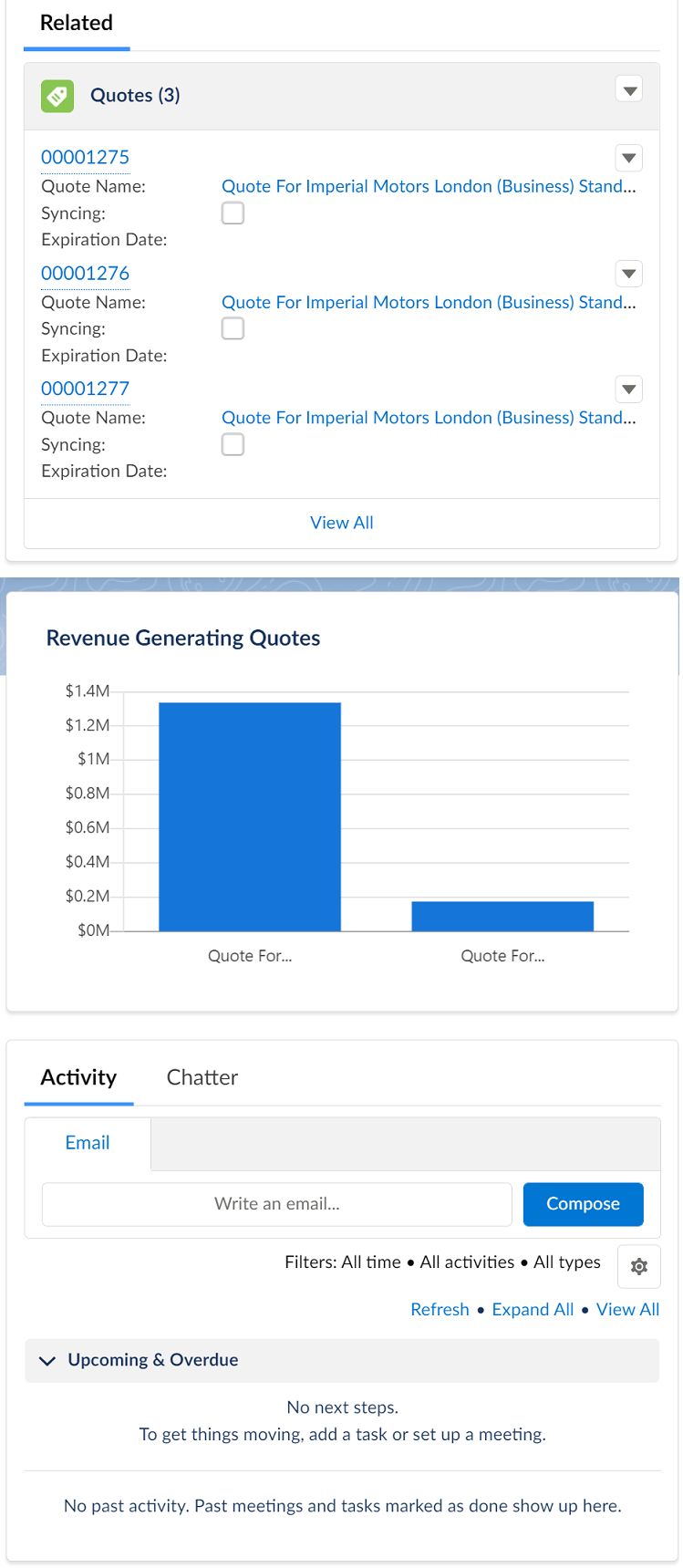
Details Tab
The Details tab provides a range of information about the opportunity to help you track your pending and potential sales. See Opportunity Fields to learn more about each field displayed on the record page.
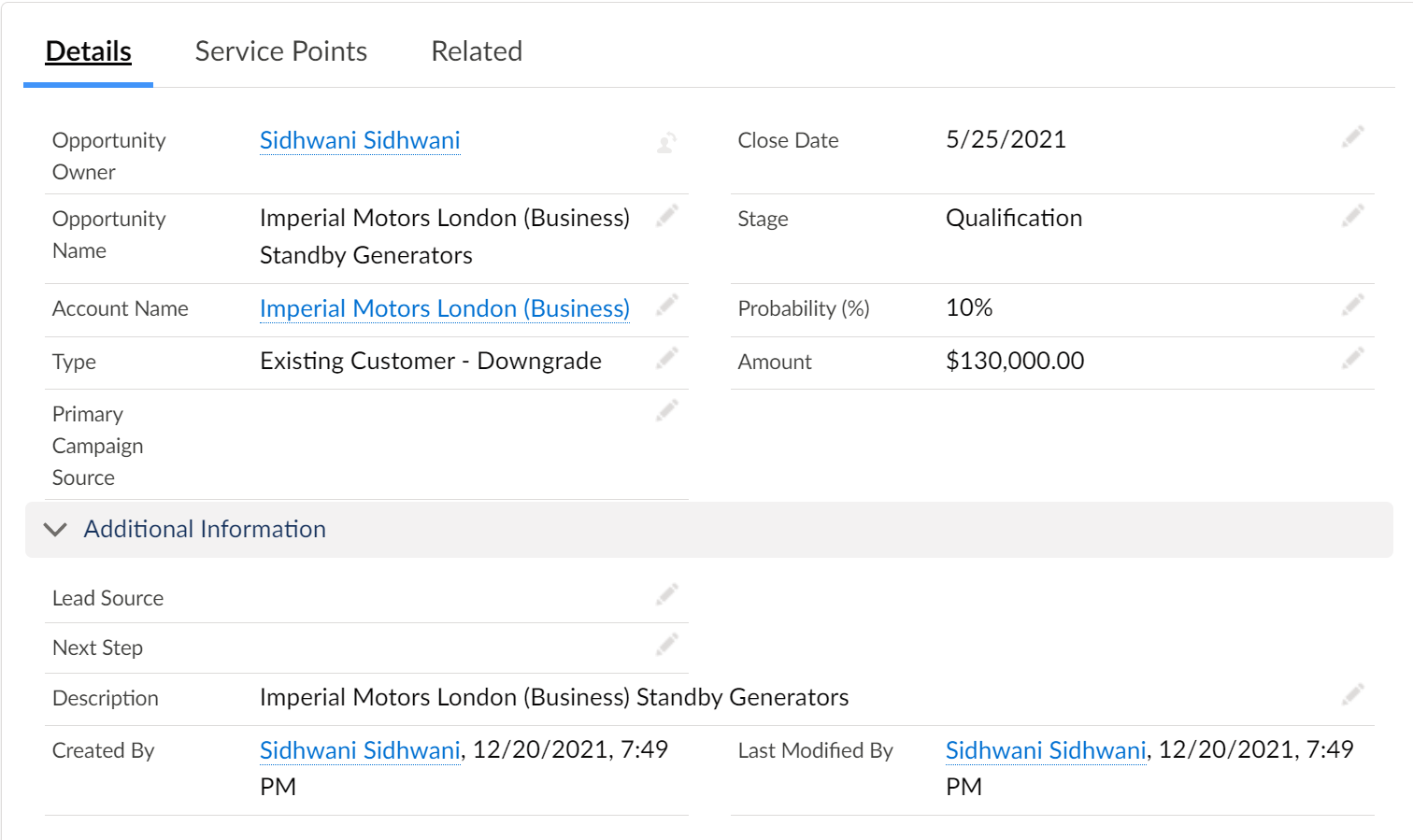
Click the pencil icon to edit an opportunity field.
Service Points Tab
The Service Point tab of the Large Account Sales Management opportunity record page provides a list of service points associated with the opportunity.
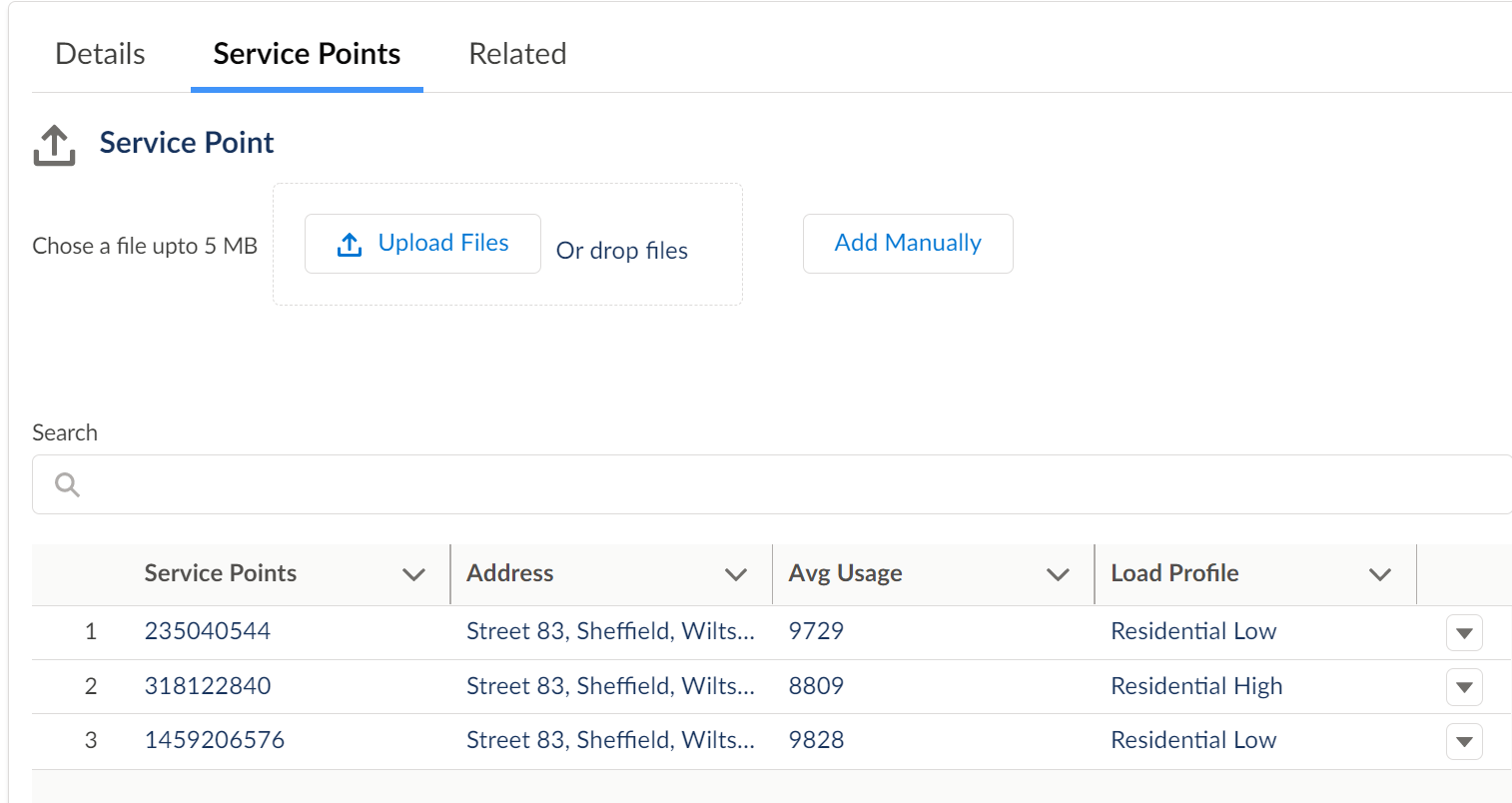
You can also upload service points either using a .CSV file or manually. These service points get automatically added to the account associated with the opportunity. See Upload Service Points for Energy & Utilities.