To generate Einstein Autofill recommendations and customize the Autofill elements, select
any
Omniscript and
use
the properties panel to configure the feature.
Required Editions
| User Permissions Needed |
| To create, customize, and configure the Omniscript: |
Omnistudio Admin permission set |
-
To check your Omnistudio settings, in Setup, find and select Omnistudio
Settings.
-
If the Omnistudio managed package designer is enabled, then complete these steps.
-
From the App Launcher, find and select Omnistudio.
-
In the Omnistudio app, from the navigation menu, select
Omniscripts.
-
Open the Omniscript where you want to enable the Autofill feature. If the
Omniscript is file-based, create another version of the Omniscript.
-
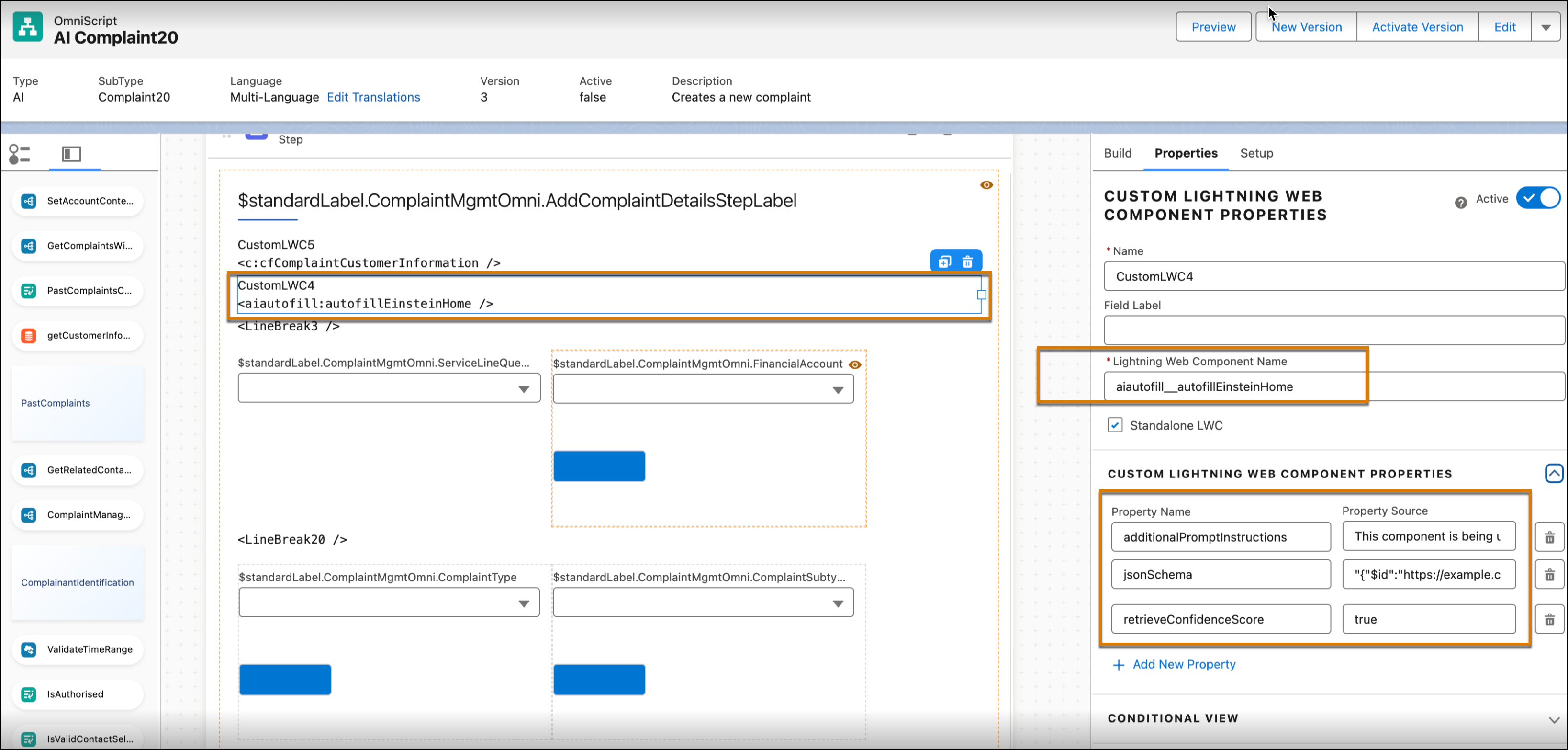
Drag the Custom Lightning Web Component to the step on the canvas where you want
the recommendations to appear.
-
Enter aiautofill__autofillEinsteinHome as the Lightning web
component name.
-
Configure the
Custom
LWC Properties for the AutoFill component.
-
To provide additional instructions for the prompt, configure the
additionalPromptInstructions.
-
To specify the output JSON schema for the Einstein Autofill component, configure
the jsonSchema.
The output schema helps the Autofill component understand which fields require
recommendations. See
JSON Schema Example.
-
If needed, configure the retrieveConfidenceScore to specify whether to show the
confidence score.
-
If Omnistudio standard designer is enabled, then complete these steps.
-
From the App Launcher, find and select Omnistudio.
-
In the Omnistudio app, from the navigation menu, select Omnistudio
Builder.
-
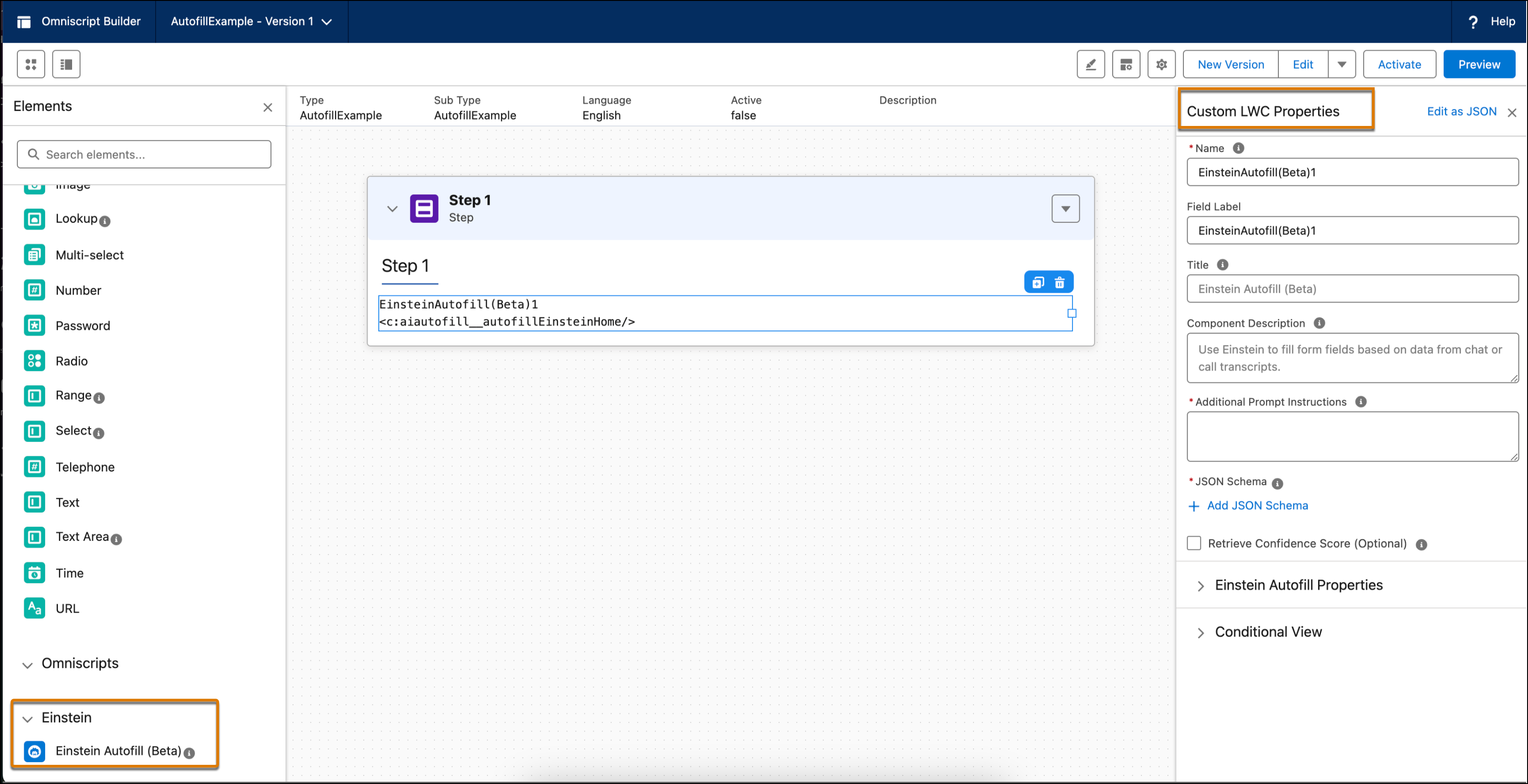
Enter Einstein Autofill (Beta) in the search elements box,
and select Einstein Autofill (Beta).
-
From the Einstein menu, drag the Einstein Autofill (Beta) component onto the
Omniscript step where you want the recommendations to appear.
-
Enter the details in the Einstein Autofill (Beta) Properties pane.
These properties reflect the changes in the runtime, such as the title and
description. See
JSON
Schema Example.
-
To retrieve a confidence score, select Retrieve Confidence Score
(Optional). Retrieving a confidence score is optional and
indicates
how certain Einstein is about the accuracy of the draft.