---
schema_version: "1"
id: 4d1555f283090543bd45e59f368d2638450305a1a18a376b6d0472c406107da9
title: Add Einstein Autofill Omniscript Component (Beta)
collection: admin
version: current
locale: en-us
portal_url: https://docs.salesforce.com/admin/current/en-us/ind/264-0-0/einstein_autofill_add_omniscript_component.md
canonical_url: https://help.salesforce.com/s/articleView?id=ind.einstein_autofill_add_omniscript_component.htm&release=264.0.0&type=5
source_site: help.salesforce.com
content_type: documentation
content_hash: a7484e3fd07248787ae8f3f2ba3c154346c6e7d0299b129df857d8a460b653f7
description: To generate Einstein Autofill recommendations and customize the Autofill elements, select any Omniscript and use the properties panel to configure the feature.
products:
- Industry Solutions
- Cross Cloud
release: "264"
---
# Add Einstein Autofill Omniscript Component (Beta)
To generate Einstein Autofill recommendations and customize the Autofill elements, select any Omniscript and use the properties panel to configure the feature.
### Required Editions
To create, customize, and configure the Omniscript:
Omnistudio Admin permission set
1. To check your Omnistudio settings, in Setup, find and select **Omnistudio Settings**.
To enable the Omnistudio standard designer, see [Build Omnistudio Components More Easily with the Standard Designer](https://help.salesforce.com/s/articleView?id=release-notes.rn_omnistudio_effortlessly_build_omnistudio_components_by_using_new_designers.htm&release=254&type=5&language=en_US). If the standard designer is enabled, complete step 3. Otherwise, continue with step 2.
2. If the Omnistudio managed package designer is enabled, then complete these steps.
1. From the App Launcher, find and select **Omnistudio**.
2. In the Omnistudio app, from the navigation menu, select **Omniscripts**.
3. Open the Omniscript where you want to enable the Autofill feature. If the Omniscript is file-based, create another version of the Omniscript.
4. Drag the Custom Lightning Web Component to the step on the canvas where you want the recommendations to appear.
5. Enter aiautofill\_\_autofillEinsteinHome as the Lightning web component name.
6. Configure the Custom LWC Properties for the AutoFill component.
7. To provide additional instructions for the prompt, configure the additionalPromptInstructions.
8. To specify the output JSON schema for the Einstein Autofill component, configure the jsonSchema.
The output schema helps the Autofill component understand which fields require recommendations. See [JSON Schema Example](https://help.salesforce.com/s/articleView?id=ind.einstein_autofill_schema_example.htm&release=264.0.0&type=5 "A JSON Schema defines the structure for the form fields related to autofill use cases").
9. If needed, configure the retrieveConfidenceScore to specify whether to show the confidence score.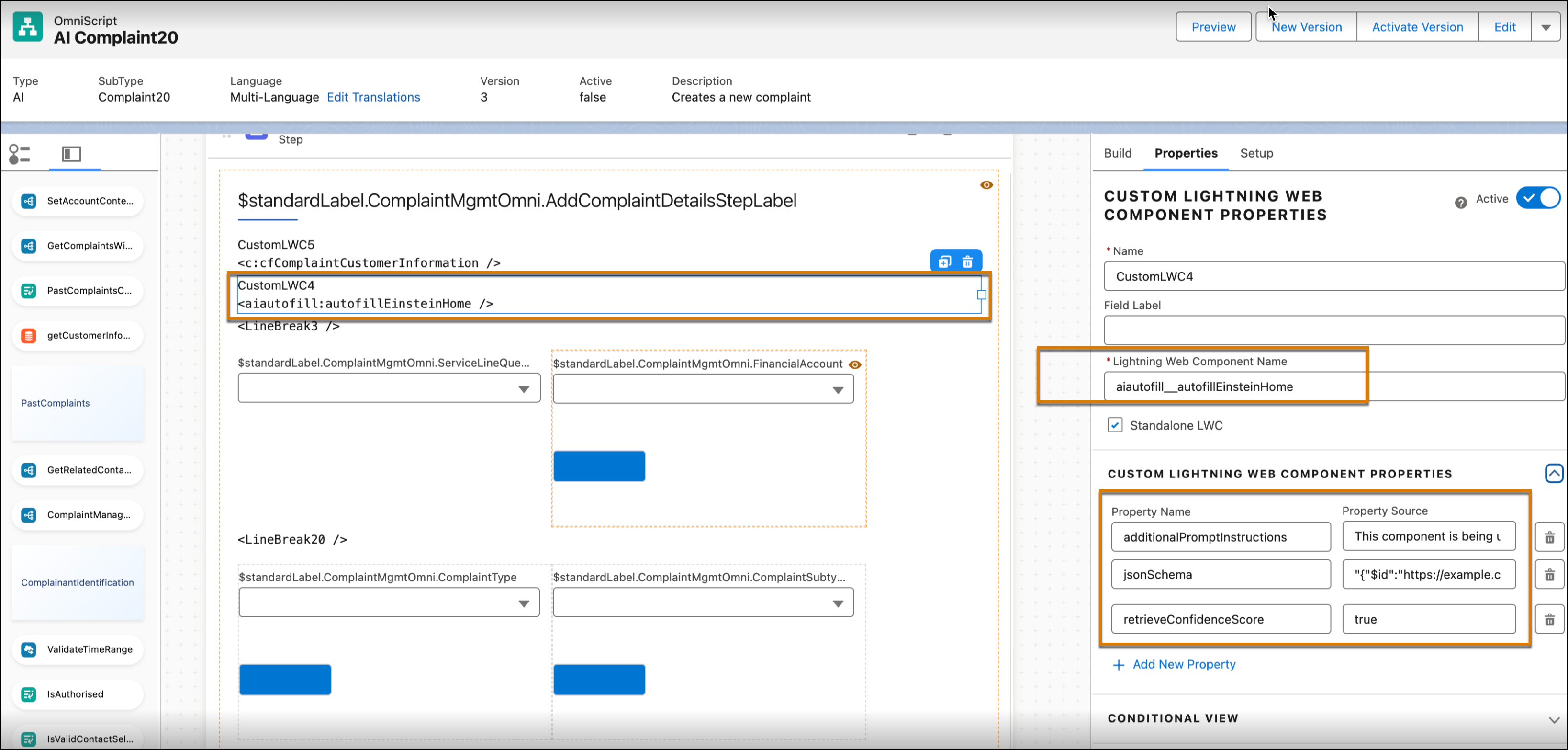
3. If Omnistudio standard designer is enabled, then complete these steps.
1. From the App Launcher, find and select **Omnistudio**.
2. In the Omnistudio app, from the navigation menu, select **Omnistudio Builder**.
3. Enter Einstein Autofill (Beta) in the search elements box, and select **Einstein Autofill (Beta)**.
4. From the Einstein menu, drag the Einstein Autofill (Beta) component onto the Omniscript step where you want the recommendations to appear.
5. Enter the details in the Einstein Autofill (Beta) Properties pane.
These properties reflect the changes in the runtime, such as the title and description. See [JSON Schema Example](https://help.salesforce.com/s/articleView?id=ind.einstein_autofill_schema_example.htm&release=264.0.0&type=5 "A JSON Schema defines the structure for the form fields related to autofill use cases").
6. To retrieve a confidence score, select **Retrieve Confidence Score (Optional)**. Retrieving a confidence score is optional and indicates how certain Einstein is about the accuracy of the draft.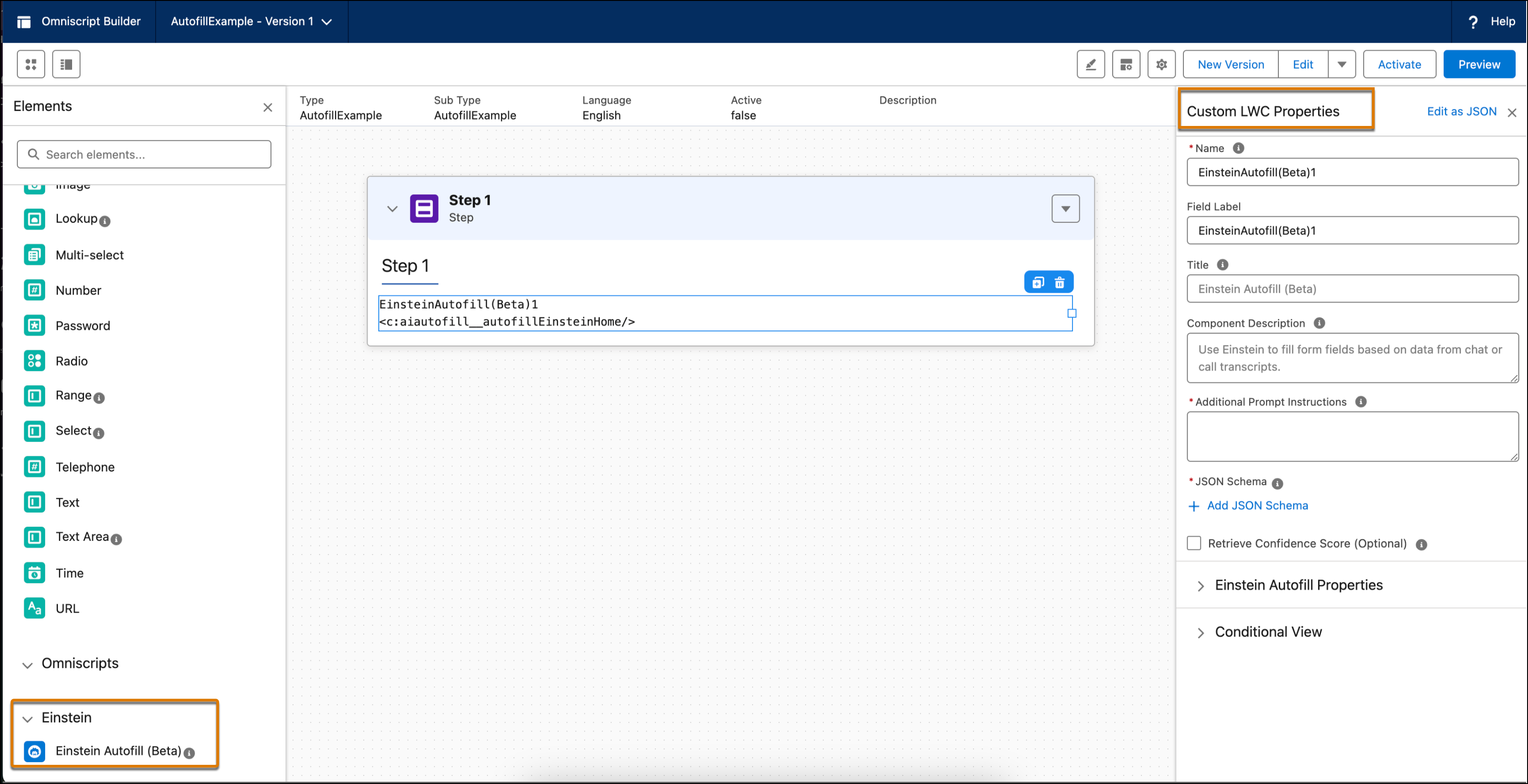
#### See Also
- [JSON Schema Validator](https://docs.mulesoft.com/mule-runtime/3.9/json-schema-validator)