
Fulfillment designers can configure the steps to be executed at a future date and time. They can set a delay for the execution of steps based on the start date of the source line item, the execution time of the previous steps, or a custom date based on a context definition field.
Required Editions
| Available in: Enterprise, Unlimited, and Developer Editions |
| User Permissions Needed | |
|---|---|
| To configure the steps: |
Fulfillment Designer OR DRO Admin |

- Create a workspace or select a workspace from the Recently Viewed section.
- Create the Fulfillment Step Group, add a step, and enter the details.
- To edit a step, select Edit from the dropdown.
-
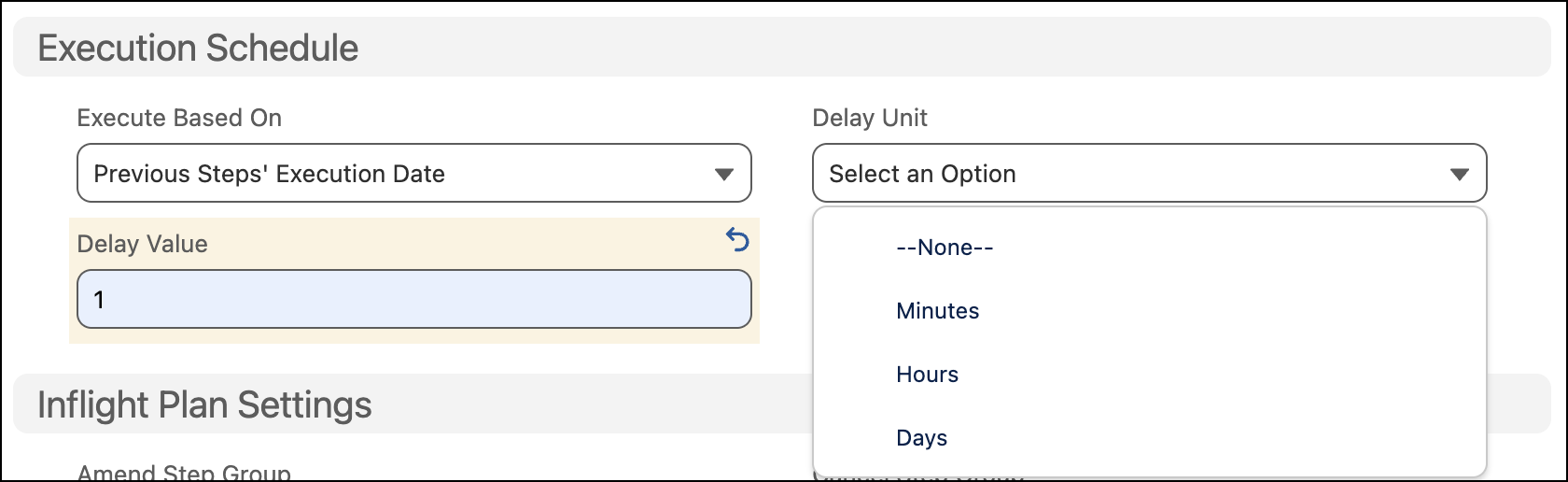
Select the execution schedule
Source Line Start Date To schedule the execution based on the start date of the source. Previous Steps Execution Date To schedule the execution based on the execution date of the previous steps. Custom Date To schedule the execution based on a custom date defined in the associated context definition. - To set a delay depending on the specified execution schedule, select the delay unit, and enter a positive number as the delay value.
- Save your work.
- View Step Status and Details
After you submit the order to DRO, go to Fulfillment Lines and select View Fulfillment Plan to view the step status, details, and dependencies. - Configure Context Definition Fields for Future Dated Fulfillment Steps
You can configure the execution of steps in your orchestration plan based on custom dates that correspond to date or datetime tags in context definition. - Use Custom Dates To Schedule Fulfillment Steps
Configure the execution of steps in your orchestration plan based on custom dates that correspond to date or datetime tags in context definition. For example, you can map a custom context tag to a custom field to activate a service on a date requested by the customer.