---
schema_version: "1"
id: 9c0528a9ace73d8678a10f3bf188de86e5fa400b69c3d6b8a17ece17d0f5e4a2
title: Configure Steps for Future Execution
collection: admin
version: current
locale: en-us
portal_url: https://docs.salesforce.com/admin/current/en-us/ind/264-0-0/dro_configure_steps_for_future_execution.md
canonical_url: https://help.salesforce.com/s/articleView?id=ind.dro_configure_steps_for_future_execution.htm&release=264.0.0&type=5
source_site: help.salesforce.com
content_type: documentation
content_hash: a4befa27950a926b7b30fa3239df753a1c5fac8bf78a079e34606dfc158e43d2
description: Fulfillment designers can configure the steps to be executed at a future date and time. They can set a delay for the execution of steps based on the start date of the source line item, the execution time of the previous steps, or a custom date based on a context definition field.
products:
- Revenue Cloud
release: "264"
---
# Configure Steps for Future Execution
Fulfillment designers can configure the steps to be executed at a future date and time. They can set a delay for the execution of steps based on the start date of the source line item, the execution time of the previous steps, or a custom date based on a context definition field.
### Required Editions
Available in: Enterprise, Unlimited, and Developer Editions
User Permissions
Needed
To configure the steps:
Fulfillment Designer
OR
DRO Admin

Note To schedule steps , enable Future-Dated Steps on the Dynamic Revenue Orchestrator Settings page. If this feature isn’t enabled, the Execution Schedule section doesn’t appear on the Fulfillment Definition Steps page.
1. Create a workspace or select a workspace from the Recently Viewed section.
2. Create the Fulfillment Step Group, add a step, and enter the details.
See [Define Orchestration Plan Components](https://help.salesforce.com/s/articleView?id=ind.dro_define_orchestration_components.htm&release=264.0.0&type=5 "Create and organize fulfillment steps, their dependencies, and fulfillment processes in fulfillment workspaces.").
3. To edit a step, select **Edit** from the dropdown.
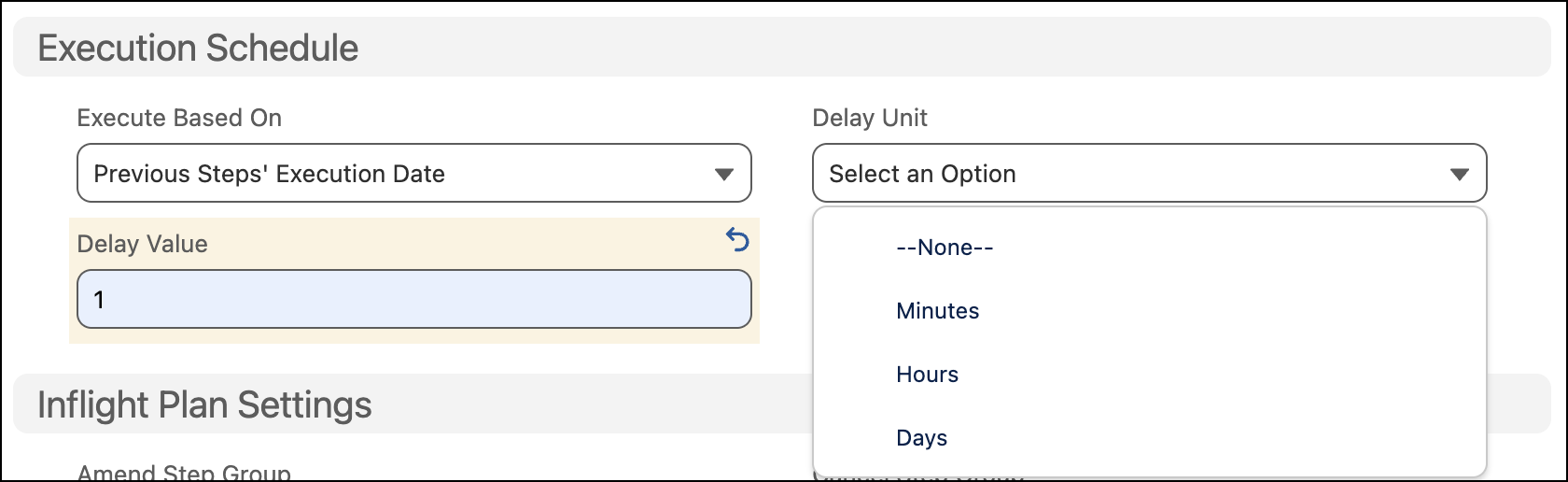
4. Select the execution schedule
| | |
| --- | --- |
| Source Line Start Date | To schedule the execution based on the start date of the source. |
| Previous Steps Execution Date | To schedule the execution based on the execution date of the previous steps. |
| Custom Date | To schedule the execution based on a custom date defined in the associated context definition. |
5. To set a delay depending on the specified execution schedule, select the delay unit, and enter a positive number as the delay value.
6. Save your work.
- **[View Step Status and Details](https://help.salesforce.com/s/articleView?id=ind.dro_step_status.htm&release=264.0.0&type=5)**
After you submit the order to DRO, go to Fulfillment Lines and select **View Fulfillment Plan** to view the step status, details, and dependencies.
- **[Configure Context Definition Fields for Future Dated Fulfillment Steps](https://help.salesforce.com/s/articleView?id=ind.dro_configure_context_for_custom_dates.htm&release=264.0.0&type=5)**
You can configure the execution of steps in your orchestration plan based on custom dates that correspond to date or datetime tags in context definition.
- **[Use Custom Dates To Schedule Fulfillment Steps](https://help.salesforce.com/s/articleView?id=ind.dro_custom_dates_for_fds.htm&release=264.0.0&type=5)**
Configure the execution of steps in your orchestration plan based on custom dates that correspond to date or datetime tags in context definition. For example, you can map a custom context tag to a custom field to activate a service on a date requested by the customer.