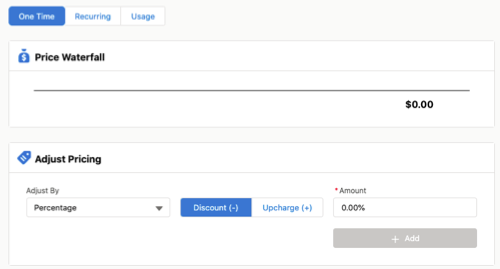
You can override both one-time and recurring prices. Vlocity does not use the base price to calculate the override. The price override replaces the price you are changing.
-
For a product in the Cart, click the
 action menu, and select Adjust
Price.
action menu, and select Adjust
Price.
- At the top of the pricing dialog, select One Time or Recurring.
- From the Adjust By list, select Override.
- In the Amount field, enter the override amount.
-
Click Add.
The override appears in the Price Waterfall section of the pricing dialog. The price for the product in the Cart is updated.
- Close the pricing dialog.