The Vlocity Installation Assistant is included in the package that you must install. If you are upgrading Salesforce Industries Communications, Media, and Energy, then from Setup > Quick Find > Installed packages, uninstall any version of the Vlocity Installation Assistant that is not exactly the same version of the Assistant you plan to use. Then, install the version you plan to use. If the installed version matches the version you want to use, then do not uninstall or reinstall the Assistant.
To uninstall the Vlocity Installation Assistant:
-
In the Quick Find field, enter Installed Packages and click Installed Packages from the search results. The Installed Packages page appears.
-
In the Uninstalled Packages section, click the Delete link beside the package name for the previous version of the Vlocity Installation Assistant.
To install the Vlocity Installation Assistant:
-
Click the link for the Install and Upgrade Assistant
that matches the version of Vlocity you want to configure.
Version
Date
Installation URL
1.71
October '22
1.71
June '22
1.69
March '22
1.69
November '21
1.69
July '21
1.69
March '21
1.69
January '21
1.69
October '20
1.68
April 2020
1.68
February 2020
 Note
NoteThe Vlocity Installation Assistant is available in CME Summer '19 and later releases.
- Log in to the Salesforce org on which you've installed the package.
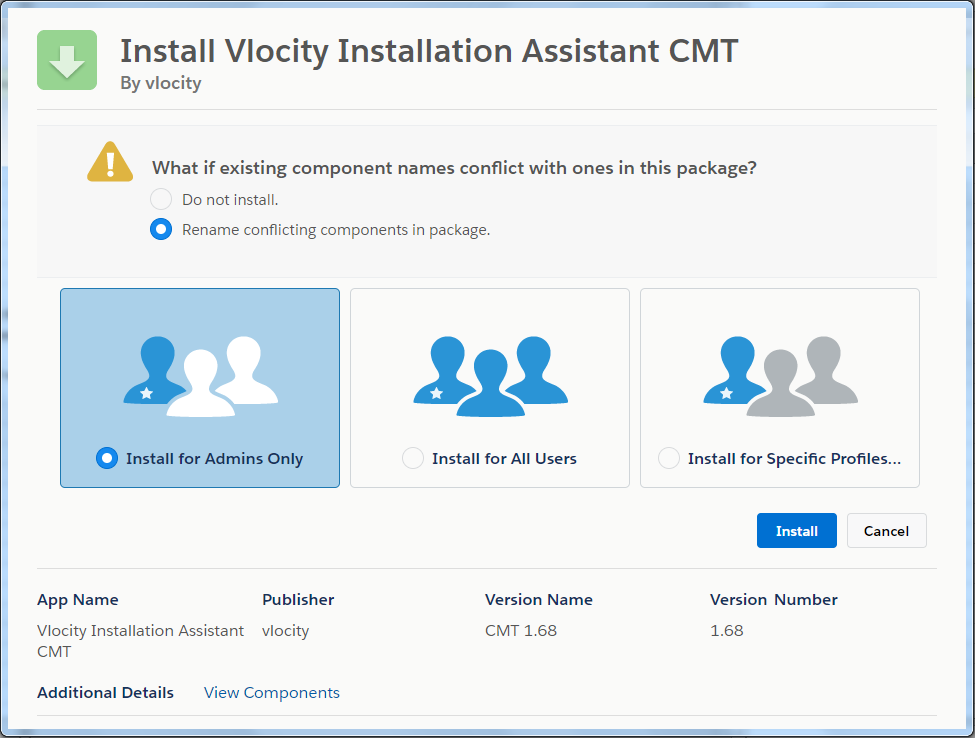
- On the Install window, select Rename conflicting components in package.
- Select the specific users that you want to grant access to the Install and Upgrade Assistant. In this case, Salesforce recommends that you select Install for Admins Only.
-
Click Install.
You can check the progress of your deployment:
-
Click Setup.
-
Type Environments in the Quick Find field.
-
From the search results, click Deployment Status.
Once the deployment is complete, the status turns green. A few moments after the status turns green, the version number updates and an email arrives, informing you that the upgrade was successful.
-