There are several custom settings that Order Management can't enable during an upgrade. You must enable these settings yourself.
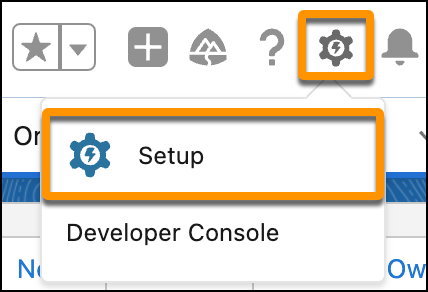
- Click the Setup button at the top right of your org. If you're already in Setup, then you can skip this step.
- In the Quick Find box, type Custom Settings, then click Custom Settings.
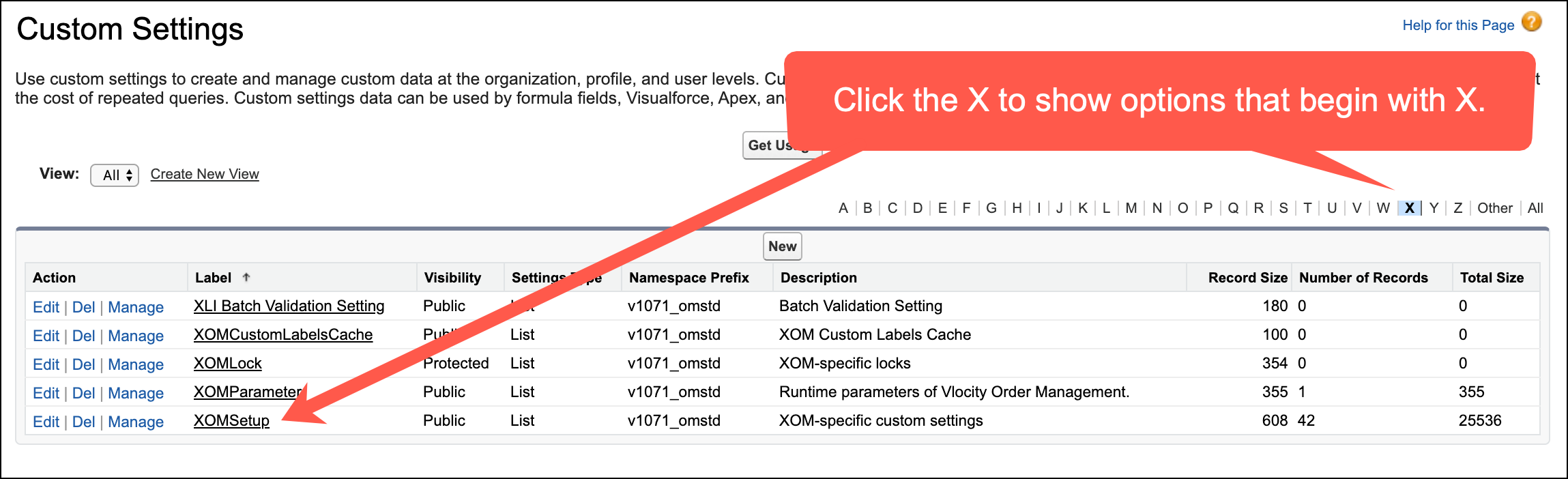
- Find XOMSetup, and click the Manage link next to it. If you don't see XOMSetup, then click the X from among the letters at the top of the screen to filter out most of the options.
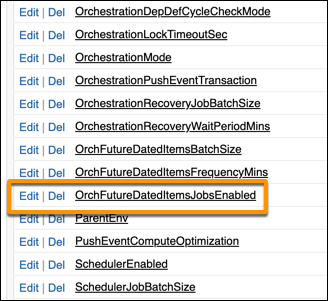
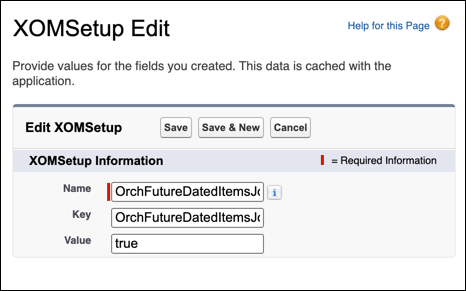
- In the list, look for the item called
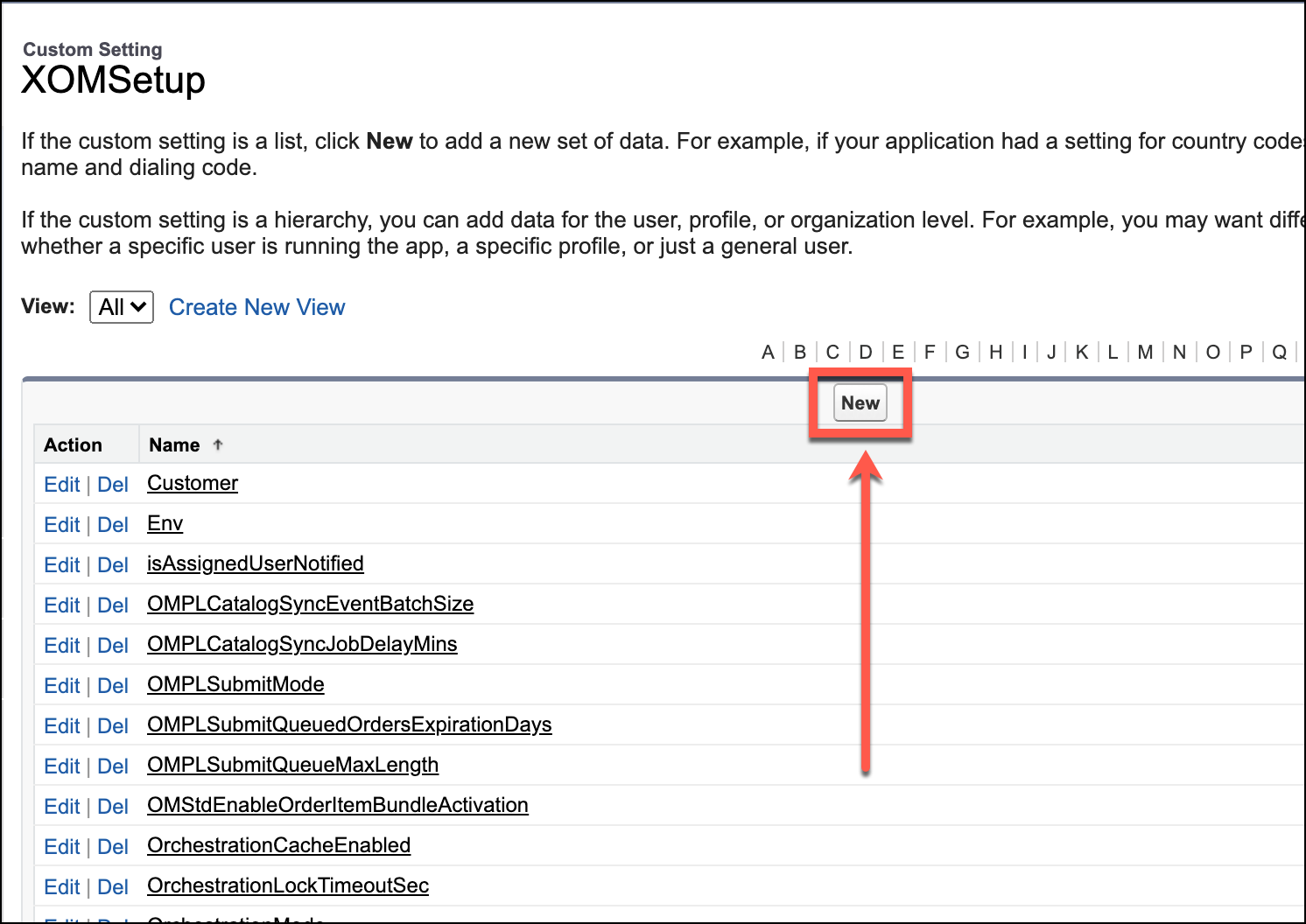
OrchFutureDatedItemsJobsEnabled. Do one of the following things, depending on whether that item appears in the list: - Enter the following information in the fields:
- Click Save, then if the list of settings doesn't appear, click Back to List.
- Do one of the following things, then use your browser's Back button to come back to this page to continue with the steps on this page.
-
If you're upgrading the managed package from version 109.1 (Winter 2021) or later: delete the OMStdBundleActivationBackCompatibility bundle from the Custom Settings (if it exists), then move on to the next section. See Upgrading OM: Activate or Delete OMStdBundleActivationBackCompatibility
-
If you're upgrading the managed package from any version earlier than 109.1 (Winter 2021): Activate the OMStdBundleActivationBackCompatibility bundle in Custom Settings. See Upgrading OM: Activate or Delete OMStdBundleActivationBackCompatibility
-