
Review the troubleshooting information for downloading and migrating the Industries CPQ DataPacks to Salesforce Org.
- When the migration process starts, it can take some time to migrate and compile all FlexCards, so don't close the window. When the migration is complete, the results are shown. If any artifacts failed to migrate, select them, and click Migrate with Dependencies again.
- When you migrate Industries CPQ for the first time, the app is likely hidden from the App Launcher. This is because the app is hidden by default in profile settings. To make the app visible, follow these steps:
- Go to Setup.
- Under Profiles, choose a profile and click Edit.
- Under Custom App Settings, search for Industries CPQ App.
- Select Visible.
- If the Submit button gets hidden in the LWC CPQ cart, then perform these troubleshooting steps:
- Go to OmniStudio Flexcards and open the cpqSubmitButtonHeader flexcard.
- Create a new version of the cpqSubmitButtonHeader flexcard.
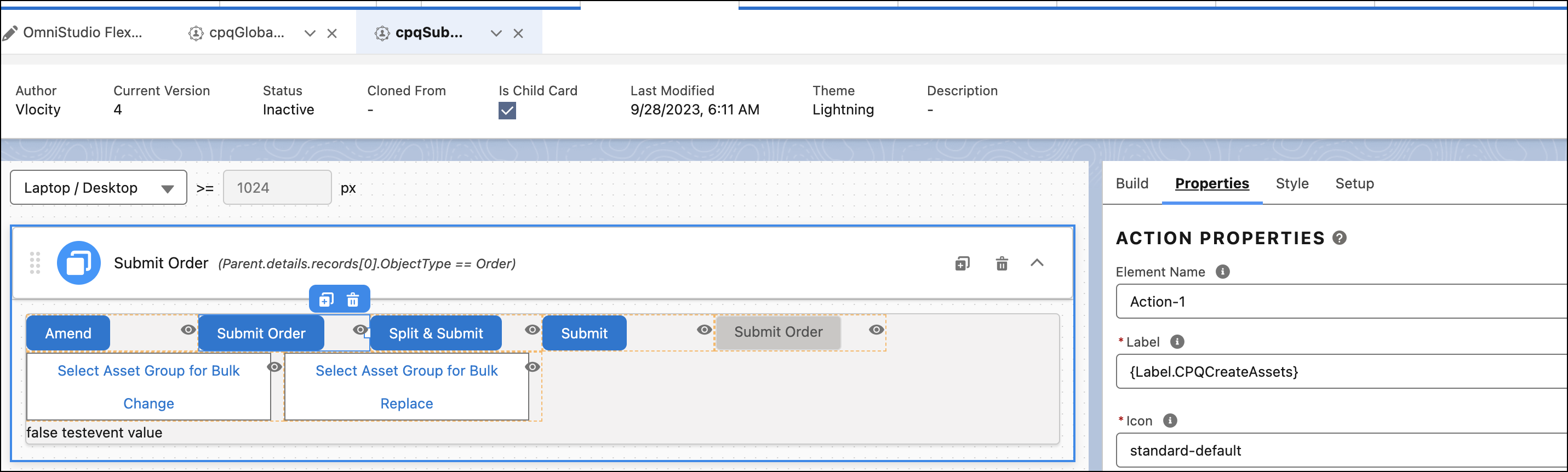
- Select the blue Submit Order button element.
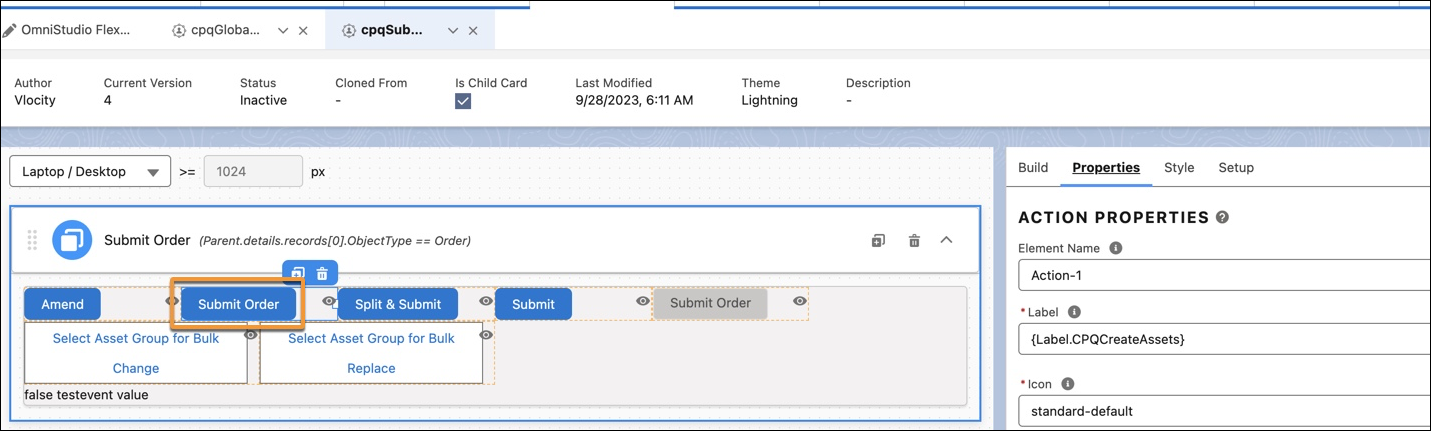
- Click Setup on the right panel.
- Under Event Listener, click Edit next to cpq_is_cart_has_error.
- On the Listener Properties window, expand the Action tab.
- Under Set Values, in the Key field, enter Session. before the isCartHasError variable.
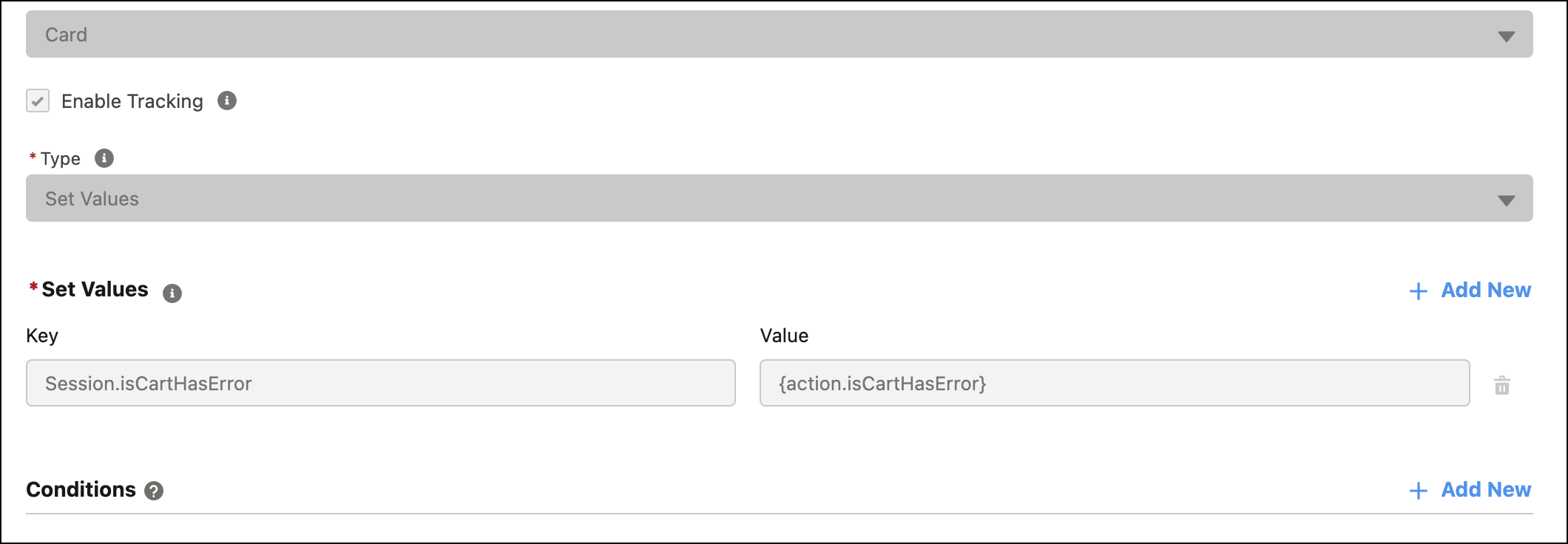
- Save your changes.
- Click Properties.
- Under Conditions, click Edit.
- Update the isCartHasError variable to Session.isCartHasError.