
Asset Viewer is a powerful, configurable component built that use Flexcards and Integration Procedures. Add this component to your Account page to provide a comprehensive, interactive view of all assets. It shows records for both the primary account and all associated child accounts in a single location.
Required Editions
| Available in: Lightning Experience |
| Available in: Enterprise, Unlimited, Performance, and Developer Edition. |
| User Permissions Needed | |
|---|---|
| To Set Up Asset Viewer: | CME Managed Package |
Find the necessary setup, core functionalities, and advanced customization options for the Asset Viewer.
Before you begin, see Install IDX Workbench to get the setup for Industries CPQ deployment, including Flexcards, Integration Procedures, and DataRaptor.
Ensure to import and activate the CPQ Flexcards related to Asset Viewer:
- cpqAssetViewerContainer
- cpqAssetViewerLineItem
- cpqAssetViewerChildLineItem
- cpqAssetViewerGroupLineItems
- cpqAdvancedSearchLineItem
- cpqAssetSearch
- cpqAssetViewerAdvancedSearch
- cpqAssetViewerSelectAllAssets
- cpqCartInlineChildPromoForAssetViewer
- cpqCartInlinePromoForAssetViewer
- cpqChangeOfPlanGroups
Add Asset Viewer to your Account Page
- From the App Launcher, find and select Accounts, and then click your Account name.
- From the Setup, on the account page, select Edit Page from the dropdown.
-
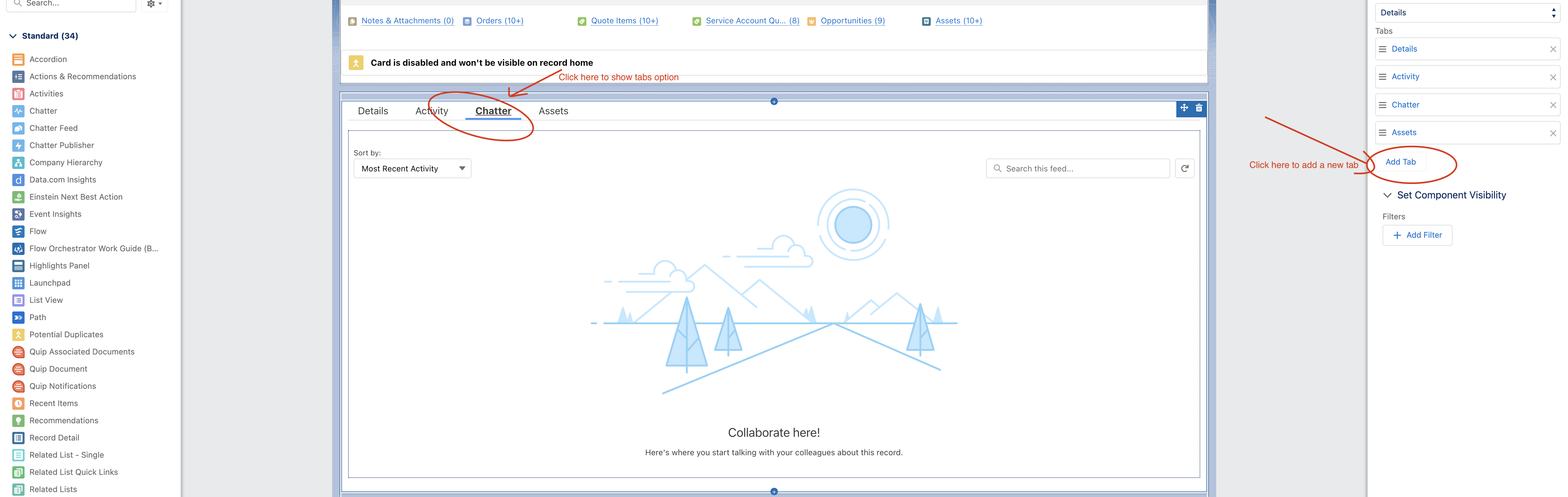
Select any tab on this page and then click Add Tab. The page
appears in this way:
- On the new tab, select the tab Label as Custom and fill in Asset Viewer under the Custom Label.
- Save the changes.
- From the Components, drag the cpqAssetViewerContainer a Flexcard component, under the new Asset Viewer tab.
- Save the changes and activate the Asset Viewer.
Customize the Asset Viewer
Adding New “Group By” Fields:
- From App Launcher, find and select OmniStudio Flexcards.
- Search for the cpqAssetViewerContainer Flexcard and create a version to edit.
-
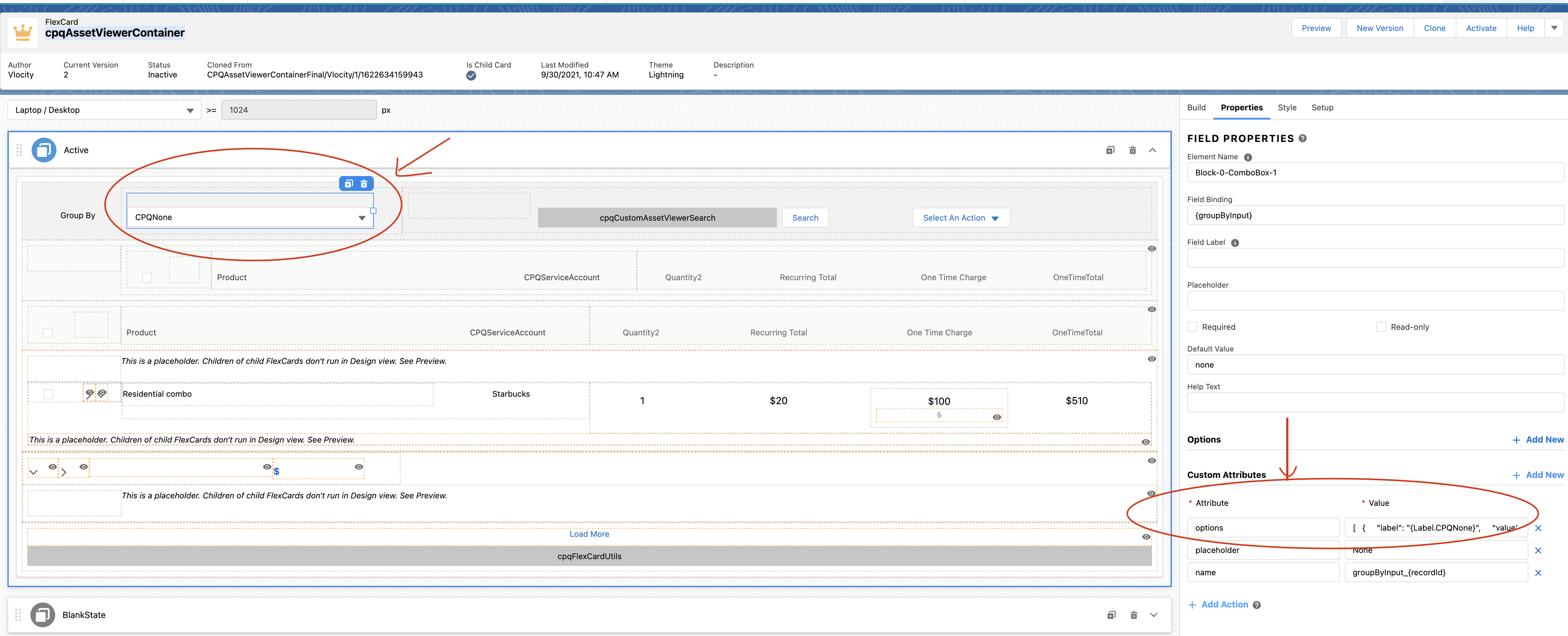
On this Flexcard Designer page, click Group by Input component, and
fill in these details.
{ "label": "Quantity", "value": "Quantity" }, { "label": "{Label.CPQOneTimeCharge}", "value": "shyam_dev_234__OneTimeCharge__c" } -
The page appears as shown here:
- Activate the new version of the Flexcard and see the changes on the Account page.