---
schema_version: "1"
id: 6defe9ae21f9e8ab91a6bf802d7d5b7d086a71a6d1337b69b2ef83a8c83e1b7f
title: Configure Asset Viewer
collection: admin
version: current
locale: en-us
portal_url: https://docs.salesforce.com/admin/current/en-us/ind/264-0-0/comms_configuring_asset_viewer.md
canonical_url: https://help.salesforce.com/s/articleView?id=ind.comms_configuring_asset_viewer.htm&release=264.0.0&type=5
source_site: help.salesforce.com
content_type: documentation
content_hash: 8aad0f634bc3fda9d47833228a1e89a8eae0921dbbb2ede2b1dae6a654ba99ee
description: Asset Viewer is a powerful, configurable component built that use Flexcards and Integration Procedures. Add this component to your Account page to provide a comprehensive, interactive view of all assets. It shows records for both the primary account and all associated child accounts in a single location.
products:
- Communications
- Media
- Energy and Utilities
release: "264"
---
# Configure Asset Viewer
Asset Viewer is a powerful, configurable component built that use Flexcards and Integration Procedures. Add this component to your Account page to provide a comprehensive, interactive view of all assets. It shows records for both the primary account and all associated child accounts in a single location.
### Required Editions
Available in: Lightning Experience
Available in: Enterprise, Unlimited, Performance, and Developer Edition.
User Permissions Needed
To Set Up Asset Viewer:
CME Managed Package
Find the necessary setup, core functionalities, and advanced customization options for the Asset Viewer.
Before you begin, see [Install IDX Workbench](https://help.salesforce.com/s/articleView?id=ind.comms_install_idx_workbench_2.htm&language=en_US) to get the setup for Industries CPQ deployment, including Flexcards, Integration Procedures, and DataRaptor.
Ensure to import and activate the CPQ Flexcards related to Asset Viewer:
- cpqAssetViewerContainer
- cpqAssetViewerLineItem
- cpqAssetViewerChildLineItem
- cpqAssetViewerGroupLineItems
- cpqAdvancedSearchLineItem
- cpqAssetSearch
- cpqAssetViewerAdvancedSearch
- cpqAssetViewerSelectAllAssets
- cpqCartInlineChildPromoForAssetViewer
- cpqCartInlinePromoForAssetViewer
- cpqChangeOfPlanGroups
## Add Asset Viewer to your Account Page
1. From the App Launcher, find and select **Accounts**, and then click your Account name.
2. From the Setup, on the account page, select Edit Page from the dropdown.
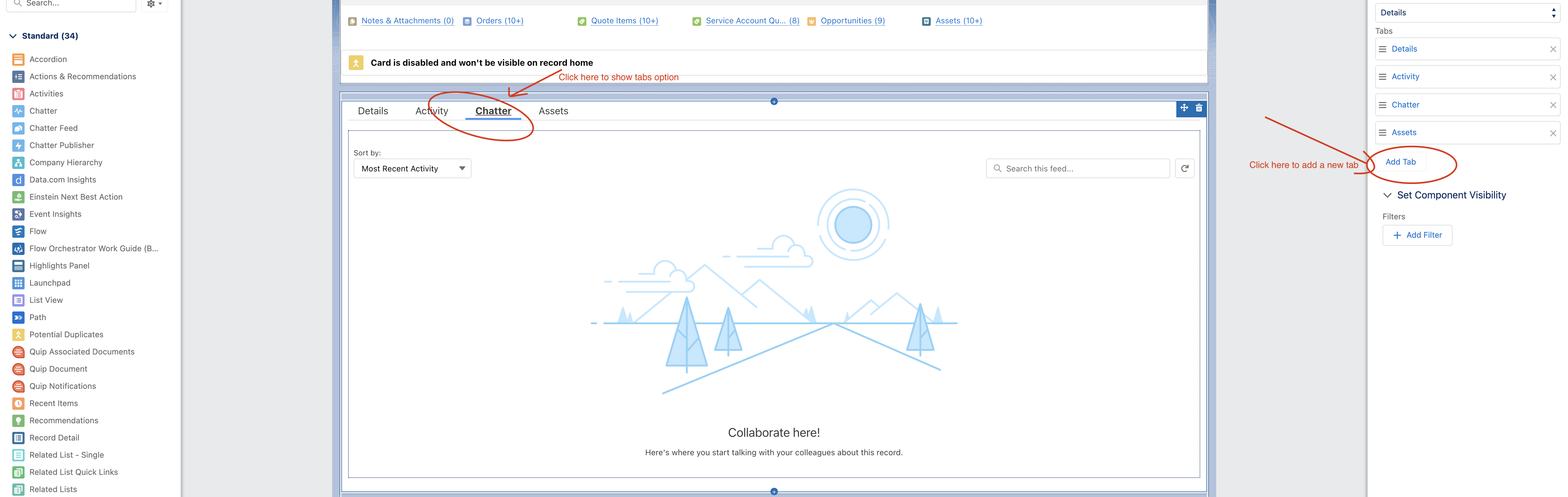
3. Select any tab on this page and then click **Add Tab**. The page appears in this way:
4. On the new tab, select the tab Label as **Custom** and fill in Asset Viewer under the Custom Label.
5. Save the changes.
6. From the Components, drag the **cpqAssetViewerContainer** a Flexcard component, under the new Asset Viewer tab.
7. Save the changes and activate the Asset Viewer.
## Customize the Asset Viewer
Adding New “Group By” Fields:
1. From App Launcher, find and select **OmniStudio Flexcards**.
2. Search for the **cpqAssetViewerContainer** Flexcard and create a version to edit.
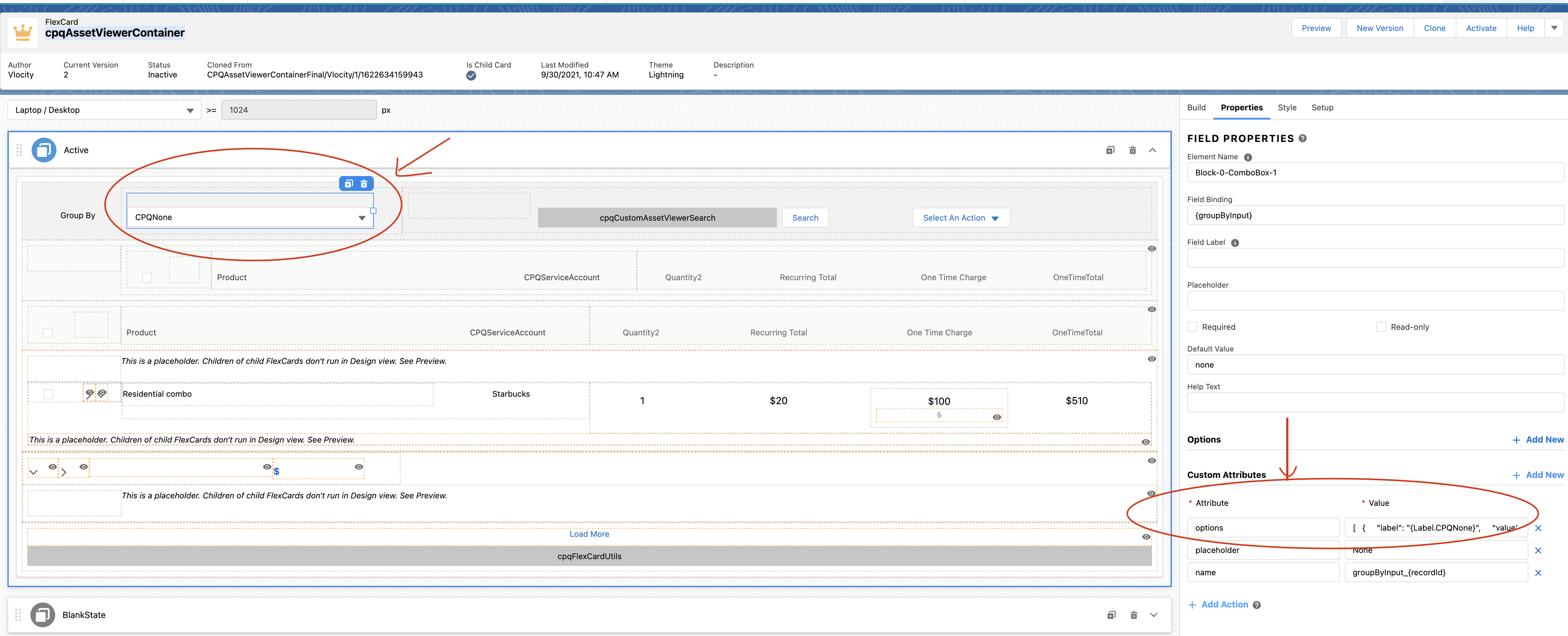
3. On this Flexcard Designer page, click **Group by Input** component, and fill in these details.
```json
{
"label": "Quantity",
"value": "Quantity"
},
{
"label": "{Label.CPQOneTimeCharge}",
"value": "shyam_dev_234__OneTimeCharge__c"
}
```
4. The page appears as shown here:
5. Activate the new version of the Flexcard and see the changes on the Account page.