
Respondents can use a digital signature to authenticate their responses on the form when you add the Discovery Framework Signature element to a form. They can either type or draw their name or initials, and use the signature in multiple places on the form before submitting it. The Assessment Signature object stores the signature details, and the Digital Signature object stores the signature.
Required Editions
| View supported product editions. |
| User Permissions Needed | |
|---|---|
| To add a Discovery Framework Signature element to an Omniscript: | View permissions information. |
When submitting the responses, respondents can either type their name or initials and select a Salesforce font as their signature style, or they can draw their own e-signature. They can also add the same signature at multiple places on the form before submitting the responses. Respondents can reuse the same signature in multiple locations within the Discovery Framework Omniscript. However, the Signature element doesn't support capturing signatures from multiple users in the same Omniscript.

Watch this video to learn how to capture a respondent’s signature on the form for a Financial Services scenario.
If you aren’t able to watch the view in full screen, open the
video on a new tab:  Get to Know the Discovery Framework Signature Element.
-
From the Omniscript Designer Build panel, under Inputs, drag the
Signature element onto the canvas.
You can add the element in multiple places on the form.
-
To configure the Signature element, click the Signature element on the canvas to open the
Properties panel.
Customize the text you want to show on the Signature component screen for respondents, when taking up an assessment.
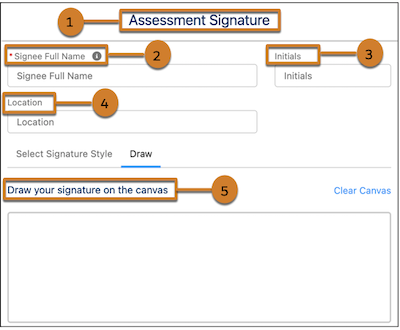
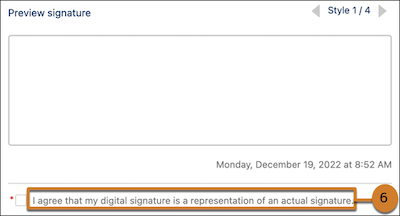
The table shows the UI elements on the component and the corresponding properties in the Properties panel to configure.
UI Element Property The tile of the component (1) Title The field name to capture the respondent’s full name details (2) Signee Full Name Label The field name to capture the respondent’s initials details (3) Initials Label The field name to capture the respondent’s location details (4) Location Label The description for the canvas when the respondent chooses to draw the signature (5) Signature Canvas Description The disclaimer message for the signature component (6) Disclaimer -
To edit the signature, respondents can click Edit Signature on the
component and edit the signature before submitting the assessment.
Editing the signature updates all instances of a signature on the form.