---
schema_version: "1"
id: a68e8103491a7730e64718eb98931791b100c8f33d9acc0cbe93a5ec3787e8d6
title: Capture a Respondent’s Signature on an Assessment Form
collection: admin
version: current
locale: en-us
portal_url: https://docs.salesforce.com/admin/current/en-us/ind/264-0-0/capture_respondents_signature_on_the_form.md
canonical_url: https://help.salesforce.com/s/articleView?id=ind.capture_respondents_signature_on_the_form.htm&release=264.0.0&type=5
source_site: help.salesforce.com
content_type: documentation
content_hash: 2d9dd5b6a6929f18d97fc4f389c54f6ba71a48303b7ee175cf3ae852e1b52789
description: Respondents can use a digital signature to authenticate their responses on the form when you add the Discovery Framework Signature element to a form. They can either type or draw their name or initials, and use the signature in multiple places on the form before submitting it. The Assessment Signature object stores the signature details, and the Digital Signature object stores the signature.
products:
- Industry Solutions
- Cross Cloud
release: "264"
---
# Capture a Respondent’s Signature on an Assessment Form
Respondents can use a digital signature to authenticate their responses on the form when you add the Discovery Framework Signature element to a form. They can either type or draw their name or initials, and use the signature in multiple places on the form before submitting it. The Assessment Signature object stores the signature details, and the Digital Signature object stores the signature.
### Required Editions
When submitting the responses, respondents can either type their name or initials and select a Salesforce font as their signature style, or they can draw their own e-signature. They can also add the same signature at multiple places on the form before submitting the responses. Respondents can reuse the same signature in multiple locations within the Discovery Framework Omniscript. However, the Signature element doesn't support capturing signatures from multiple users in the same Omniscript.

Note The Discovery Framework Signature component isn’t available for Experience Cloud users. Discovery Framework Signature component works only with Omniscripts of the Discovery Framework type.
Watch this video to learn how to capture a respondent’s signature on the form for a Financial Services scenario.
If you aren’t able to watch the view in full screen, open the video on a new tab: [ Get to Know the Discovery Framework Signature Element](https://salesforce.vidyard.com/watch/dhRL2Fh4nC9Di5JiKET4Pg).
1. From the Omniscript Designer Build panel, under Inputs, drag the **Signature** element onto the canvas.
You can add the element in multiple places on the form.
2. To configure the Signature element, click the Signature element on the canvas to open the Properties panel.
Customize the text you want to show on the Signature component screen for respondents, when taking up an assessment.
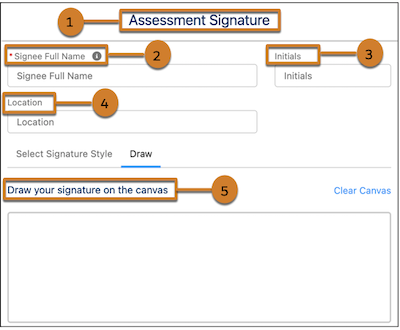
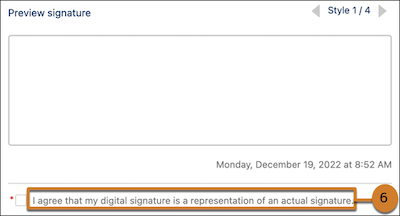
The table shows the UI elements on the component and the corresponding properties in the Properties panel to configure.
| UI Element | Property |
| --- | --- |
| The tile of the component (1) | Title |
| The field name to capture the respondent’s full name details (2) | Signee Full Name Label |
| The field name to capture the respondent’s initials details (3) | Initials Label |
| The field name to capture the respondent’s location details (4) | Location Label |
| The description for the canvas when the respondent chooses to draw the signature (5) | Signature Canvas Description |
| The disclaimer message for the signature component (6) | Disclaimer |
3. To edit the signature, respondents can click **Edit Signature** on the component and edit the signature before submitting the assessment.
Editing the signature updates all instances of a signature on the form.
#### See Also
- [_Industries Common Resources Developer Guide_: AssessmentSignature](https://developer.salesforce.com/docs/atlas.en-us.industries_reference.meta/industries_reference/sforce_api_objects_assessmentsignature.htm)