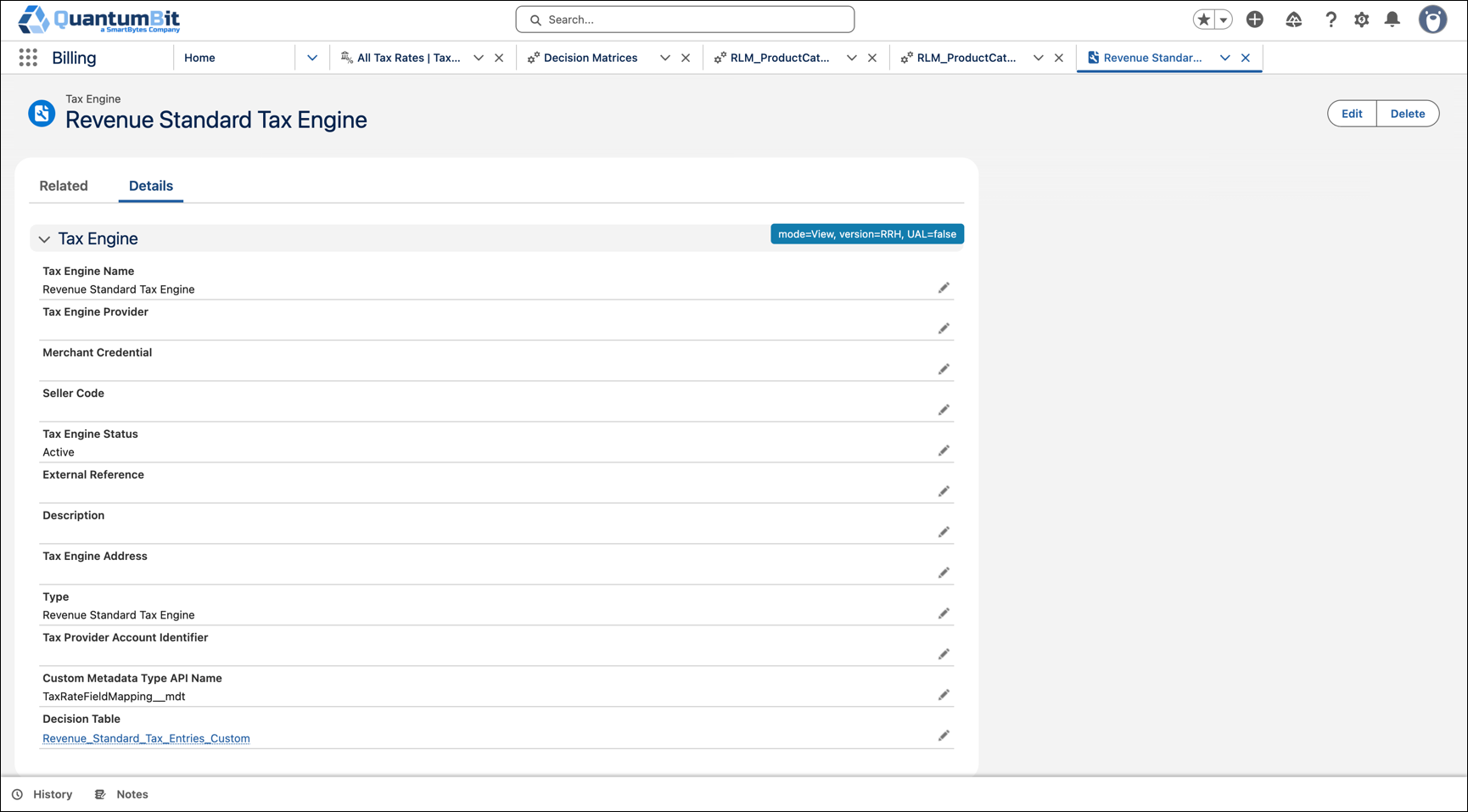
Create a tax engine record that Billing uses to calculate tax. Set the type to Revenue Standard Tax Engine. When you extend the Revenue Standard Tax Engine, associate a custom metadata type and a decision table.
Required Editions
| Available in: Lightning Experience |
| Available in: Enterprise, Unlimited, and Developer Editions with the Revenue Cloud Advanced license or the Revenue Cloud Billing license |
| User Permissions Needed | |
|---|---|
| To create tax engines: | Tax Admin permission set |

Note The Standard User profile includes the View Developer Name system permission. Users need
this permission to use the Revenue Standard Tax Engine. When you clone the Standard User
profile, keep View Developer Name on the cloned profile, or add it to a permission set
assigned to the user.
- From the App Launcher, find and select Tax Engines.
- Click New.
- Enter a name for the tax engine.
-
Select the type as Revenue Standard Tax Engine.
If the Type field is empty, Revenue Cloud Tax Extension is considered as the value.
-
When you extend the Revenue Standard Tax Engine, complete these fields.
-
Enter the API name of the custom metadata type in Custom Metadata Type
API Name. See Configure Custom
Metadata Types.
Custom Metadata Type API Name is the API name of the custom metadata type that maps billing transaction fields to Revenue Standard Tax Entries decision table inputs and outputs. The tax engine references this custom metadata type to identify which field mappings to apply when it evaluates the decision table.
-
Select the cloned decision table in Decision Table. See
Clone the
Decision Table.
The Revenue Standard Tax Engine matches tax rates with this decision table. If this field is blank, the engine uses the Revenue Standard Tax Entries decision table. To match custom tax rate fields, select your cloned table and make sure that table is active. The decision table must be active.
-
Enter the API name of the custom metadata type in Custom Metadata Type
API Name. See Configure Custom
Metadata Types.
-
Select the status as Active.
You can use only active tax engines to calculate taxes.
-
To capture taxes at the header level, select Capture Taxes At
Header.
The Capture Taxes At Header checkbox appears only when Credit, Payment, and Refund Application Level is Header Level. See Capture Taxes at Header Level.
-
Save your changes. Here’s how the tax engine appears after you associate the custom
metadata type and decision table.