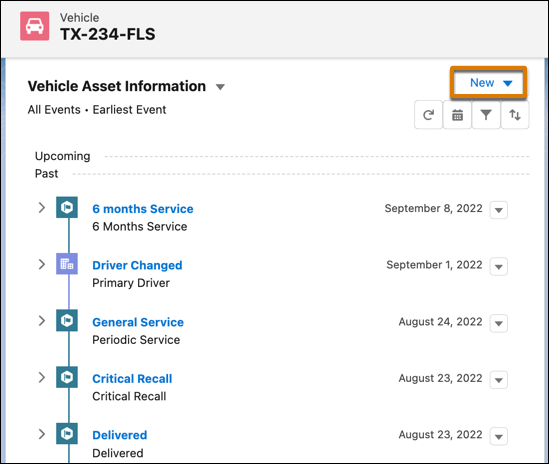
View records and key activities associated with a vehicle on a Timeline. You can add and
edit records without losing the context of the vehicle and you can sort and filter past and
upcoming events by time and event type. You can also switch between multiple timelines. You can
view up to 2000 records on a single timeline.
Required Editions
| Available in: Enterprise, Unlimited, and Developer
Editions. |
| User Permissions Needed |
| To use Timeline: |
Automotive Foundation User permission set. |
Make sure your admin has added the Timeline component to the Vehicle page layout that’s
assigned to you.
-
Open a Vehicle record.
-
Click the Timeline component.
-
To create a record, click New and select the event or record
type.
-
View the following information:
- Timeline name along with a picker that allows you to switch between timelines.
- Name of a record along with other information such as the created date, status, and
other fields that the admin configured.
- Segments that divide the records into past, current, and upcoming records.Party
Relationship Groups
-
To get a more detailed view of an event or record, expand the event or record.
-
To add or remove event types from your view, use the Event Type filter.
-
To view events from a broader or narrower range of dates, use the Date Range filter.
-
Click
 to edit, delete, or clone
records.
to edit, delete, or clone
records.
The actions depend on how the admin has configured the timeline.