---
schema_version: "1"
id: cd92657abade07a0dcd8ad0d7e8dbd0b36d5f22c485e75f27cd3474c6e40f862
title: Add and Edit Timeline Records on Vehicle
collection: admin
version: current
locale: en-us
portal_url: https://docs.salesforce.com/admin/current/en-us/ind/264-0-0/auto_timeline_user_vehicle.md
canonical_url: https://help.salesforce.com/s/articleView?id=ind.auto_timeline_user_vehicle.htm&release=264.0.0&type=5
source_site: help.salesforce.com
content_type: documentation
content_hash: 83e42ca28d419da51d78176a3fa6bdf4749694e9a7c824f3ddf29004bd4ff3a7
description: View records and key activities associated with a vehicle on a Timeline. You can add and edit records without losing the context of the vehicle and you can sort and filter past and upcoming events by time and event type. You can also switch between multiple timelines. You can view up to 2000 records on a single timeline.
products:
- Automotive
release: "264"
---
# Add and Edit Timeline Records on Vehicle
View records and key activities associated with a vehicle on a Timeline. You can add and edit records without losing the context of the vehicle and you can sort and filter past and upcoming events by time and event type. You can also switch between multiple timelines. You can view up to 2000 records on a single timeline.
### Required Editions
Available in: Enterprise, Unlimited, and Developer Editions.
User Permissions Needed
To use Timeline:
Automotive Foundation User permission set.
Make sure your admin has added the Timeline component to the Vehicle page layout that’s assigned to you.
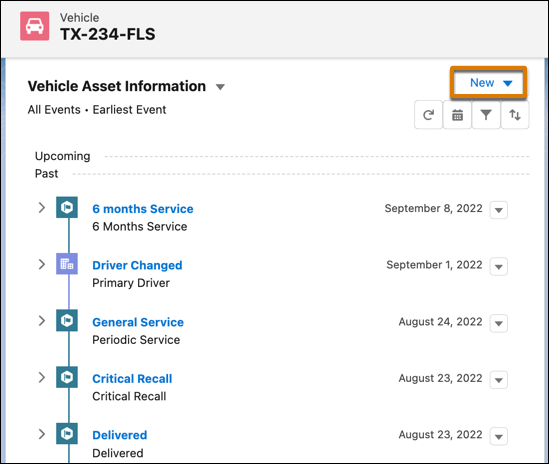
1. Open a Vehicle record.
2. Click the **Timeline** component.
3. To create a record, click **New** and select the event or record type.
4. View the following information:
- Timeline name along with a picker that allows you to switch between timelines.
- Name of a record along with other information such as the created date, status, and other fields that the admin configured.
- Segments that divide the records into past, current, and upcoming records.Party Relationship Groups
5. To get a more detailed view of an event or record, expand the event or record.
6. To add or remove event types from your view, use the Event Type filter.
7. To view events from a broader or narrower range of dates, use the Date Range filter.
8. Click  to edit, delete, or clone records.
The actions depend on how the admin has configured the timeline.
#### See Also
- [_Salesforce Help_: Configure Timelines for Automotive Cloud](https://help.salesforce.com/s/articleView?id=ind.auto_configure_vehicle_timeline_parent.htm&release=264.0.0&type=5 "Track key events and activities related to a vehicle with the Timeline component on a Vehicle record page. A user can get information about upcoming, past, and current activities related to a vehicle from one timeline. Timeline eliminates the necessity of searching for information in multiple places by showing a vehicle’s entire activity history in one place. Customize the timeline as per your company’s requirements and ensure that each user finds the most relevant and useful information.")