Use Asset Account Participant records to relate every asset in your org—a
vehicle, a part, or an accessory—to relevant Account records. You can relate multiple
stakeholders to an asset during the asset's lifecycle. For example, a car can be related to the
dealers who sell the car, the service dealers who repair and maintain the car, and the customer
who purchases the car. If the car is used or refurbished, you can also track the financiers and
the consultants who help with trade-in transactions.
Required Editions
| Available in: Enterprise, Unlimited, and Developer
Editions. |
| User Permissions Needed |
| To create asset account participants: |
Automotive Foundation permission set |
The admin can add picklist values for the Role field on the Asset Account Participant object
in Object Manager. Automotive Cloud comes with predefined values.
-
From the App Launcher, find and select Asset Account
Participants.
You can also find the list of all asset account relationships related to an Account on the
Related tab of an Account record.
-
Click New.
-
Search for and select an account.
-
Enter a name for the participant.
-
For Stakeholder Role, select the type of account in relation to the asset, such as Sales
Dealer, Customer-Preferred Dealer, Customer, or Financier.
-
Search for and select an asset.
-
If the asset is a vehicle, search for and select a Vehicle record.
-
Select the status as Active.
-
Select a start date and effective end date for the association between the asset and the
account.
-
For Usage Type, select Automotive.
-
Save your changes.
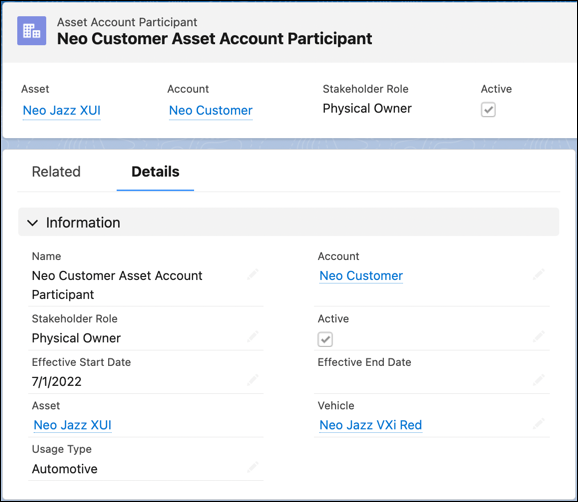
You can create relationship cards to capture key
information about asset account participants and add the cards on the Vehicle record page layout
to get information in context. Or, use the Actionable Relationship Center graph to visualize
related stakeholders.
