---
schema_version: "1"
id: 03ae190d7ea2638803fee93a524a6c07621393ad55bed2a6f498b2dc87f8edfb
title: Create Asset Account Participants in Automotive Cloud
collection: admin
version: current
locale: en-us
portal_url: https://docs.salesforce.com/admin/current/en-us/ind/264-0-0/auto_create_asset_account_participants.md
canonical_url: https://help.salesforce.com/s/articleView?id=ind.auto_create_asset_account_participants.htm&release=264.0.0&type=5
source_site: help.salesforce.com
content_type: documentation
content_hash: a36add0cf26c0bcee6acd0e69a6fb478c26186373159ba20de8bdd74a0aa56f2
description: Use Asset Account Participant records to relate every asset in your org—a vehicle, a part, or an accessory—to relevant Account records. You can relate multiple stakeholders to an asset during the asset's lifecycle. For example, a car can be related to the dealers who sell the car, the service dealers who repair and maintain the car, and the customer who purchases the car. If the car is used or refurbished, you can also track the financiers and the consultants who help with trade-in transactions.
products:
- Automotive
release: "264"
---
# Create Asset Account Participants in Automotive Cloud
Use Asset Account Participant records to relate every asset in your org—a vehicle, a part, or an accessory—to relevant Account records. You can relate multiple stakeholders to an asset during the asset's lifecycle. For example, a car can be related to the dealers who sell the car, the service dealers who repair and maintain the car, and the customer who purchases the car. If the car is used or refurbished, you can also track the financiers and the consultants who help with trade-in transactions.
### Required Editions
Available in: Enterprise, Unlimited, and Developer Editions.
User Permissions Needed
To create asset account participants:
Automotive Foundation permission set
The admin can add picklist values for the Role field on the Asset Account Participant object in Object Manager. Automotive Cloud comes with predefined values.
1. From the App Launcher, find and select **Asset Account Participants**.
You can also find the list of all asset account relationships related to an Account on the Related tab of an Account record.
2. Click **New**.
3. Search for and select an account.
4. Enter a name for the participant.
5. For Stakeholder Role, select the type of account in relation to the asset, such as Sales Dealer, Customer-Preferred Dealer, Customer, or Financier.
6. Search for and select an asset.
7. If the asset is a vehicle, search for and select a Vehicle record.
8. Select the status as **Active**.
9. Select a start date and effective end date for the association between the asset and the account.
10. For Usage Type, select **Automotive**.
11. Save your changes.
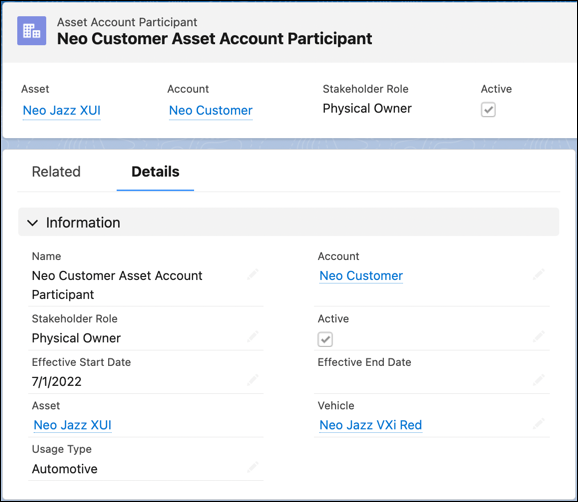
You can create relationship cards to capture key information about asset account participants and add the cards on the Vehicle record page layout to get information in context. Or, use the Actionable Relationship Center graph to visualize related stakeholders.
#### See Also
- [_Salesforce Help_: Configure Actionable Relationship Center Graphs](https://help.salesforce.com/s/articleView?id=ind.auto_configure_arc.htm&release=264.0.0&type=5 "Help users understand the relationship between people and vehicles with Actionable Relationship Center (ARC) graphs. Build custom ARC graphs to connect objects that show related information such as households, visits and vehicles associated to an account. Add the ARC Relationship Graph component to Vehicle or Account pages to let your users engage with the records. Customize card names, display fields, and object and record actions so your users can easily navigate and interact with records during customer engagements.")
- [_Salesforce Help_: Configure Relationship Cards for Automotive Cloud](https://help.salesforce.com/s/articleView?id=ind.auto_set_up_relationship_cards_parent.htm&release=264.0.0&type=5 "Use Relationship Cards to show key information about stakeholders related to a vehicle’s lifecycle. After identifying the information that your users refer to, use the card setup flow to configure the relationship cards, and then add the cards to the desired page layouts.")