Add the Timeline component to a Vehicle record page to create a chronological view of
events and activities derived from warranties, stakeholder information, asset-related information,
and more. If you have multiple Vehicle page layouts for different users, such as dealers, service
agents, and sales executives, make sure that you add relevant timelines to the page layouts. For
example, if you create a timeline that shows information about warranties, recalls, and services,
you can add the timeline to the Vehicle page layout for the service technician and service dealer
profiles.
Required Editions
| Available in: Enterprise, Unlimited, and Developer
Editions. |
| User Permissions Needed |
| To configure and customize Timeline: |
Customize Application |
-
On a Vehicle record page, from Setup, select Edit Page.
-
Drag the Timeline component onto the editable content area.
-
To select the timeline configurations to make available, in the component properties panel,
click Select.
Only active timeline configurations are available for selection.
-
In the Timeline window, select the required configurations, and then click
OK.
You can select up to five timeline configurations.
-
Save and activate your changes.
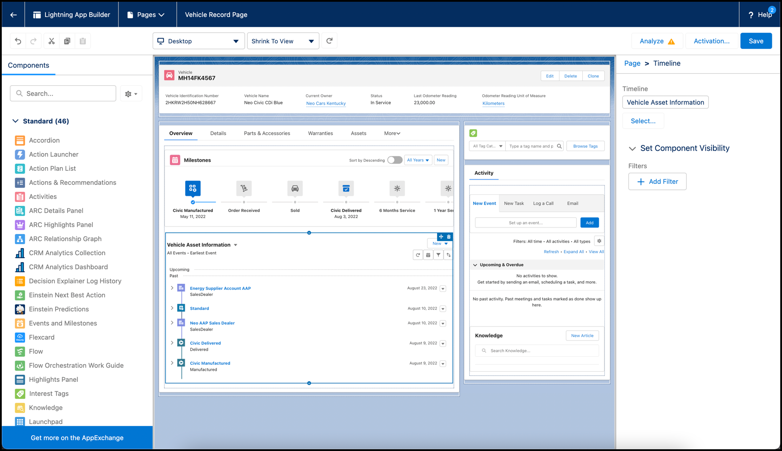
Based on the type of access you grant, users
can create and edit timeline events directly from the component without leaving the Vehicle
record page.
