To use all Advanced Approvals features, you must first complete the recommended base
configuration. The Approvals settings page is the central hub for managing your organization-wide
settings. This setup is essential for your approval workflows to run effectively.
Required Editions
| Available in: Lightning Experience |
| Available in: Enterprise, Unlimited, and Developer Editions where
Advanced Approvals is enabled |
| User Permissions Needed |
| To enable approval settings: |
Customize Application |
-
From Setup, find and select Approval Settings.
-
To automate flows, turn on these settings.
- Use Flow Approval Process
- Use Advanced Approvals
-
To manage email notifications as an administrator, turn on these settings.
- Send Approval Work Item Assignment Emails to Approvers
- Send Approval Submission Status Email Notifications to
Submitters
-
Optionally, you can send flow approval work items by turning on the Send
approval work item emails only to queue members option. By default, the work items
are sent to queued members or delegates.
-
To let reviewers delegate their approval responsibilities to another user, group, or
queue, turn on Use Advanced Approval Delegation.
-
To use generative AI to respond to approvals, turn on
Use Dynamic Approval Notifications.
-
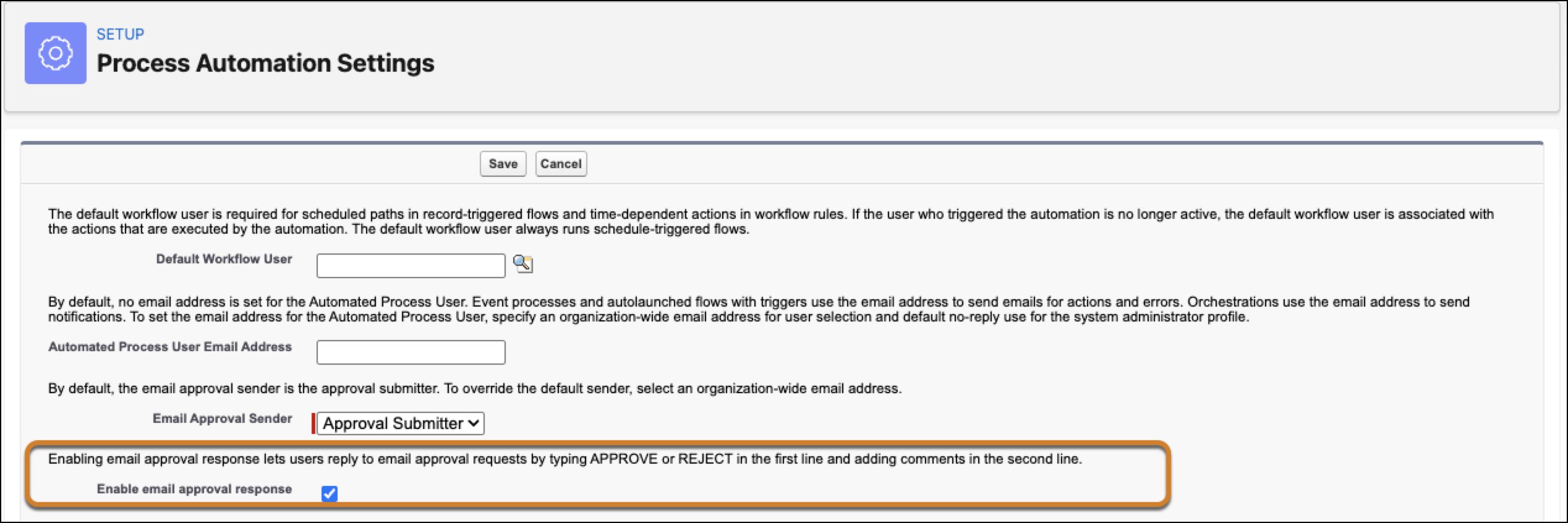
To allow approvers review approval items by replying to an email, you’ll need to make edits
in the Process Automation Settings page.
-
From Setup, find and select Process Automation Settings.
-
Select Enable email approval response.
-
Save your changes.