---
schema_version: "1"
id: a13b40afa18cfecf3afc5bf5228eb1a4300895e556ee7ce4fed33be3d4dca546
title: Set Up Advanced Approvals
collection: admin
version: current
locale: en-us
portal_url: https://docs.salesforce.com/admin/current/en-us/ind/264-0-0/approvals_set_up_advanced_approvals.md
canonical_url: https://help.salesforce.com/s/articleView?id=ind.approvals_set_up_advanced_approvals.htm&release=264.0.0&type=5
source_site: help.salesforce.com
content_type: documentation
content_hash: 2aed6587ebb7ec452cb871c107f7c563c0696f60ffa88d4a0a7a371e48836bb6
description: To use all Advanced Approvals features, you must first complete the recommended base configuration. The Approvals settings page is the central hub for managing your organization-wide settings. This setup is essential for your approval workflows to run effectively.
products:
- Revenue Cloud
release: "264"
---
# Set Up Advanced Approvals
To use all Advanced Approvals features, you must first complete the recommended base configuration. The Approvals settings page is the central hub for managing your organization-wide settings. This setup is essential for your approval workflows to run effectively.
### Required Editions
Available in: Lightning Experience
Available in: Enterprise, Unlimited, and Developer Editions where Advanced Approvals is enabled
User Permissions Needed
To enable approval settings:
Customize Application
1. From Setup, find and select **Approval Settings**.
2. To automate flows, turn on these settings.
- **Use Flow Approval Process**
- **Use Advanced Approvals**
3. To manage email notifications as an administrator, turn on these settings.
- **Send Approval Work Item Assignment Emails to Approvers**
- **Send Approval Submission Status Email Notifications to Submitters**
4. Optionally, you can send flow approval work items by turning on the **Send approval work item emails only to queue members** option. By default, the work items are sent to queued members or delegates.
5. To let reviewers delegate their approval responsibilities to another user, group, or queue, turn on **Use Advanced Approval Delegation**.
6. To use [generative AI](https://help.salesforce.com/s/articleView?id=ai.generative_ai.htm&language=en_US) to respond to approvals, turn on **Use Dynamic Approval Notifications**.
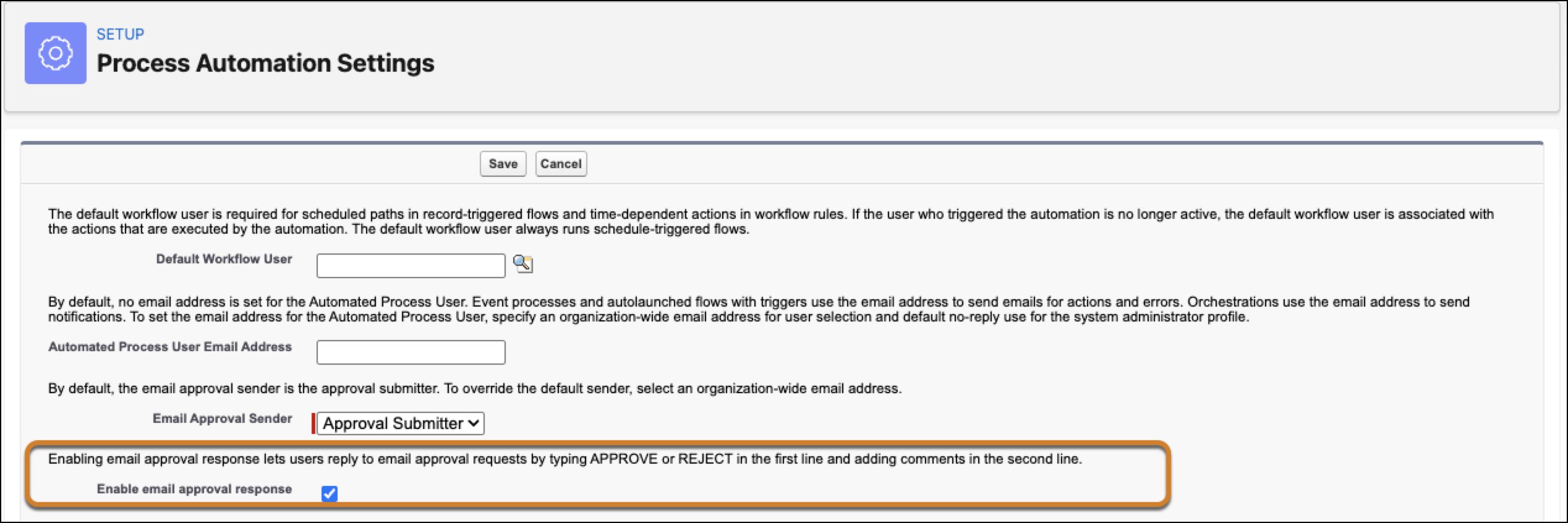
7. To allow approvers review approval items by replying to an email, you’ll need to make edits in the Process Automation Settings page.
1. From Setup, find and select **Process Automation Settings**.
2. Select **Enable email approval response**.
3. Save your changes.