
Search for published slots and schedule appointments for patients enrolled in a work procedure.
Required Editions
|
Available in: Lightning Experience Available in: Enterprise and Unlimited Editions with Health Cloud or Life Sciences Cloud |
| User Permissions Needed | |
|---|---|
| To access Multi-Step Scheduling features: | Manage Multi-Step Scheduling features |
| To include users in Salesforce Scheduler appointments: | Let a user be included in appointments in Salesforce Scheduler |
| To create, edit and delete Health Cloud data: | Manage Health Cloud |

Note Appointment slots are published when shifts are configured for the service
resource assigned to a service territory. Your admin can help with that.
-
From the App Launcher, find and select Care Program Enrollees.
Alternatively, from the patient’s record page, go to the Related tab and navigate to the Care Program Enrollee list.Note Make sure you add the Related List lightning component to the patient’s record page.
- Select the enrollee record you want to schedule appointments for.
-
Click Book New Slots.
The Schedule Appointments tab is now visible.
-
To perform a basic search:
- Select a work procedure. For example, the broader therapy process such as Cell and Gene Therapy.
- For Work Procedure Organization, select the parent service territory for the work procedure.
- Search with date ranges for either the first work type or the last work type. Select the work type and enter the dates.
- Click Search.
-
To search using additional criteria, expand Advanced Search:
- Select a work type.
- Select up to three locations where the work type is performed.
- To broaden your search, add more work types and associated locations.
- Click Search.
- To view the available slots, click on the results. You can view the available slots in the consecutive work types as well.
-
Select a time slot for each step of the work procedure.
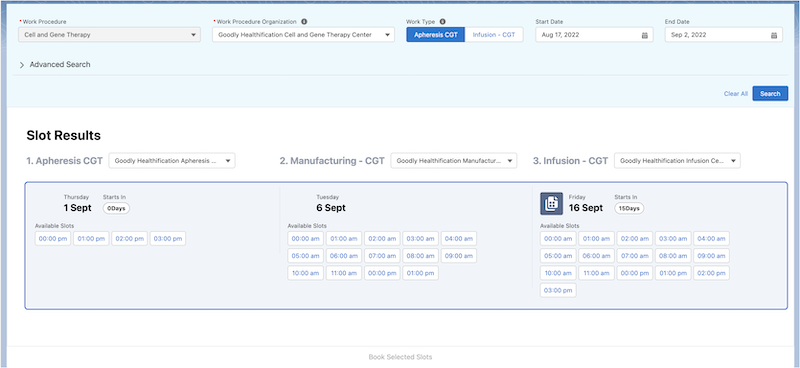
- Click Book Selected Slots.
-
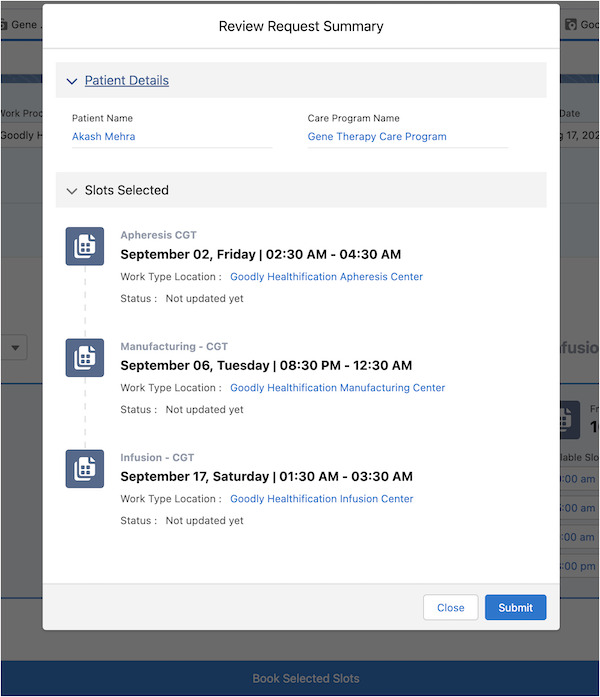
Review the patient details and the slot details.
-
Click Submit.
The request for scheduling slots is submitted for review.