You can configure objects to track in the Contact Center Activity Timeline. This
timeline is an Account-based timeline with Case, Engagement Interaction, and Engagement Topic as
related objects. To customize this timeline, deactivate it, add related objects, and then activate
it again. You can also create a new timeline instead.
Required Editions
|
Available in: Lightning Experience
Available in: Enterprise and Unlimited Editions with Health
Cloud
|
| User Permissions Needed |
| To use the Contact Center for Health Cloud |
Contact Center for Health Cloud permission set |
-
From Setup, in the Quick Find box, enter Timeline and then select
Timeline.
-
If it's not yet enabled, enable Timeline Configuration.
-
Next to Contact Center Activity Timeline, click
 , and then click Deactivate.
-
Click , and then
click Edit.
-
Go to Timeline Related Objects, and click Add Related Object.
-
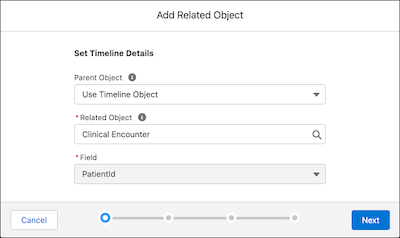
In Related Object, select a related object such as Clinical Encounter, and then click
Next.
-
Set the record visibility of the related object. For example, add a condition to configure
the timeline to show records from this object only when the Status field equals New.
-
Click Next.
-
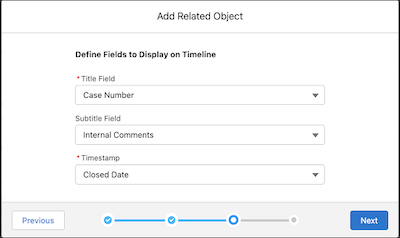
Select a title field, subtitle field, and timestamp for the related object.
-
Click Next.
-
Add fields and related lists to show on the timeline, and then click
Add.
-
Click Next to preview the timeline, and then click
Activate.
To create a new timeline, first deactivate the existing timeline. Click New
Timeline to provide a label and API name. Repeat the steps to add objects, set the
visibility of the related object, and add fields to display on the timeline.