---
schema_version: "1"
id: c585051d7d43f8f7f8fe8c0d7e512d5fafc2cedab2cb3c97ec053e38eda0e27b
title: Customize the Existing Timeline in the Contact Center
collection: admin
version: current
locale: en-us
portal_url: https://docs.salesforce.com/admin/current/en-us/ind/264-0-0/admin_contact_center_enhanced_timeline_customize.md
canonical_url: https://help.salesforce.com/s/articleView?id=ind.admin_contact_center_enhanced_timeline_customize.htm&release=264.0.0&type=5
source_site: help.salesforce.com
content_type: documentation
content_hash: 9da14f3b7e4842e6bd80043cc3c7ccea7890e056df76ed852d47d97f55ca5edd
description: You can configure objects to track in the Contact Center Activity Timeline. This timeline is an Account-based timeline with Case, Engagement Interaction, and Engagement Topic as related objects. To customize this timeline, deactivate it, add related objects, and then activate it again. You can also create a new timeline instead.
products:
- Health
release: "264"
---
# Customize the Existing Timeline in the Contact Center
You can configure objects to track in the Contact Center Activity Timeline. This timeline is an Account-based timeline with Case, Engagement Interaction, and Engagement Topic as related objects. To customize this timeline, deactivate it, add related objects, and then activate it again. You can also create a new timeline instead.
### Required Editions
Available in: Lightning Experience
Available in: Enterprise and Unlimited Editions with Health
Cloud
User Permissions Needed
To use the Contact Center for Health Cloud
Contact Center for Health Cloud permission set
1. From Setup, in the Quick Find box, enter Timeline and then select **Timeline**.
2. If it's not yet enabled, enable **Timeline Configuration**.
3. Next to Contact Center Activity Timeline, click , and then click **Deactivate**.
4. Click , and then click **Edit**.
5. Go to Timeline Related Objects, and click **Add Related Object**.
6. In Related Object, select a related object such as Clinical Encounter, and then click **Next**.
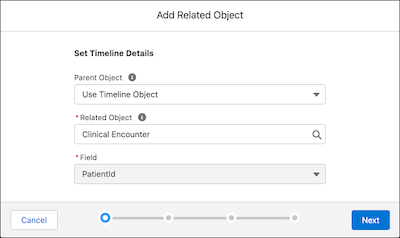
7. Set the record visibility of the related object. For example, add a condition to configure the timeline to show records from this object only when the Status field equals New.
8. Click **Next**.
9. Select a title field, subtitle field, and timestamp for the related object.
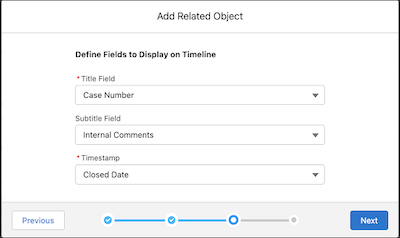
10. Click **Next**.
11. Add fields and related lists to show on the timeline, and then click **Add**.
12. Click **Next** to preview the timeline, and then click **Activate**.
To create a new timeline, first deactivate the existing timeline. Click **New Timeline** to provide a label and API name. Repeat the steps to add objects, set the visibility of the related object, and add fields to display on the timeline.