
Create your own quick actions and configure them in the Contact Center Action Launcher component. For example, if the contact center agent frequently gets requests to add patient medications, create a deployment from the Action Launcher in Setup.
Required Editions
|
Available in: Lightning Experience Available in: Enterprise and Unlimited Editions with Health Cloud |
| User Permissions Needed | |
|---|---|
| To use the Contact Center for Health Cloud | Contact Center for Health Cloud permission set |
- From Setup, in the Quick Find box, enter Action Launcher, and then click Deployments.
- Click New Deployment, and then click Next.
- Enter a label. The API name is auto-updated.
- Select whether you want to add Buttons, flows, links, and quick actions, Omniscripts, or Components. You can select any or all of them. Click Next.
- Select the object for which you want to show the actions. For the Contact Center, select Account as the object, and then click Next.
- From the list of available actions, screen flows or Omniscripts, choose items that appear in the Action Launcher search results. Click Next.
-
Select frequently used actions to pin to the Action Launcher.
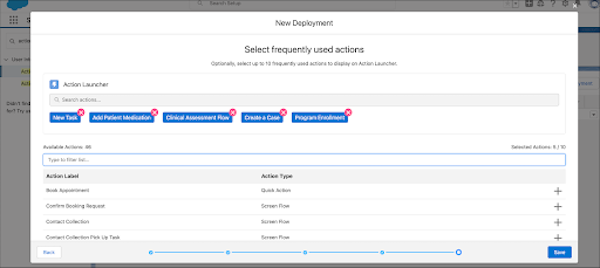
- Save your changes.
- From the App Launcher, go to the Contact Center and open the person account’s record page in Lightning App Builder.
- If the Action Launcher component is not already placed on the page, drag this component from the component list to the page.
-
In the Properties pane, in Action Launcher Deployment, select the deployment you
configured.
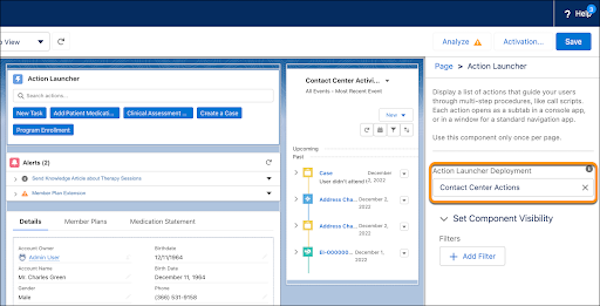
- Save your changes.