
Configure operating hours to represent the hours during which a work type or a service territory is available.
Required Editions
|
Available in: Lightning Experience Available in: Enterprise and Unlimited Editions with Health Cloud or Life Sciences Cloud |
| User Permissions Needed | |
|---|---|
| To access Multi-Step Scheduling features: |
Multi-Step Scheduling permission set OR Manage Multi-Step Scheduling features |
- From the App Launcher, find and select Operating Hours.
- Click New.
- Add a name and description for the operating hours specific to your work type or service territory.
- Select the time zone for the work type or service territory.
-
Set up time slots for work types.
 Note Set up Service Appointment Windows only if you want to use operating hours’ time slots to define the availability of slots. Time slots can be used with or without shift records.
- To use operating hours (time slots) along with shifts, enable Use service territory member’s shift and Use service territory’s operating hours with shifts in Scheduling Policies.
- To only use operating hours (time slots), disable Use service territory member’s shift and Use service territory’s operating hours with shifts in Scheduling Policies. Make sure you assign time slots to work types.
-
Under Set Service Appointment Windows, click Add Row
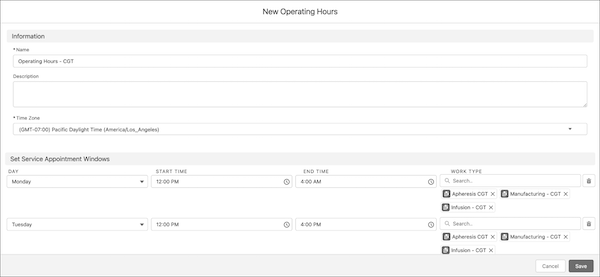
- Select a day and add start and end times for the time slot.
- Add work types that are operational in the service appointment windows.
- Save your changes.