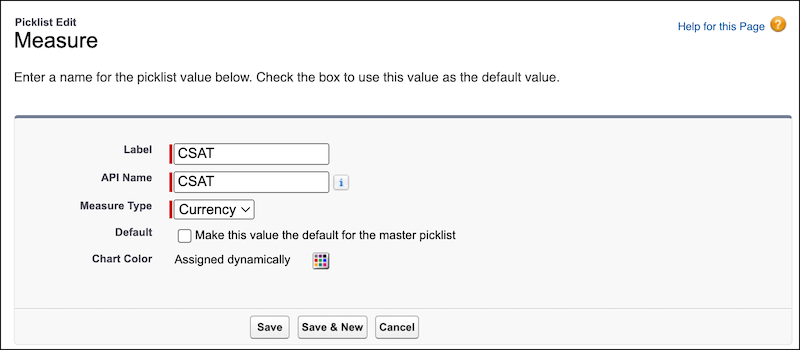
Manage the measures for the account manager target values by configuring the Measure
field on the Account Manager Target object. Use the predefined Revenue measure or create customer
measures. Create currency type measures, such as total order amount and total sales agreement
amount. Or, create non-currency type measures, such as customer satisfaction and net promoter
score. You can also rename, reorder, and delete measures.
Required Editions
| Available in: Enterprise, Unlimited, and Developer
Editions. |
| User Permissions Needed |
| To manage measures for account manager targets: |
Customize Application |
-
From the object management settings for Account Manager Targets, go to Fields &
Relationships.
-
Select Measure.
-
To add a new measure value, perform these steps.
-
In the Measure Picklist Values section, click New.
-
Enter a label for the measure value.
-
Enter an API name for the measure value.
-
Select a measure type.
The predefined measure type values, Currency and Non-Currency, help you maintain a
consistent classification of measure values. Select Currency for currency type of targets.
Select Other for non-currency type of targets.
-
Save your changes.
The new measure appears when account managers are creating targets.
-
To edit the label of a measure value, perform these steps.
-
Click Edit for the measure value.
-
Enter a label for the picklist value.
-
Save your changes.
-
To make a measure value the default for the measure field, perform these steps.
-
Click Edit for the measure value.
-
Select Default.
-
Save your changes.
-
To reorder measure values, perform these steps.
-
Click Reorder.
-
Reorder the picklist values by using the picklist controls.
-
If needed, select Display values alphabetically, not in the order
entered.
-
Save your changes.
-
To delete a measure value, click Del for the measure value.
-
To deactivate or activate a measure value, click Deactivate or
Activate for the measure value, respectively.