---
schema_version: "1"
id: d31453418cb29ad168703ac336d607ff3ac0e0f5b54d824d467ed6a12629467b
title: Manage Measures for Account Manager Targets
collection: admin
version: current
locale: en-us
portal_url: https://docs.salesforce.com/admin/current/en-us/ind/264-0-0/admin_account_manager_targets_custom_measures.md
canonical_url: https://help.salesforce.com/s/articleView?id=ind.admin_account_manager_targets_custom_measures.htm&release=264.0.0&type=5
source_site: help.salesforce.com
content_type: documentation
content_hash: a85506607a1c5af49c7fd07221fd5e636b969300f8fc833f5f08f5a832828bf7
description: Manage the measures for the account manager target values by configuring the Measure field on the Account Manager Target object. Use the predefined Revenue measure or create customer measures. Create currency type measures, such as total order amount and total sales agreement amount. Or, create non-currency type measures, such as customer satisfaction and net promoter score. You can also rename, reorder, and delete measures.
products:
- Manufacturing
release: "264"
---
# Manage Measures for Account Manager Targets
Manage the measures for the account manager target values by configuring the Measure field on the Account Manager Target object. Use the predefined Revenue measure or create customer measures. Create currency type measures, such as total order amount and total sales agreement amount. Or, create non-currency type measures, such as customer satisfaction and net promoter score. You can also rename, reorder, and delete measures.
### Required Editions
Available in: Enterprise, Unlimited, and Developer Editions.
User Permissions Needed
To manage measures for account manager targets:
Customize Application
1. From the object management settings for Account Manager Targets, go to Fields & Relationships.
2. Select **Measure**.
3. To add a new measure value, perform these steps.
1. In the Measure Picklist Values section, click **New**.
2. Enter a label for the measure value.
3. Enter an API name for the measure value.
4. Select a measure type.
The predefined measure type values, Currency and Non-Currency, help you maintain a consistent classification of measure values. Select Currency for currency type of targets. Select Other for non-currency type of targets.
5. Save your changes.
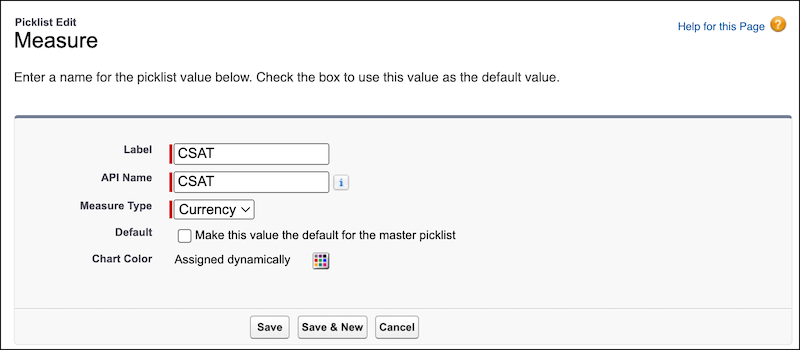
The new measure appears when account managers are creating targets.
4. To edit the label of a measure value, perform these steps.
1. Click **Edit** for the measure value.
2. Enter a label for the picklist value.
3. Save your changes.
5. To make a measure value the default for the measure field, perform these steps.
1. Click **Edit** for the measure value.
2. Select **Default**.
3. Save your changes.
6. To reorder measure values, perform these steps.
1. Click **Reorder**.
2. Reorder the picklist values by using the picklist controls.
3. If needed, select **Display values alphabetically, not in the order entered**.
4. Save your changes.
7. To delete a measure value, click **Del** for the measure value.
8. To deactivate or activate a measure value, click **Deactivate** or **Activate** for the measure value, respectively.
#### See Also
- [Add or Edit Picklist Values](https://help.salesforce.com/s/articleView?id=platform.updating_picklists.htm&type=5&language=en_US)