
List creators can assess the performance of actionable lists at a glance by using Key Performance Indicator (KPI) Bar. KPI Bar is located above the Actionable List Members component.
Required Editions
| Available in: Lightning Experience |
| Available in: Enterprise, Professional, Starter, and Unlimited Editions with the required add-ons |
| User Permissions Needed | |
|---|---|
| To view and modify the information on KPI Bar: | Actionable Segmentation permission set |
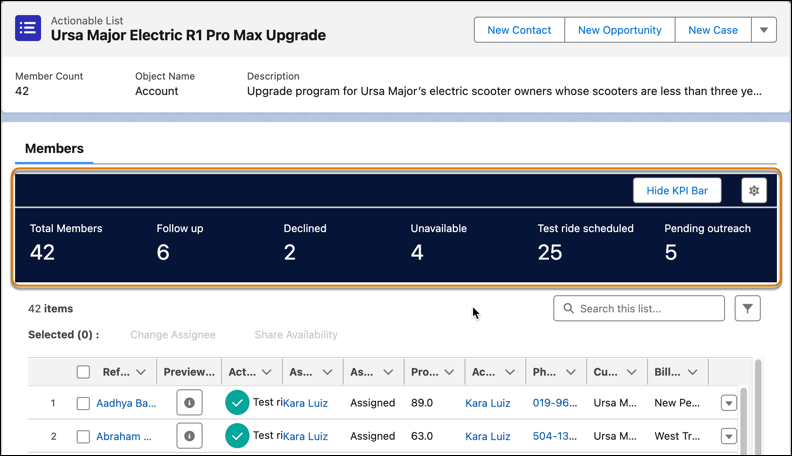
Here are the things list creators must keep in mind when they use KPI Bar:
- By default, KPI Bar is hidden. To see KPI Bar, click Show KPI Bar. To hide KPI Bar, click Hide KPI Bar.
- By default, KPI Bar shows the total number of actionable list members or prospects in an actionable list and the details of up to five actionable list member statuses. If a list has more than five statuses, KPI Bar shows the details of the five oldest statuses based on the creation date of the statuses.
- KPI Bar automatically updates the information when list creators apply filters on the list of actionable list members or perform a row-level action, such as changing the actionable list member status.
- To update the information on KPI Bar, list creators must refresh the page.
- To modify the information on KPI Bar, list creators must have the permission to edit the associated actionable list.
- List creators can click
 to modify the information on KPI Bar by selecting and adding up to three custom
KPIs. Custom KPIs contain "(Custom)" in their name. If a custom KPI's target object is the same
as the object that’s used to create an actionable list, then the custom KPI is available for
selection.
to modify the information on KPI Bar by selecting and adding up to three custom
KPIs. Custom KPIs contain "(Custom)" in their name. If a custom KPI's target object is the same
as the object that’s used to create an actionable list, then the custom KPI is available for
selection.