---
schema_version: "1"
id: fe992f25fa3077dc93a6ace0a6ac2db27f8cbf1e2fd4011fa5d3e8574bcf1e94
title: Monitoring Actionable Lists by Using KPI Bar
collection: admin
version: current
locale: en-us
portal_url: https://docs.salesforce.com/admin/current/en-us/ind/264-0-0/actionable_list_kpi_bar.md
canonical_url: https://help.salesforce.com/s/articleView?id=ind.actionable_list_kpi_bar.htm&release=264.0.0&type=5
source_site: help.salesforce.com
content_type: documentation
content_hash: 272d64c0256514d4eee870b81de46ad96f859bf51c83a2e760eaefac49a3eb00
description: List creators can assess the performance of actionable lists at a glance by using Key Performance Indicator (KPI) Bar. KPI Bar is located above the Actionable List Members component.
products:
- Industry Solutions
- Cross Cloud
release: "264"
---
# Monitoring Actionable Lists by Using KPI Bar
List creators can assess the performance of actionable lists at a glance by using Key Performance Indicator (KPI) Bar. KPI Bar is located above the Actionable List Members component.
### Required Editions
Available in: Lightning Experience
Available in: Enterprise, Professional, Starter, and Unlimited Editions with the required add-ons
User Permissions Needed
To view and modify the information on KPI Bar:
Actionable Segmentation permission set
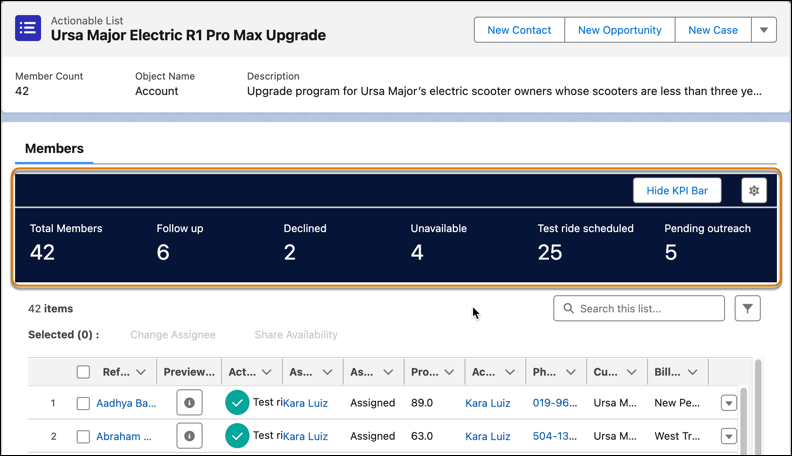
Here are the things list creators must keep in mind when they use KPI Bar:
- By default, KPI Bar is hidden. To see KPI Bar, click **Show KPI Bar**. To hide KPI Bar, click **Hide KPI Bar**.
- By default, KPI Bar shows the total number of actionable list members or prospects in an actionable list and the details of up to five actionable list member statuses. If a list has more than five statuses, KPI Bar shows the details of the five oldest statuses based on the creation date of the statuses.
- KPI Bar automatically updates the information when list creators apply filters on the list of actionable list members or perform a row-level action, such as changing the actionable list member status.
- To update the information on KPI Bar, list creators must refresh the page.
- To modify the information on KPI Bar, list creators must have the permission to edit the associated actionable list.
- List creators can click  to modify the information on KPI Bar by selecting and adding up to three custom KPIs. Custom KPIs contain "(Custom)" in their name. If a custom KPI's target object is the same as the object that’s used to create an actionable list, then the custom KPI is available for selection.
#### See Also
- [Create Custom Key Performance Indicators](https://help.salesforce.com/s/articleView?id=ind.create_custom_kpis.htm&release=264.0.0&type=5 "Help list creators gain customized insights into actionable lists by creating custom key performance indicators (KPIs). List creators can add the custom KPIs to KPI Bar.")