
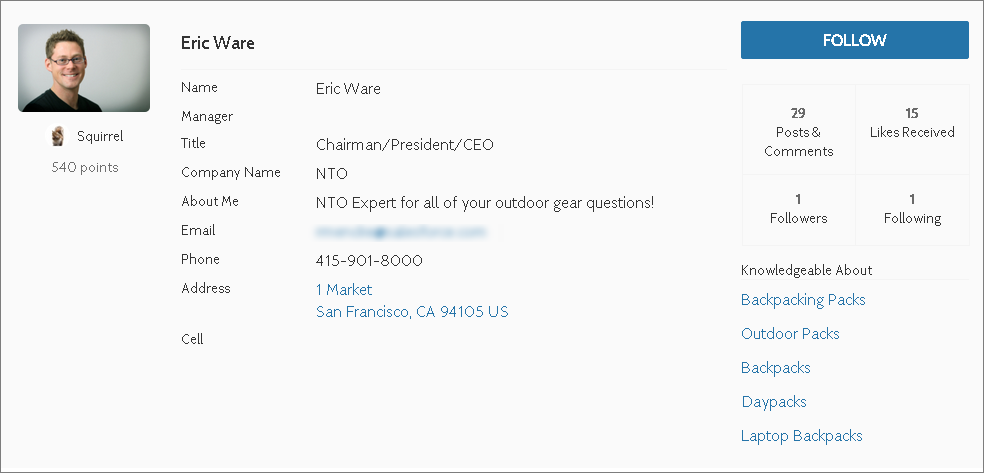
The User Profile Detail component shows details about a user including contact information, profile photo, Chatter statistics, and topics the user is knowledgeable about. On other users’ profiles, it also shows a Follow button.

Chatter statistics for the site include number of posts and comments, likes received, followers, and people the user is following. Knowledgeable About shows top topics that people know about, so the site can quickly see areas of expertise. Topic knowledge is calculated based on factors such as best answers, mentions, or likes on questions and posts.
If nickname display is enabled for the site, the nickname is shown in place of the full name when a user views another user’s profile. The full name is shown when a user views their own profile.
- Select the User Profile Detail component in the page you’re configuring.
-
To view properties for the component, select the Properties pane:
Property Details User ID The system supplies this value so that authenticated users can view their own information. Don’t update this field. Show Influence Section To show the user’s reputation scores under their photos, select the box. Show user’s reputation score in the Influence section To show user’s reputation scores in the Influence section, select the box. Otherwise, the user’s reputations scores under their photos. Show Knows About Determines if the Knowledgeable About list is shown. Show Photo To show the user’s photo, select the box. Display circular photo To apply a circular crop to user profile photos, select the box. Otherwise the crop is a square/rectangle.
Users may must reload their photos so that they fit inside in the cropped area.
Maximum Topics Displayed Enter the maximum number of topics listed for each user, up to a limit of 10.

By default, all the information in a user’s profile is visible to all users in the site, including to unlicensed guest users accessing the site. To limit access to members’ information, use a custom user profile page layout. Hide fields that reveal sensitive information, such as phone, email, title, and manager.