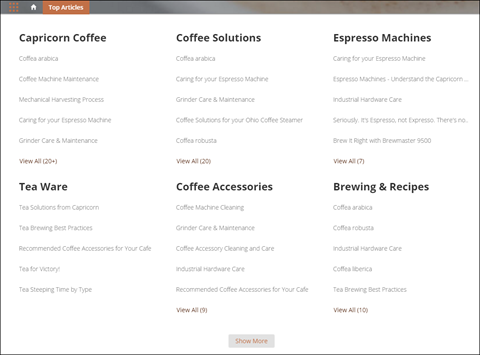
Give your customers more direction when they’re browsing your knowledge articles in an Experience Builder site. Using the Top Articles by Topic component, you can organize topics in one view. Articles populate under the topics, ranked by view count.
- Select the Top Articles by Topic component.
-
In the property editor, configure the component.
- To add another topic, click Add.
- To set a topic’s public availability, select the topic. To make that tab available to guest users in the site, select Publicly available.
- To reorder topics, drag the tile to the correct position.
- Indicate the number of articles to list under each topic (maximum 10).
 Note If you delete a topic from a site, but have it referenced in the Top Articles by Topic component, the topic name doesn’t show. The articles, however, are listed under a blank topic name. To not see the article list, delete the topic name from the Top Articles by Topic component as well.

Example Top Articles by Topic component in use: