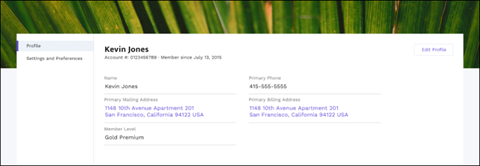
The Member Profile component allows site members to easily edit their account information. And the best part is that all a member’s important information is in one place—profile information and various settings in one handy component. What does that mean for you and your business? Fewer phone calls into your call centers for simple updates.
The Member Profile component uses a default image in the header. Using the component’s properties in Experience Builder, you can choose to not show the default image.
The fields that you see in the Member Profile component are set in Salesforce setup .
Use the Member Profile component on the User Profile page of sites made using the Customer Account Portal.
- Select the Member Profile component in the page you’re configuring.
-
To view the component properties, select the Properties pane:
Property Details User ID The system supplies this value so that authenticated users can view their own information. Don’t update this field. Show banner image at top Shows a banner image at the top of the Member Profile component. If unselected, no banner image is seen. Edit Banner Image Choose a banner image for displaying at the top of the Member Profile component. Show Settings tab Show the Settings tab on the component. Profile Tab Label Enter a label for the Profile tab. The default text is Profile. Settings Tab Label Enter a label for the Settings tab. The default text is Settings & Preferences.

Example Sample Member Profile component.