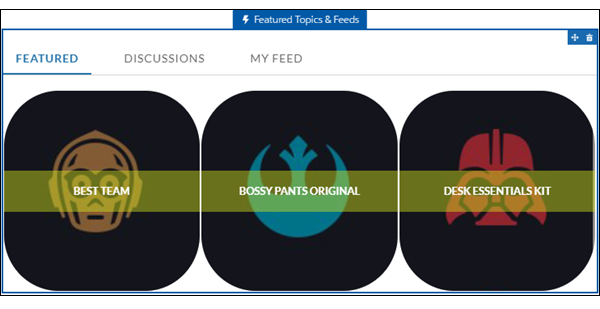
The Featured Topics & Feeds component gives members access to Featured Topics, Discussions, and My Feed in a tabbed setting. Site members must be logged in to see the My Feed tab. The Featured tab shows the featured topics you configured in the Content Management Workspace. You can boost your brand by providing images for featured topics. Topics and images are displayed as tiles on the Featured tab.
- Select the Featured Topics & Feeds component in the page you’re configuring or drag the component from the Components panel to the page.
-
In the property editor, configure the properties
for the component.
Property Details Featured Tab Label Enter a label for the Featured Topics tab. The default label is Featured. Discussion Tab Label Enter a label for the Discussions tab. The default label is Discussions. My Feed Label Enter a label for the My Feed tab. The default label is My Feed. Default Sort Order for Discussion Feed Present site members and guests with the initial feed sort order that you intend. If users change the sort order in their view, their selection sticks. Compact Feed in Discussion Tab Use the compact version of the feed on the Discussions tab. Compact feeds show only question titles and make it easier for users to scan the feed. Compact feeds don’t support filters. Overlay Color The color to use as a wash over the tile background color. In the property’s rgba field, the default is 0,0,0,0.4. Overlay Hover Color The color to use as a wash over the tile background color when a user mouses over the tile. The
 link icon indicates that
the value is taken from the Experience Builder’s theme.
link icon indicates that
the value is taken from the Experience Builder’s theme.In Experience Builder, you can test hover colors in Preview mode.
Border Radius Slide to adjust the curve of the border around each featured topic tile.
If the component is in a narrow container, a round radius tends to look more oval.
If you set border radius to 50, very round, we recommend that you set Text Position to Left, Right, or Center. The text background color is always rectangular, and placing text at the top or bottom of a circular tile truncates the background.
Text Color Set the color of labels on featured topic tiles. Text Hover Color Set the color to use for a label when a user mouses over the tile.
In Experience Builder, you can test hover colors in Preview mode.
Text Background Color Set the color to use for the tile background when it is inactive. In the property’s rgba field, the default is 0,0,0,0. Text Background Hover Color Set the color to use for the tile background when a user mouses over the tile. In the property’s rgba field, the default is 0,0,0,0.
In Experience Builder, you can test hover colors in Preview mode.
Max Text Background Width Move the slider to control the width of the text background color. Width percentage is set against the full width of the tile. So 100% is the full width of the tile, rather than the full width of the browser page or the featured topic component.
No matter what percentage you set, the text background width is always wide enough to support that label that sits on it.
Text Position Select where to place text on a featured topic tile.
- Top Left
- Top Center
- Top Right
- Left
- Center
- Right
- Bottom Left
- Bottom Center
- Bottom Right
Text Alignment Set alignment of text within the text background. Select Center, Left, or Right.
Alignment changes can be less noticeable when text background is narrow or text is positioned at the top or bottom of the tile.