Flows automate business processes to collect, update, edit, and create Salesforce
information. With the Flow component in Experience Builder, you can add flows to your pages.
Add the Flow component to your site pages just like any other component.
Required Editions
| User
Permissions Needed |
| To create an Experience Cloud site: |
Create and Set Up Experiences AND View Setup and
Configuration |
| To customize an Experience Cloud site: |
- Be a member of the site AND Create and Set Up
Experiences
- OR
- Be a member of the site AND an experience admin, publisher,
or builder in that site
|
| To publish an Experience Cloud site: |
- Be a member of the site AND Create and Set Up
Experiences
- OR
- Be a member of the site AND an experience admin or publisher
in that site
|
| To run a flow in an Experience Builder site |
Run Flows |
- Flows in Experience Builder sites are supported through the Flow and Suggested
Actions components.
- Flow creators can overwrite error messages with their own content.
-
Build a flow in Flow Builder.
-
Activate the flow.
-
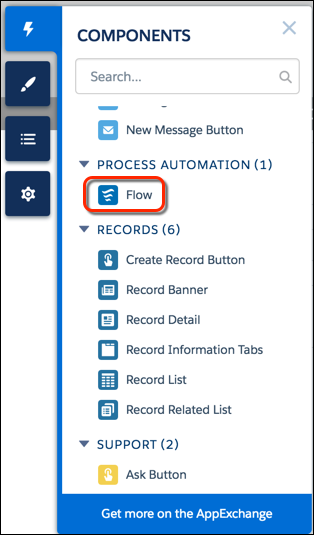
Drag the Flow component into position on your site page.
-
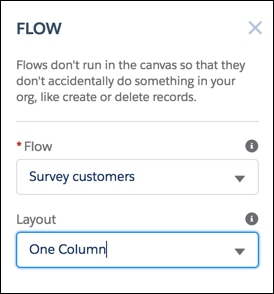
In the property editor, select the flow you want to use and any other
properties.
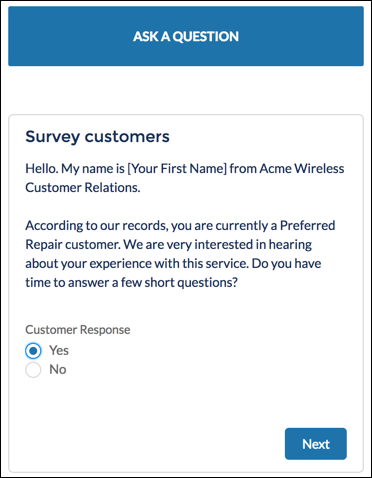
Here’s a flow called Survey customers in a site.
| Component |
Description |
|
|
Only active screen flows are available. Flows that were built in
the Desktop Flow Designer aren’t supported. |
|
|
By default, flows display in one column.
If a screen contains
a Section screen component, that screen ignores the Layout
property.
- Starting in Winter ’23, two-column flow layouts are ignored.
For a better layout option, add Section components to your
flow screens. Each Section component lets you organize
record fields and screen components in up to four
adjustable-width columns.
- If a flow screen contains a Section component, that screen
ignores the Layout property.
|
|
Input variables
|
If you see other properties, they’re the flow’s input variables.
Variables appear only if they allow input access. |
| Pass record ID into this variable |
This option is available only for Text input variables in Record
pages. For simplicity, we recommend passing the ID to only one
variable.
For example, when this component is embedded in an
Opportunity Record page, at run time the component passes the
opportunity’s ID into the selected input variable.
|