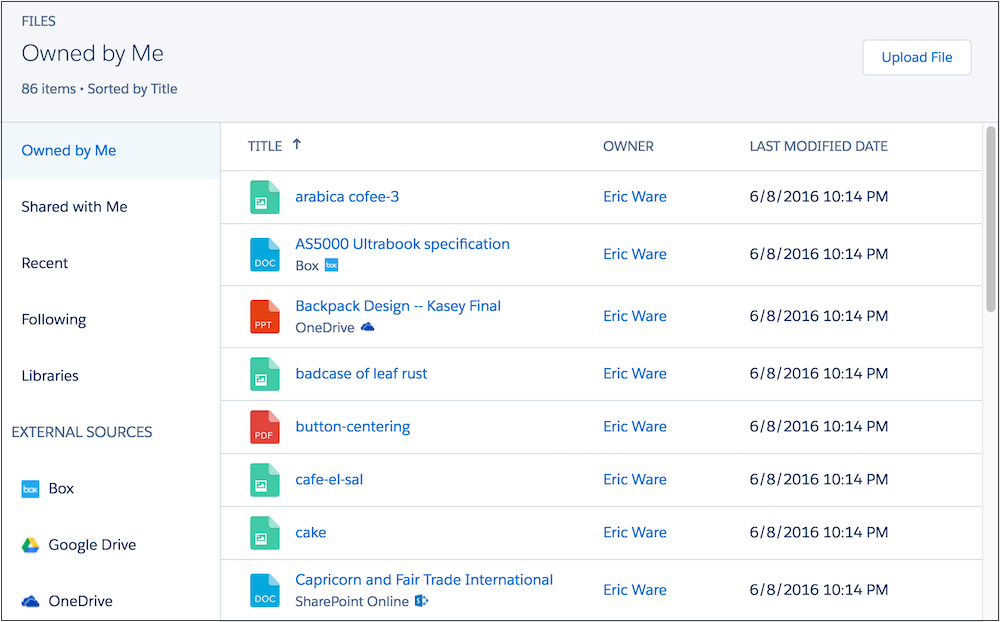
Use the Files List component in the Customer Service template to give site members a convenient place to view and manage their files.
Members can upload, sort, and filter files using the files list. Clicking a file opens the file previewer, where members can upload a new version, download, and delete the file. Filters in the left sidebar show different selections of files. The Libraries filter shows files from Salesforce CRM Content libraries, and Files Connect users can see their external libraries under External Sources.

Note A preview thumbnail is an easy
way to find files in mobile and tablet views. A thumbnail view isn’t yet available
for desktop.
- Select the Files List component in the page you're configuring.
-
In the property editor, configure the properties
for the component.
Property Details Files List Modify the number of records that display in the window, from 10 to 100. A scrollbar appears to let users scroll to see more records

Example Sample Files List component, wide layout