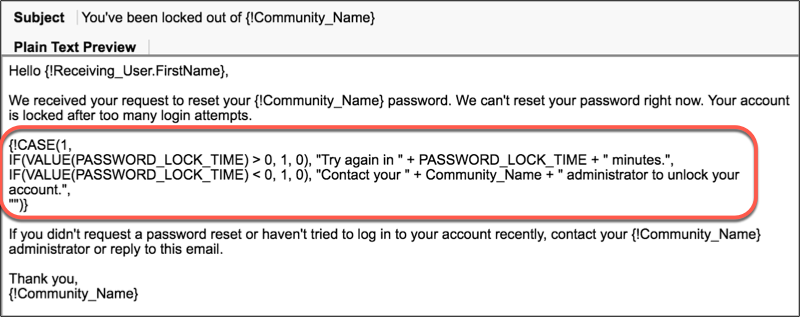
You can customize the email template you send to users when they attempt to reset their password after getting locked out of your Experience Cloud site due to too many failed login attempts. You can change the look to match your brand and how and when users can unlock their accounts.
Required Editions
| Available in: Experience Builder site |
| Available in: Enterprise, Performance, Unlimited, and Developer Editions |
| User Permissions Needed | |
|---|---|
| To customize or publish an Experience Cloud site: |
|
Users are unable reset their passwords when their accounts are locked. Depending upon their password policy, they may need to wait awhile or contact an admin to unlock their account before they can reset their password. Admins set the password policy, including the maximum allowable invalid login attempts, on the site user’s profile page. This password policy determines the next steps users take to unlock their account. The default email template includes a formula that checks the profile’s password policy and pulls that information into the notification sent.
The user lockout email template is available to Experience Builder sites as of Summer ’18.
- From Setup, enter All in the Quick Find box, and select All Experiences. Next to your site, click Workspaces.
- Select Administration, and then select Emails.
-
Under Email Templates, click
 next to User Lockout, and select
Experiences: User Lockout Email.
next to User Lockout, and select
Experiences: User Lockout Email.
-
Click Save.
Your site is set up to send notifications to users when they’re locked out of their accounts.
-
To change the formula or make other customizations, edit the email template.
 Note
Note- The formula included in this template is only for lockout emails. When applied to another email type, the formula returns a blank message.
- The
{!Community_url}merge field isn’t available for the lockout template.
- From Setup, enter Email Templates in the Quick Find box, then select Classic Email Templates.
- Next to Experiences: User Lockout Email, select Edit.
- Edit the text in the email body. To personalize your email content, use the available merge fields listed at the top of the page.
- Click Save.