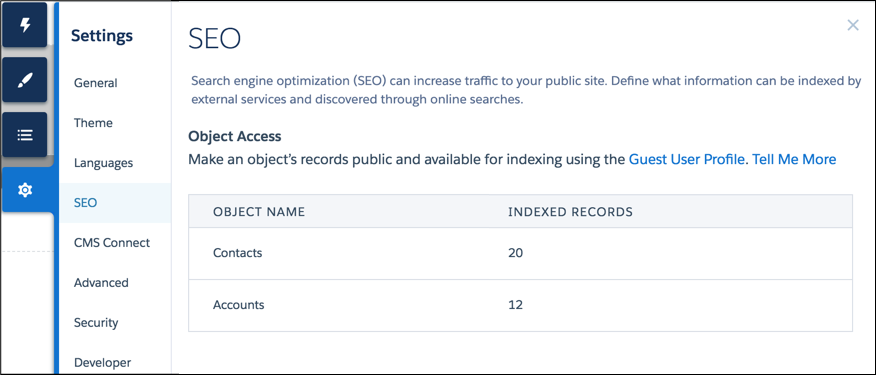
When you make your site public, search engines can index the pages of your Experience Builder site. However, to ensure that you don't expose sensitive data, the data displayed by objects on those pages aren’t public. Instead, you must specifically make those objects and their associated fields publicly available for indexing by search engines.
Required Editions
| Available in: Salesforce Classic and Lightning Experience |
| Available in: Enterprise, Performance, and Unlimited Editions |
| Applies to: LWR and Aura sites |
| User Permissions Needed | |
|---|---|
| To customize an Experience Cloud site: |
|
| To publish an Experience Cloud site: |
|
The guest user profile controls what unauthenticated users and search engines can see in a publicly available site. To make a standard or custom object’s records available for indexing, provide Read access to that object and its fields. Every instance of that object, regardless of page location, is added to the sitemap.

Note
- To ensure that object data is available to search engines, review the sharing rules, field-level security (FLS), and permission sets assigned to an object. Even though an object and its fields are public, Salesforce security settings still determine guest user access to this data.
- Ensure that all sensitive objects are private, even objects used in private pages that aren’t included in the sitemap. All public pages and public objects are discoverable because search engines use the sitemap only as a starting point to identify which site content is available for crawling.
- Regularly review and update the objects and records that are public through your guest user profile. This best practice controls the scope of your sitemap and helps keep your site secure.
- To be included in your sitemap, knowledge articles on Aura sites must have at least one navigational topic assigned to them.
-
For Topics, Feed Items, and Questions pages, enabling object read access or creating a
sharing rule isn’t required. Instead, to allow access:
- In Experience Workspaces, select Administration.
- On the Preferences page, select Give access to public API requests on Chatter and Let guest users see other members of this site.
- Save your changes.
-
For standard and custom objects, configure which objects are public using the guest
user profile:
- In Experience Builder, select the SEO setting tab.
-
Click Guest User Profile.
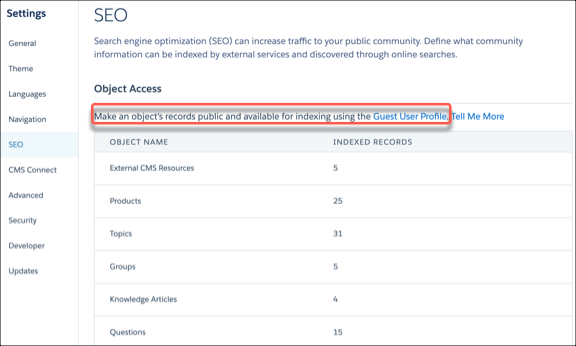
- Click Edit, and in the Standard Object Permissions section, give at least read access to the object.
- Save your changes.
-
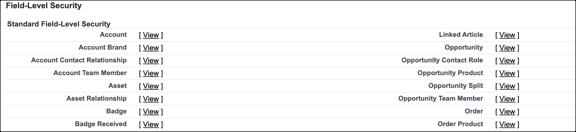
Ensure that the appropriate object fields have read access using the guest user
profile:
-
In the Field-Level Security section, click View beside the
relevant object.
- Save your changes.
-
In the Field-Level Security section, click View beside the
relevant object.
-
Create a sharing rule for guest
users for each public object.
 Warning Sharing rules allow immediate and unlimited access to all records matching the sharing rule’s criteria. To secure your Salesforce data and give your site guest users access to what they need, consider all the use cases and implications of creating a sharing rule.
 -
To make your changes live, publish your site.
It can take up to 24 hours for the list of available objects to appear along with the number of indexed records.